


Adding 5UF to Control Center (iOS – Edit)
The following procedure outlines how to add the 5UF application to your Control Center, enabling immediate VPN activation directly from the system interface.
Step 1 — Access the Control Panel
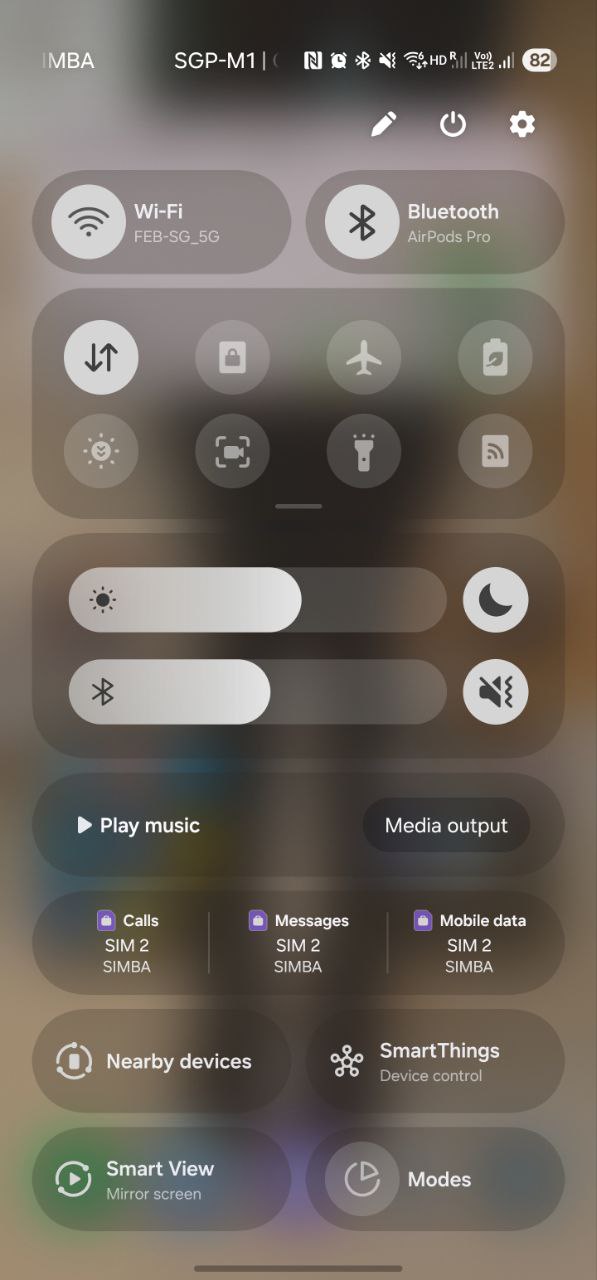
Swipe downward from the top-right corner of the display to reveal the Control Center.
Step 2 — Enter Edit Mode
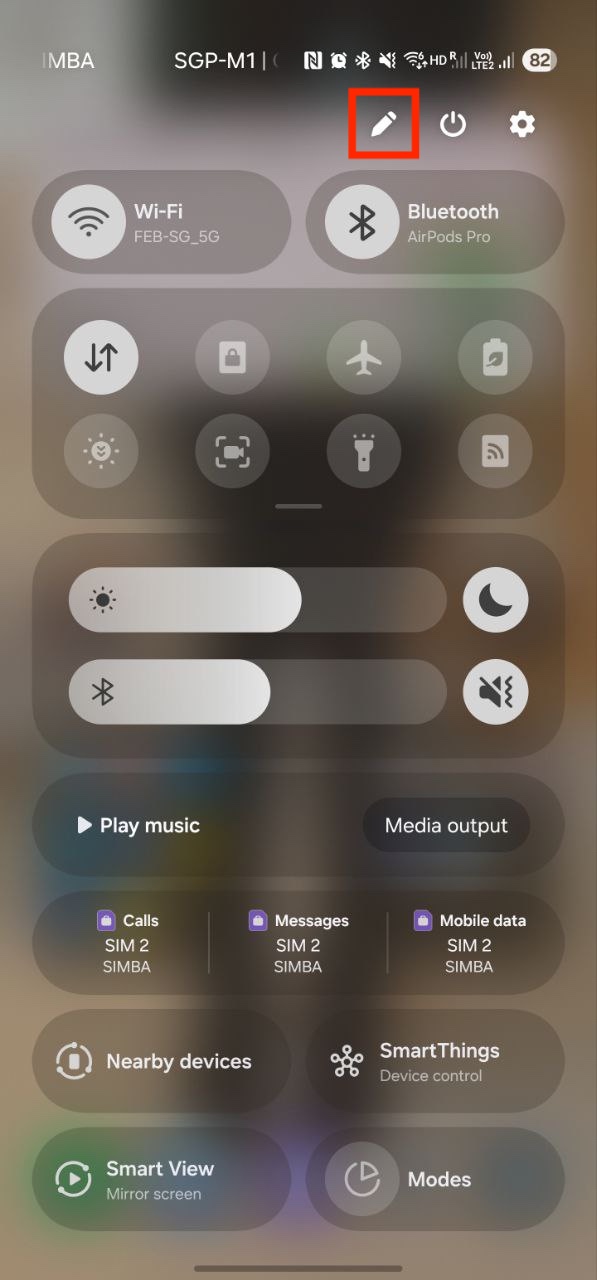
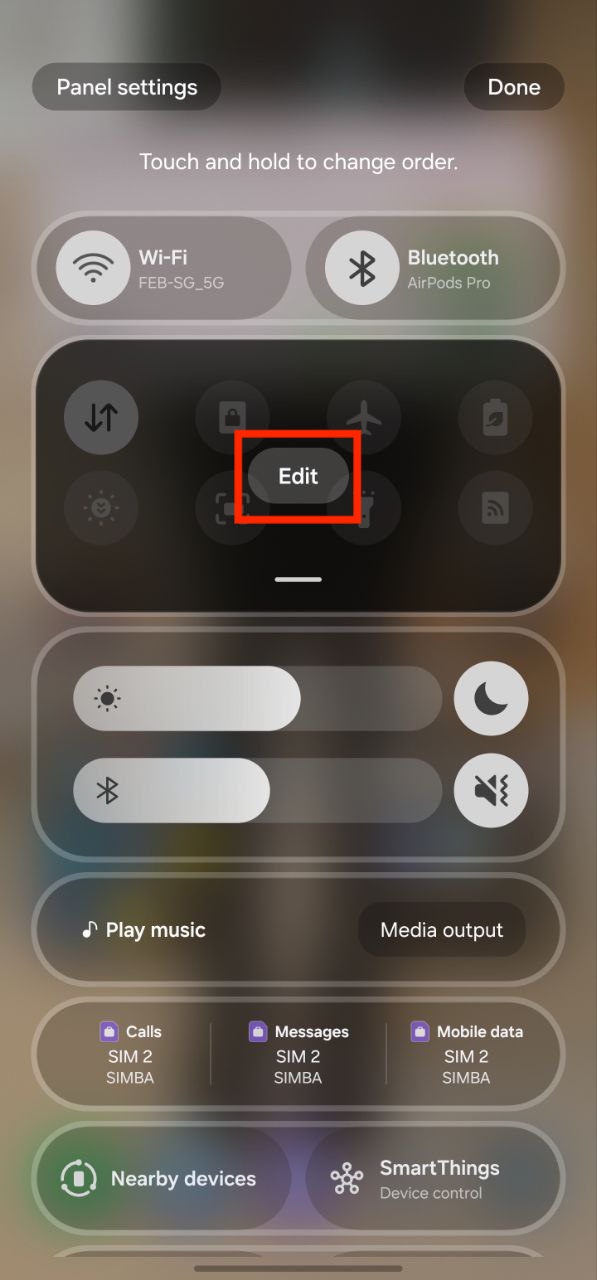
Click the edit button on the top right corner of the screen to enter edit mode.
Step 3 — Add the 5UF Control
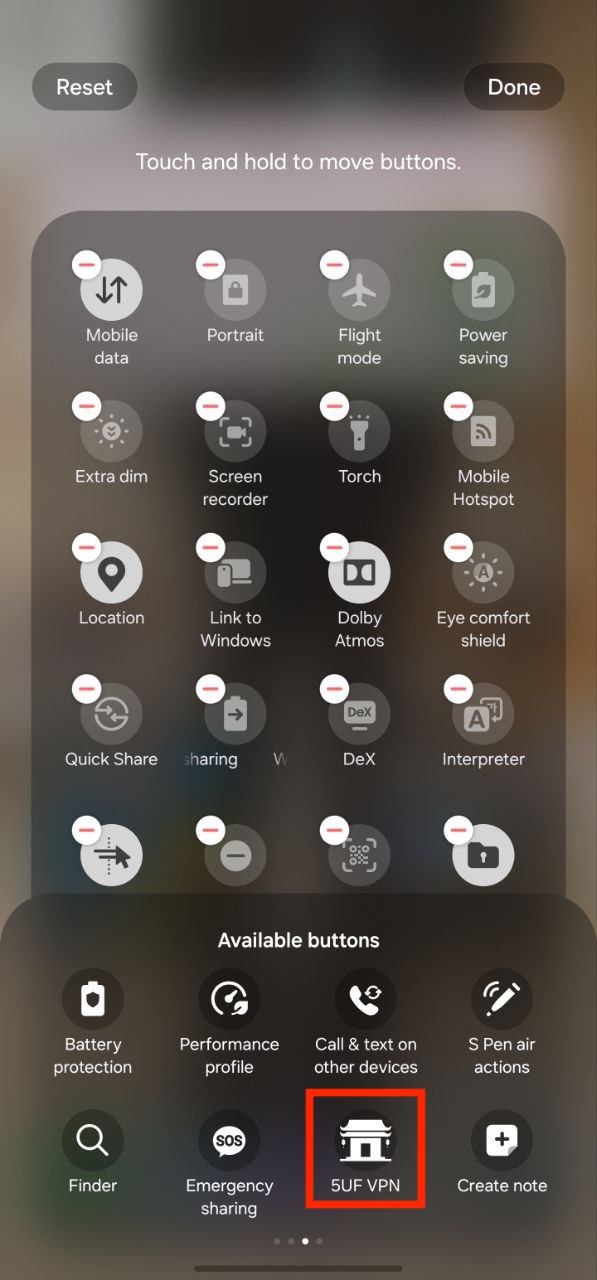
Select the 5UF application from the available buttons at the bottom of the screen to add it to the control panel.
Completion
Once the control has been added, the 5UF VPN can be activated instantly by tapping the 5UF icon within the control panel.