


FAQ
What are human customer support working hours? 
Human agents handle tickets, emails, and similar channels during standard Singapore business hours.
- Hours: 9:00 AM – 6:00 PM daily
- Time zone: UTC+8 (same as Singapore, Beijing, Hong Kong, and other GMT+8 regions)
Requests sent outside these hours are handled on the next business day. For urgent connectivity checks, see our FAQ or in-app help first. Thank you for your patience.
What is the difference between relay nodes and direct nodes?

Relay (transit) nodes send traffic to a relay inside mainland China first, then forward it toward overseas destinations over dedicated or optimized backhaul. That path is often more predictable than raw public-internet crossings, which can mean better stability and higher peak performance for cross-border use. Building and operating relays costs more, so relay plans may differ from plain direct routes in pricing or lineup.
Direct nodes rely more on the public internet, connecting straight to overseas servers. Cross-border public paths may see packet loss, throttling, or intermittent blocking in some regions or hours. Even when a route works, speeds can plunge at busy times. If you are in mainland China and need reliability, relay lines are usually the safer choice.
5UF is among the few providers that can offer lawful mainland relay capacity alongside standard options. We also tune routing for selected sites and services. Example: some Hong Kong nodes may not work well with OpenAI ChatGPT over a plain path, but with relay and routing optimization, Hong Kong and similar regions can reach those AI services more reliably. If a specific AI site or service fails for you, contact support so we can prioritize routing fixes.
Available nodes depend on the app and the list on our site; plans differ in node types and counts. See your subscription details for what applies to you.
How to quickly select a server and run speed tests in the 5UF VPN app
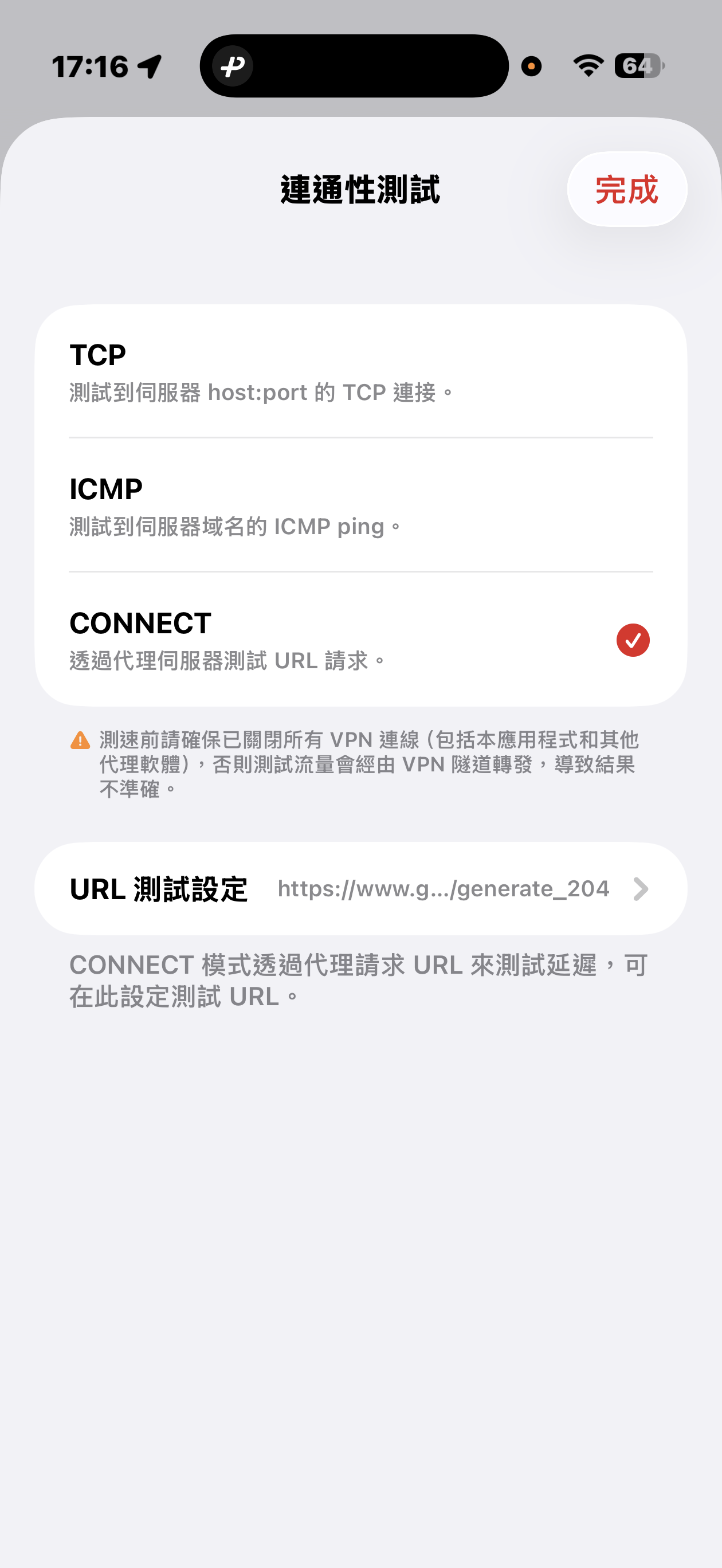
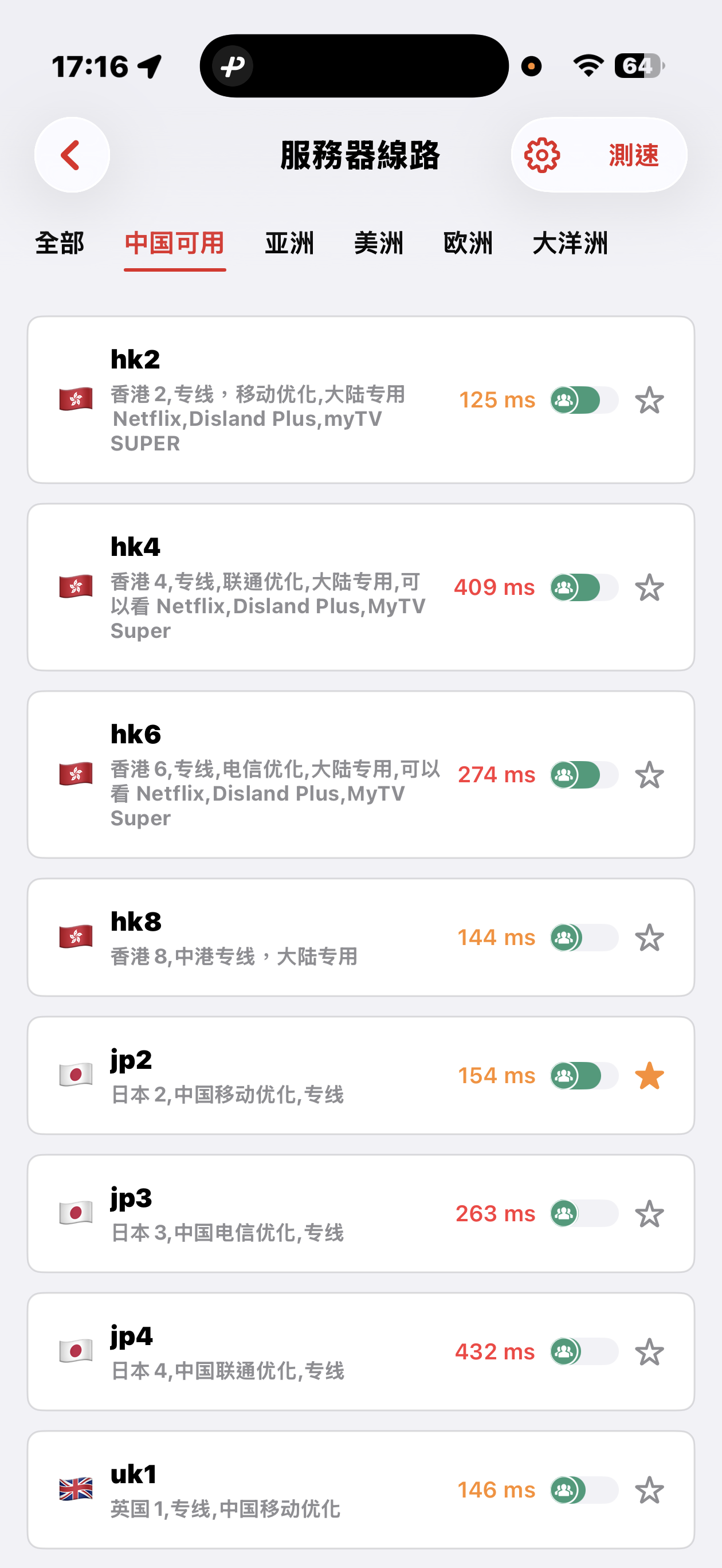
The 5UF VPN app offers quick connectivity tests from the server list screen: tap Speed test at the top right (sometimes next to a settings icon), open Connectivity test, then pick a method.
Three test modes
- TCP: Measures how long it takes to complete a TCP handshake to each server host and port. The app runs multiple probes and shows an average so you can compare routes quickly.
- ICMP: Sends ICMP echo (ping) to the server hostname, similar to the ping tools built into desktop and mobile systems, to see round-trip latency.
- CONNECT: Issues an HTTP(S) request to a test URL through the proxy path, which best mimics real VPN usage. It is usually the slowest mode, but in heavily restricted networks it helps find nodes that still work. You can change the test URL under URL test settings.
Before testing, disconnect all VPN and proxy software, including this app. Otherwise traffic may still go through a tunnel and the numbers will not reflect your raw local path.
Mainland China: Strict blocking may make some overseas nodes unreachable; that can be normal. Use the Available in China category for optimized dedicated lines that aim to stay usable under heavy filtering, with carrier hints for China Mobile, China Unicom, and China Telecom. Pick a line that matches your ISP or SIM.
Choosing a server: Auto-select uses TCP results, then picks one server at random from among the fastest, balancing speed and load. You can also browse by geography (for example Asia, Americas, Europe) and choose manually.
Why are servers fast at peak hours? How does the Mainland China–Hong Kong dedicated line keep service stable?
Many people ask whether a VPN gets slow or flaky during evening peak hours. For users in Mainland China, our design relies on contracted dedicated circuits between Mainland China and Hong Kong: you get committed, non–best-effort bandwidth on a path that does not compete with the busiest public international internet exits at night. The cross-border access leg therefore usually stays low-latency and predictable at peak times, on carrier-grade private connectivity with the SLAs that come with it.
Important distinction: once traffic leaves our Hong Kong edge toward faraway destinations (for example services that only have a US front door), it crosses Hong Kong’s international interconnects and submarine segments. During Hong Kong peak hours, that international segment can congest. You may then notice a few sites or apps feel slower—that is usually the HK→destination path, not our Mainland–HK dedicated access “throttling.”
Major apps are generally optimized for Hong Kong and APAC with local or nearby points of presence, so day-to-day browsing rarely shows those effects. A smaller set of services that mostly live in the US and hit a busy path are more likely to feel slower at peak.
We have served the China market for sixteen years. Planned work, major events, and routing updates are announced through our official news feed; you can browse the archive at news and past notices.
Where can I read release notes after an app or website update?
Major releases and infrastructure changes are announced under News. The app may also show its own upgrade prompts—follow in-app release notes when you update.
Can I get an invoice after subscribing or paying?
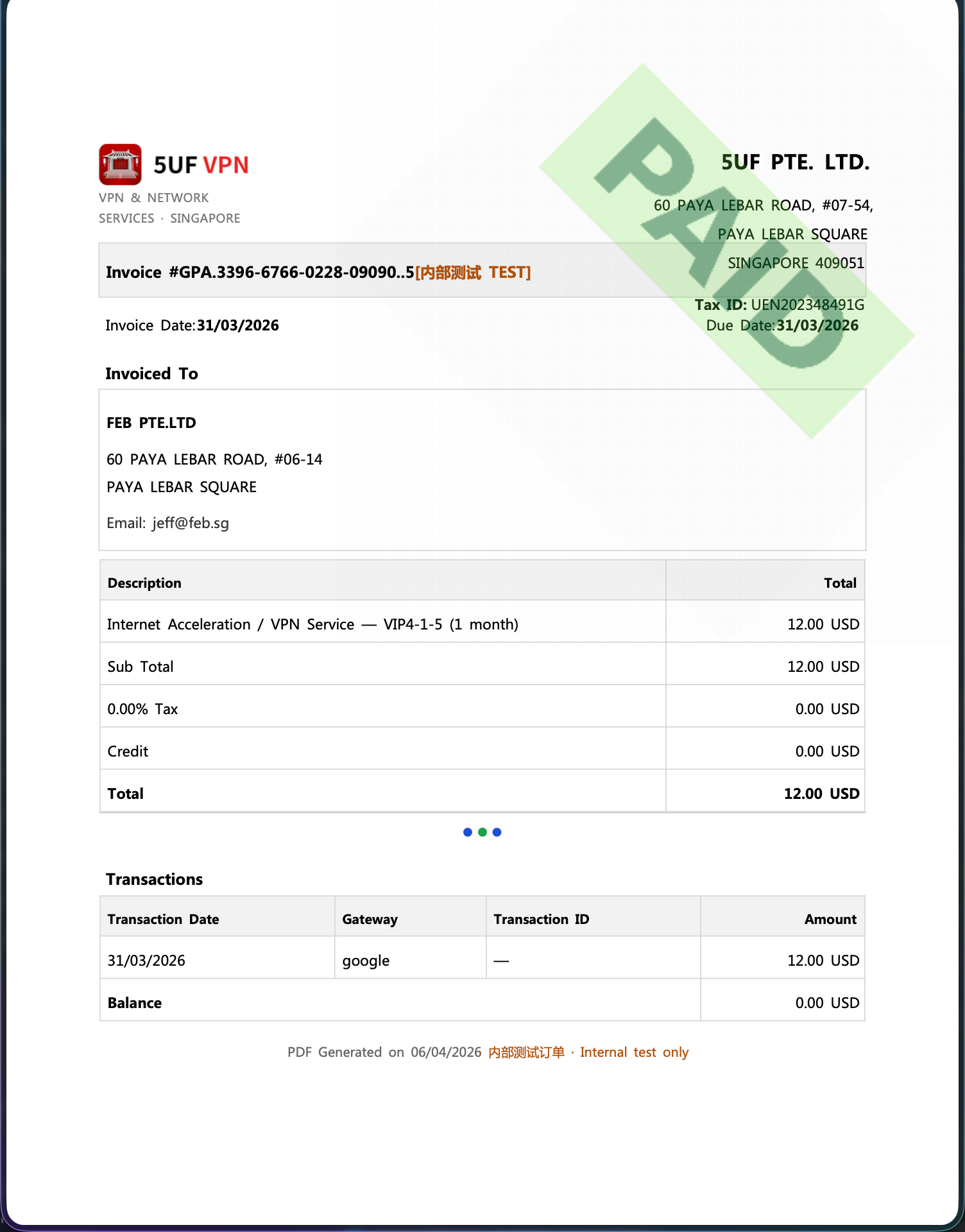
Yes. We provide a formal invoice for every successful payment, suitable for reimbursement and accounting records.
Our company is registered in Singapore and meets its tax obligations there. The invoices we issue follow formats recognised in Singapore (IRAS) for compliant tax documentation.
If you need a Mainland China VAT fapiao or other PRC tax invoice, we cannot provide that at this time.
How to download: sign in and open My Orders, then download the invoice for each payment from its order row.
Invoice fields: On the invoice download page you can enter or edit the bill-to name, company name, address, email, and other fields shown on the PDF. These are separate from your profile fields on the website—you can fill them in any way your accounting requires, update them, and re-download anytime.
Issue date: Each time you generate or download with the current values, the invoice/issue timestamp on the PDF will refresh for that action—refer to the file you just downloaded.
Clearing saved data: If you do not want to keep the entered billing details on the page, use the clear/reset option where available (see the order/invoice download page). Clearing does not change the payment record itself; it only affects whether those details are prefilled next time.
Using Sing-box VT on Mac with 5UF VPN
To use a third-party client on macOS, install Sing-box VT from the Mac App Store (third-party software, not published by 5UF). 5UF serves a Trojan (Xray) compatible profile as a sing-box subscription that includes server lists and routing rules.
1. Install the app
You need a non-Mainland-China Apple ID. Install from the App Store: Sing-box VT
2. Copy your sing-box URL
Sign in to the 5UF user panel in a browser and open the Xray (Trojan) configuration page (typically /xray_config). Copy the full sing-box configuration subscription URL with the one-click copy button.
That URL embeds your private UUID—do not share it. If it may have leaked, use Change UUID on the same page so the old URLs stop working immediately, then copy the new sing-box link and import again.
3. Import into Sing-box VT
In the app, add or update a profile by importing from URL / subscription (wording depends on the app version), paste the copied link, save, and let the app refresh nodes and rule sets.
4. Connect and test
Enable the profile and visit any site that shows your public IP to confirm traffic exits through the VPN. If import or connection fails, check that the URL was copied completely, your account is active, and the network is not blocking the endpoints; generating a new UUID and re-importing often resolves stale links.
Screenshots (UI may change between releases):
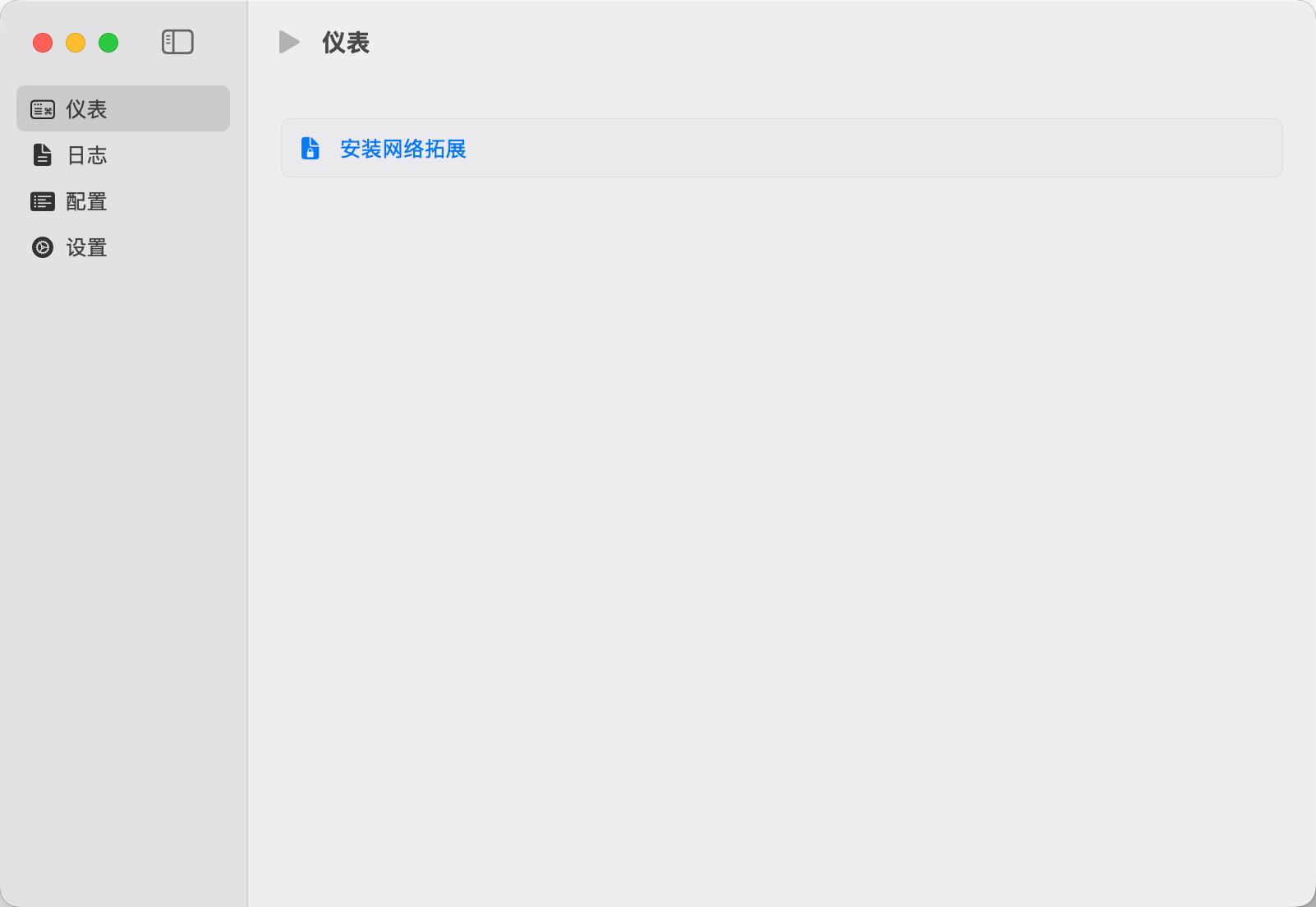
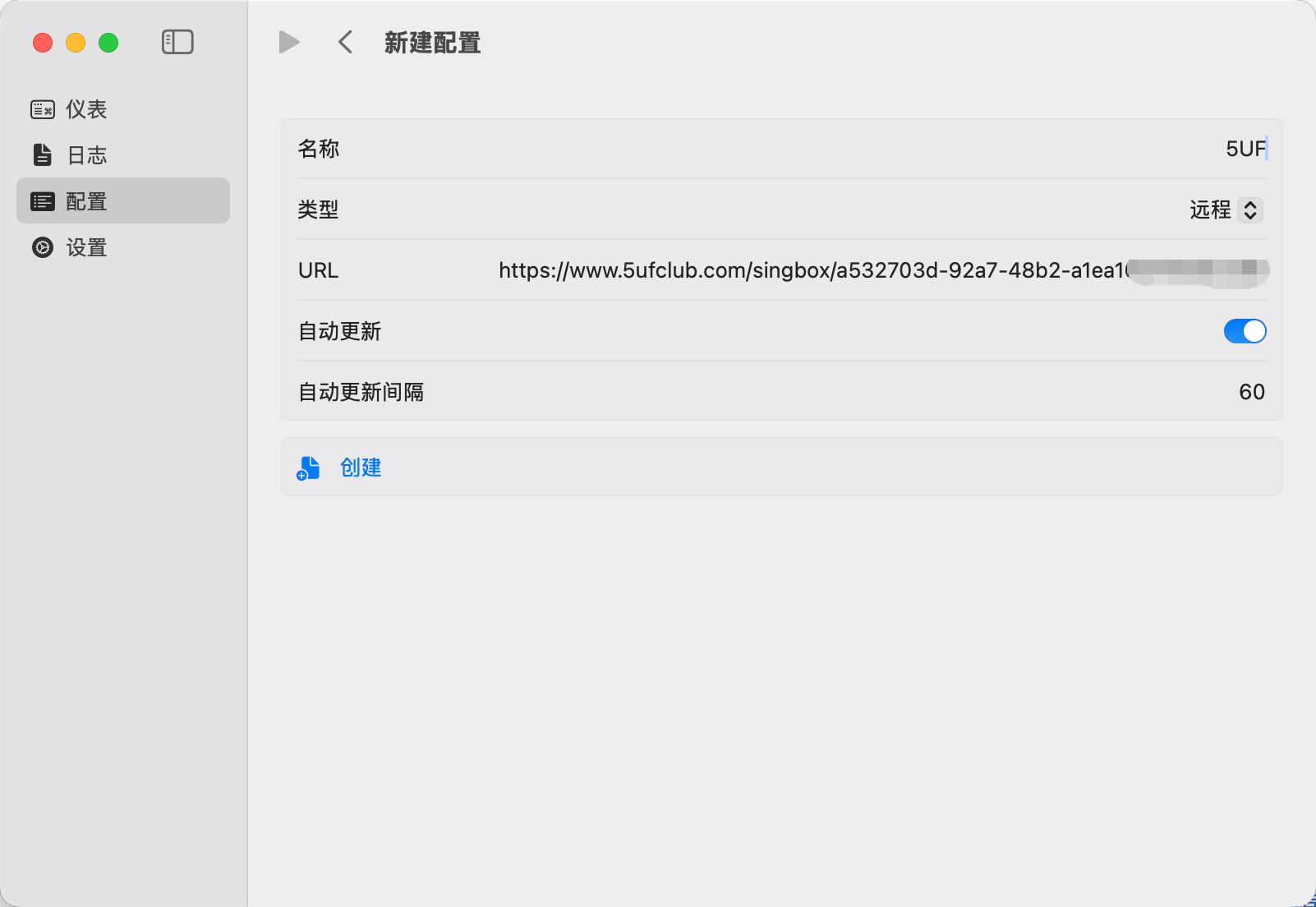
For the official all-in-one experience, use the 5UF VPN Mac app from our site. This article targets users who prefer the sing-box ecosystem.
What if the new app does not run on Windows 7 or Windows 8?
The latest official 5UF VPN app for Windows is built and tested for newer Windows releases. On Windows 7 and Windows 8, which are largely out of mainstream support, you may see install failures, startup issues, or connection problems. We cannot guarantee the same experience as the new app on those systems in the near term.
If you must stay on an old Windows version, consider one of the following:
- Upgrade Windows to a supported release your hardware can run (for example Windows 10 or 11), then install the latest official app; or
- Use a legacy Windows build of our client where still supported (feature and security updates may lag; follow site or support guidance); or
- Use Super VPN (browser extension) for browser-based access; or
- Use a third-party VPN client with manual setup: How to use a third-party app with 5UF VPN on Windows (tutorial).
Whenever possible, we still recommend a supported OS + latest official app for the best stability and security.
What if the official app has compatibility or connection issues on iOS?
Make sure 5UF VPN is the latest version from the App Store. Builds 5.3 and newer officially support iOS 16 and later, fixing most cases where the app could not run on iOS 16. If your iPhone or iPad runs iOS 16+, update the app to 5.3 or higher (use the version number shown in the App Store).
More details: iOS client update announcement.
On iOS 15 or earlier, or if the hardware cannot upgrade to iOS 16+, the official app may still be limited. You can:
- Upgrade iOS as far as your device allows, then install or update the official app; or
- Use a third-party VPN client with 5UF where appropriate.
Tutorial: How to use a third-party app with 5UF VPN
If issues remain on 5.3+, contact support with your iOS and app version.
Can I still buy old plans, purchase extra connection slots separately, or get discounts?
We have streamlined our plans and purchase flow under an updated company policy. The goal is a consistent buying and usage experience across platforms and less confusion when choosing options.
Under the current policy, only the “Personal Professional” tier is available for new purchases. It allows up to five devices online at the same time. Extra connection slots or add-on device seats are not sold separately.
What “Personal Professional” maps to: it aligns with the former VIP4-1-5 user group (legacy naming VIP4-X-5, where X is the billing term and 5 means five concurrent connections). The new strategy simplifies checkout so newcomers are not lost in a maze of retired SKUs.
Why “unlimited-style” subscription beats metered anxiety: streaming moved from pay-per-view to subscriptions largely for UX. Heavy daily users usually get better peace of mind on a flat plan; operators may earn less per byte, yet reverting to an iTunes single-track purchase model—deciding before every song—would feel hostile and impractical.
VPN is heading the same way: regular users should not constantly worry about blowing a traffic cap. Use the service on devices you personally own; we do not recommend sharing one account among many people, which may violate acceptable use and hurt security or quality.
For promotions or discounts, follow the checkout page and official announcements; limited-time offers appear on the website or in the app when available.
What is the app “availability test” on the home screen, and how does it work?
The availability test simulates requests to dedicated check URLs for selected apps. Based on what comes back, it can help you gauge whether your current network can reach those apps and whether you appear to fall into a given country or region’s service area.
Please note: results are not guaranteed to be accurate, and not every service can clearly report a country or region. The feature is meant for a quick, practical snapshot of app reachability in your current environment—not a definitive geo or compliance check.
Many availability checks are built in. You can add or remove the apps you care about in Settings.
Each run is very fast, uses very little data, and has a minimal resource footprint on your device.
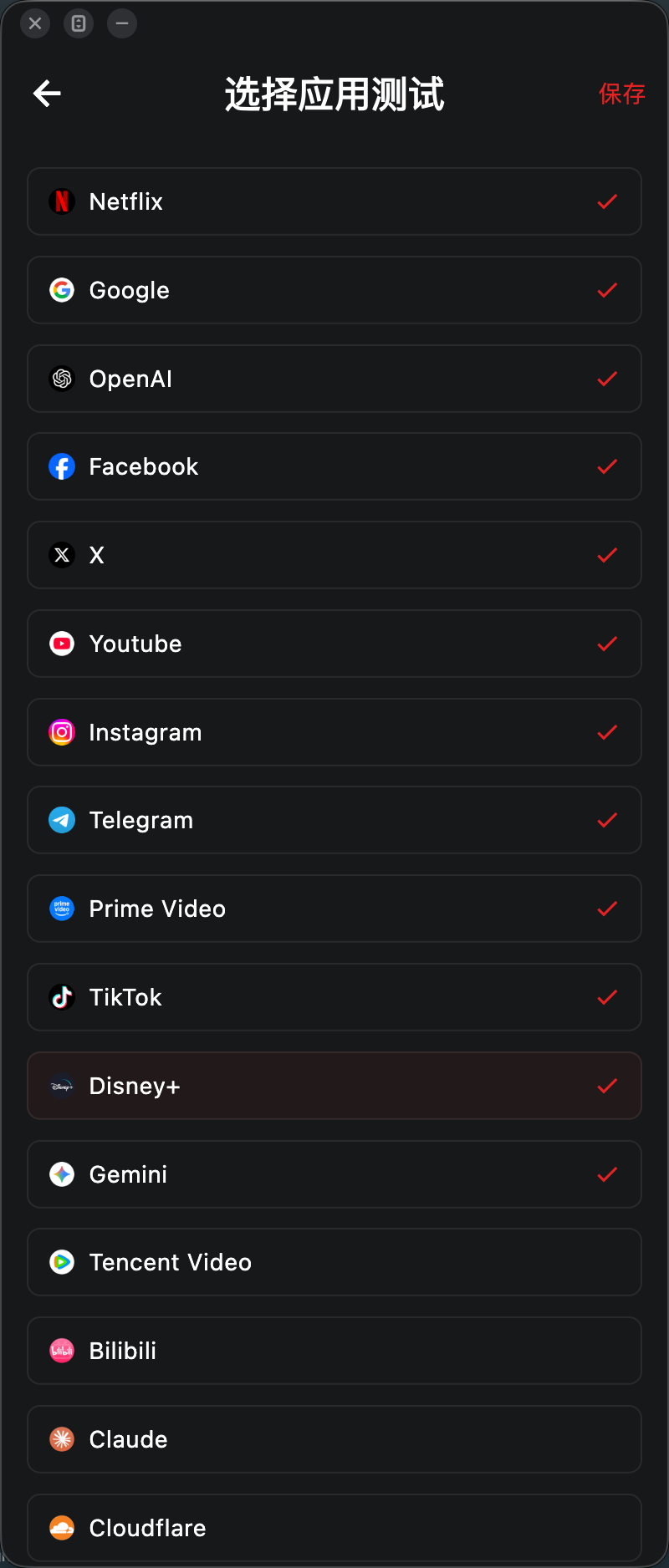
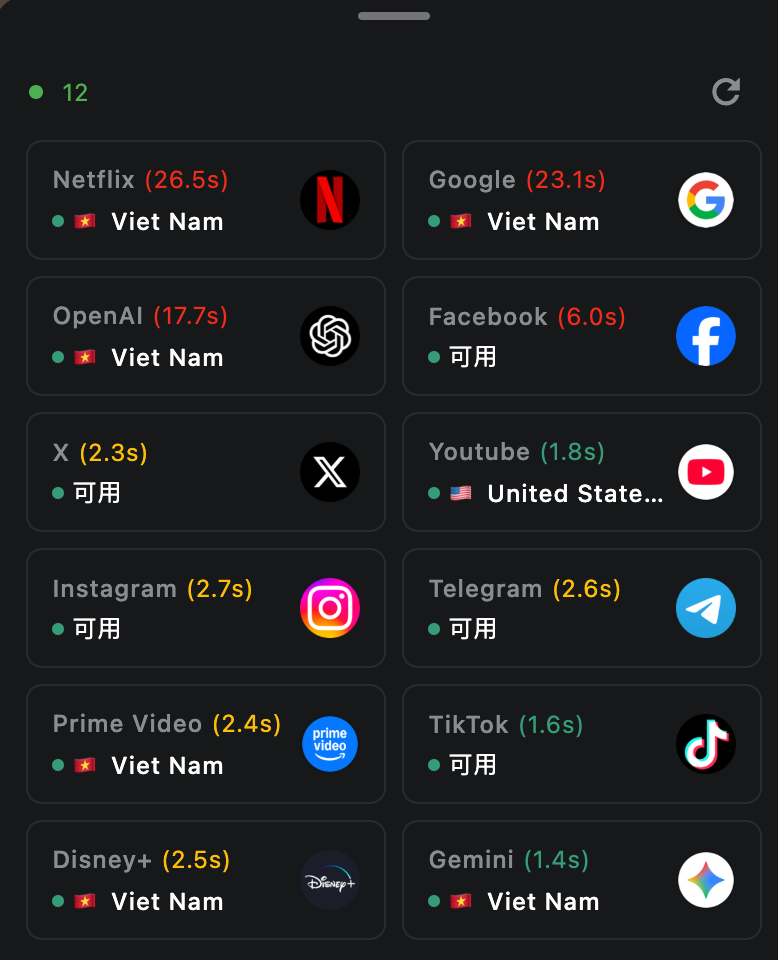
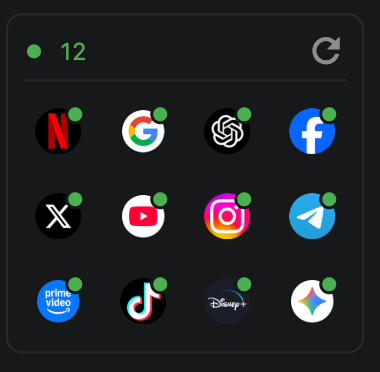
What if Super VPN is unstable?
Try changing network or switching to another server. If you need a more stable long-term setup, use the latest 5UF VPN app instead of relying on the old browser-based solution.
Why does the extension keep asking me to sign in again?
- Local extension data may be corrupted.
- You may be entering the wrong password type.
- Your browser may have cleared the extension storage.
Try signing in again first. If the problem continues, clear the extension data and add it again, or switch to the latest 5UF VPN app.
What is the compatibility password?
The compatibility password is kept for old protocols and legacy compatibility mode. It may be different from your normal app login password. Please follow the information shown in your account panel.
Why does it ask for my password again after I select a server?
In that case, you usually need to enter your compatibility password, not your normal app login password.
- When signing in to the account: usually use your normal account password.
- When a password prompt appears again after selecting a server: usually use the compatibility password.
Does Super VPN only work inside the browser?
Yes. Super VPN mainly works in the browser environment and does not route all system traffic like the latest app.
What is the difference between Super VPN and the latest app?
- The latest 5UF VPN app is better for regular use, with better stability and compatibility.
- Super VPN is more suitable for browser-based access and quick switching. It is not a full-system VPN.
Should I use Super VPN or the latest 5UF VPN app?
Super VPN is suitable for temporary browser access. For daily use, we still recommend the latest 5UF VPN app.
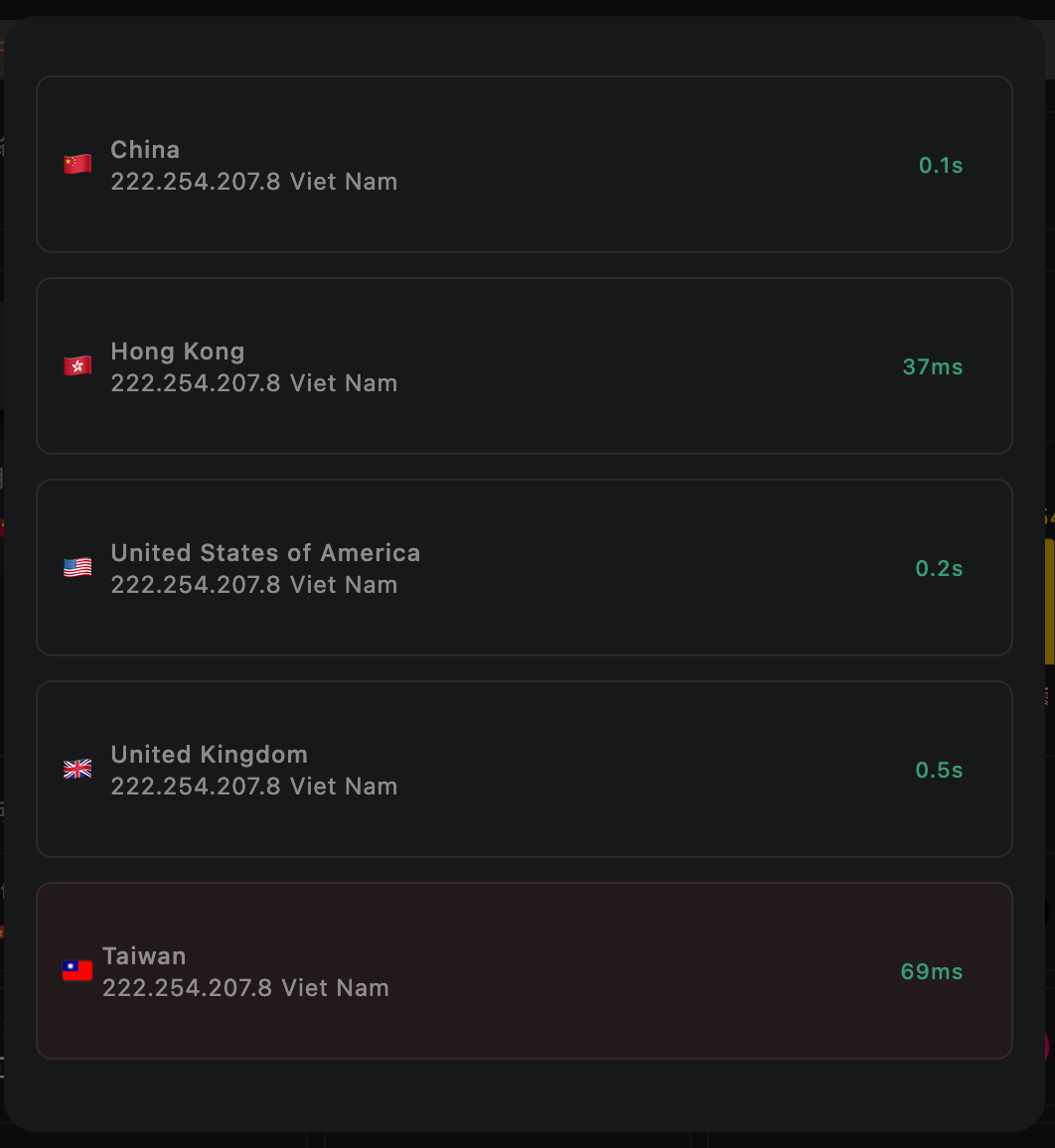
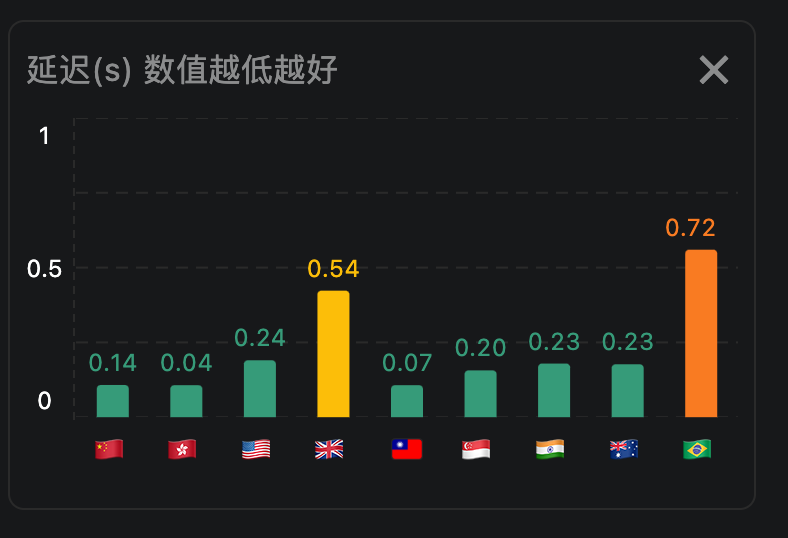
How does the 5UF VPN app home screen speed test work, and will it use much data?
On the 5UF VPN (V5) home screen, the speed test sends a very small HTTP request to our dedicated test page. The page only shows your egress IP, so data usage is minimal and it should not meaningfully affect your allowance or billing.
The test measures network latency (how quickly you can reach a given node), not your maximum download speed. Unlike many tools that download large files to estimate peak bandwidth, we focus on round-trip delay to that node only.
We take multiple samples and show an average. Lower numbers mean faster response (lower latency) to that node.
Multiple Connections Issue
If the app reports that the connection limit has been reached but you confirm you are not actually using more devices than your plan allows, wait a short while first: the system will usually remove stale sessions automatically.
If it still does not clear after about five minutes and you confirm no one else is sharing the account, you can:
- Open the online sessions page in a browser (sign in required): /transferlog/vpn/online/1/
- Or in the app: go to Settings, open your profile card, tap Online connections, then swipe left on a session to force disconnect it.
Important: If a device is actively using the VPN, a forced disconnect may reconnect immediately. Stop or disconnect the VPN on that device first, then force the session offline if needed.