

FAQ
On Windows, what if the Microsoft Store or other UWP apps can't go online? 
By default Windows doesn't let UWP apps such as the Microsoft Store, Mail or Weather use the local system proxy. In system proxy mode, their requests may be blocked by Windows before they reach 5UF, so they won't load or keep spinning. Turning on the virtual network adapter (TUN) as well doesn't remove this restriction.
Check and repair:
1. Open 5UF and go to Settings → Microsoft Store / UWP network check.
2. The app checks the system proxy, whether the selected app may use the local proxy, and whether Microsoft services are reachable.
3. Choose the affected app (the Microsoft Store by default).
4. If it says local proxy access isn't allowed yet, click Repair and click Yes in the Windows administrator prompt.
5. When it confirms that access is enabled and verified, fully close the app and open it again.
Repair only allows the selected app to reach local services; existing exemptions and routing rules are kept. If the Microsoft Store isn't listed, open the Store once and check again.
If some Microsoft services are still unreachable after repair, the problem isn't app permissions: check the server, DNS and routing rules, try switching to virtual adapter (TUN) mode in Settings and restarting the affected app, or use AI Diagnosis.
What keyboard shortcuts does the desktop app have?
The new desktop app can be used entirely from the keyboard. The macOS app now has a menu bar with all common actions; Windows / Linux use Ctrl shortcuts. The full list is under Help → Keyboard shortcuts.
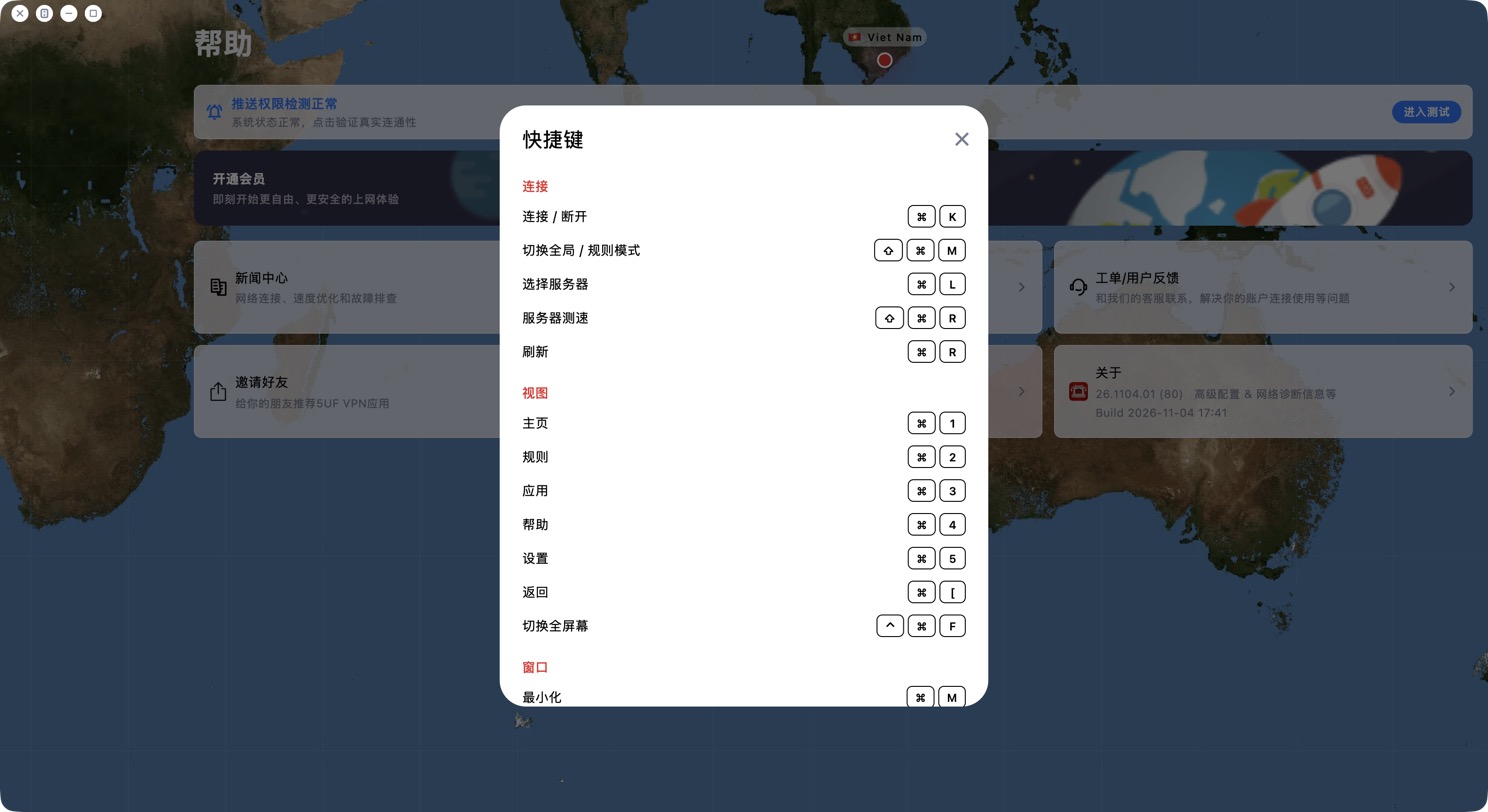
Common shortcuts (⌘ on macOS, Ctrl on Windows / Linux):
• Connect / disconnect: ⌘K
• Switch Global / Rule mode: ⇧⌘M
• Choose server: ⌘L
• Test server speed: ⇧⌘R; Refresh: ⌘R
• Pages: ⌘1 Home, ⌘2 Rules, ⌘3 Apps, ⌘4 Help, ⌘5 Settings
• Back: ⌘[
• Toggle full screen: ⌃⌘F (macOS)
General: Esc closes a dialog or goes back; Tab moves between buttons (Shift+Tab goes back) and shows a focus outline; Enter or Space activates the selected button.
What is "Block IPv6 traffic"? Should I turn it on?
The desktop apps (Windows / macOS) have a new Block IPv6 traffic switch on the right side of Settings. It is on by default.
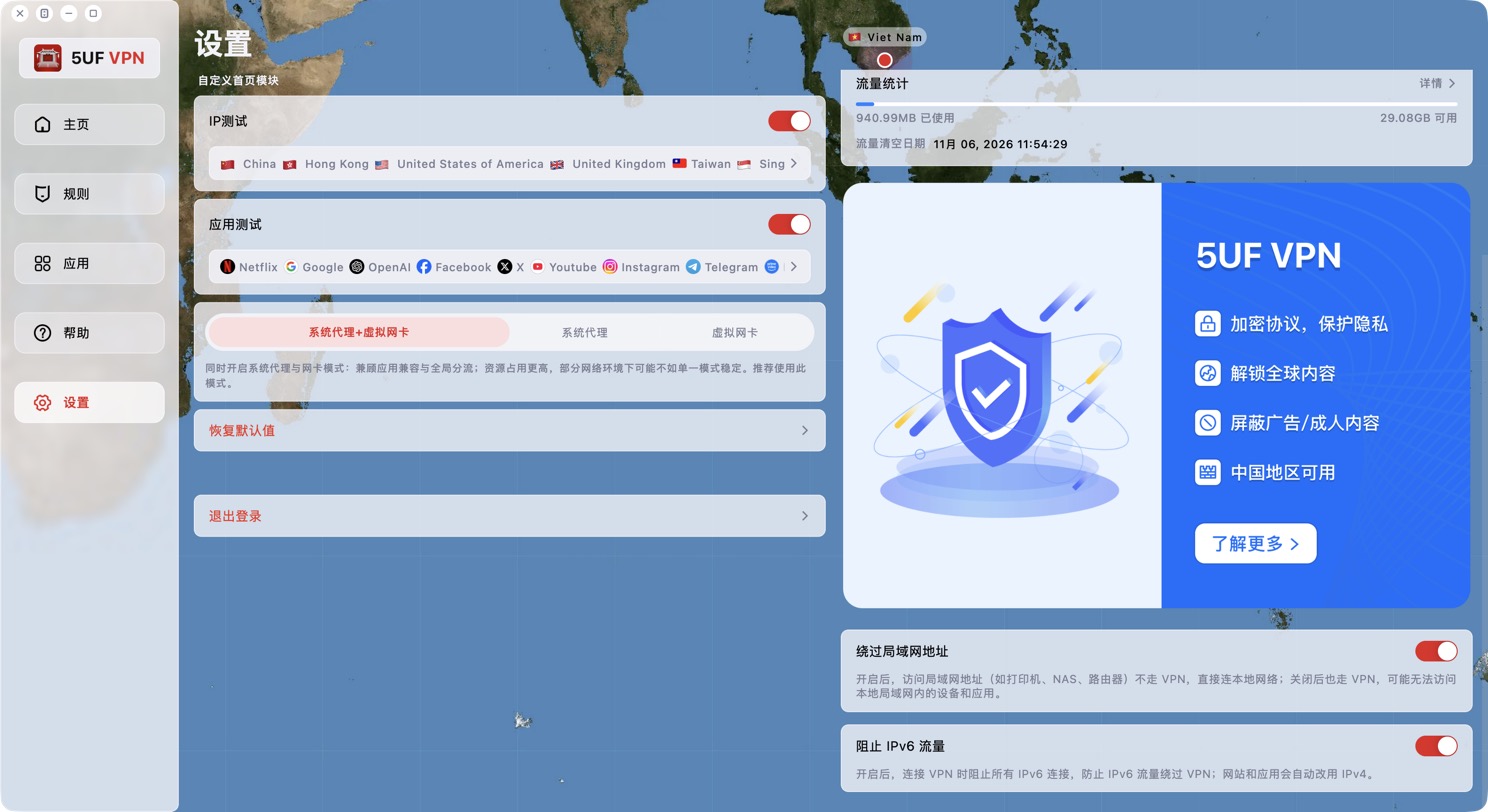
What it does: while the VPN is connected, all IPv6 connections are blocked so IPv6 traffic can't bypass the VPN and expose your real network address. Websites and apps automatically fall back to IPv4, so you normally won't notice any difference.
Recommendation: keep it on. Only turn it off if you really need to reach a service over IPv6. Changing it closes existing connections and takes effect immediately.
With it on, Exit IP Check shows "No IPv6" for IPv6, which is expected. The "Bypass LAN addresses" switch on the same page decides whether local devices such as printers, NAS and routers are reached directly; it's normally left on too.
How do I read the direct vs. VPN comparison in IP Test?
The new IP Test measures both direct and VPN connections at the same time, so you can compare them without disconnecting. Click the latency chart on the home screen to open it.
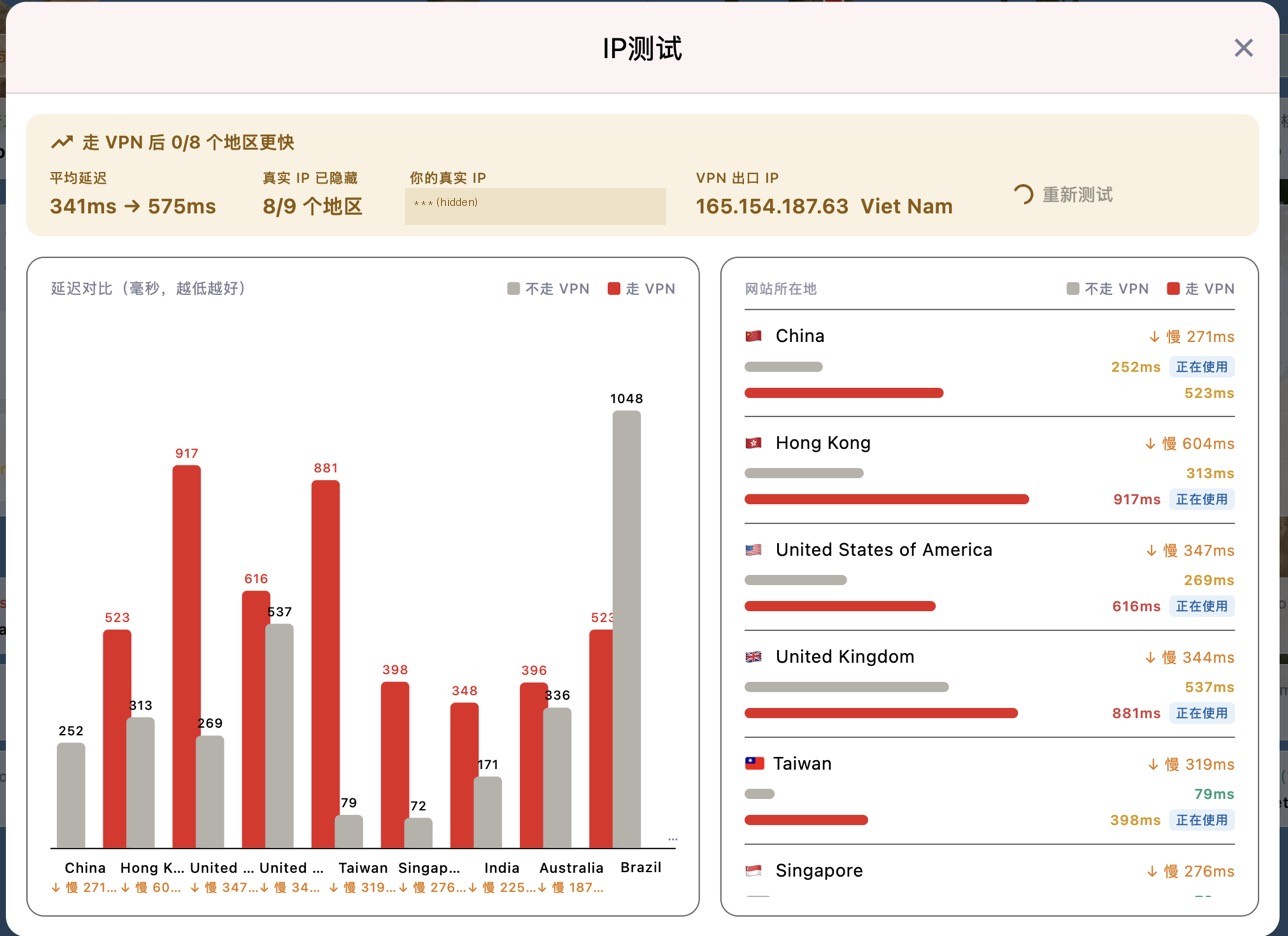
Summary at the top:
• Regions faster with VPN: how many regions have lower latency through the VPN than direct.
• Average latency: direct → VPN.
• Real IP hidden: in how many regions websites see the VPN IP instead of your real IP.
• Your real IP and VPN exit IP: these should be different.
Chart on the left, details on the right: grey is direct, red is VPN; lower is better. Each region is marked "In use" on the path your traffic actually takes under your current rules. For example, if mainland China sites go direct under your rules, the direct row is marked.
How to judge it: the VPN being somewhat slower than direct is normal, because traffic takes a longer route. What matters is that the regions you need are reachable with acceptable latency. If a region is very slow or fails through the VPN, try a closer server and test again.
What do the four cards at the top of the new desktop home screen mean?
The new desktop home screen has a row of cards at the top that show the current network status at a glance. Click any card to open the related settings.

1. DNS: whether DNS resolution is normal or poisoned, and whether the provider and location of the overseas and China DNS match what's expected. Poisoning detected while the VPN is off is normal. See "How can I change DNS to reduce DNS pollution issues?" for DNS settings.
2. Policy: Global or Rule mode, plus the filters that are on, such as ad blocking and IPv6 blocking.
3. Apps: apps that bypass the VPN (Global mode) or apps that use the VPN (Rule mode); "All apps use the VPN" if none are set.
4. Core: whether the core is working, plus connection counts:
• Green: normal connections (data received).
• Yellow: waiting (opened less than 10 seconds ago, no data yet).
• Red: timed out (open for more than 10 seconds with no data). Many red connections mean a server or network problem; try another server or use AI Diagnosis.
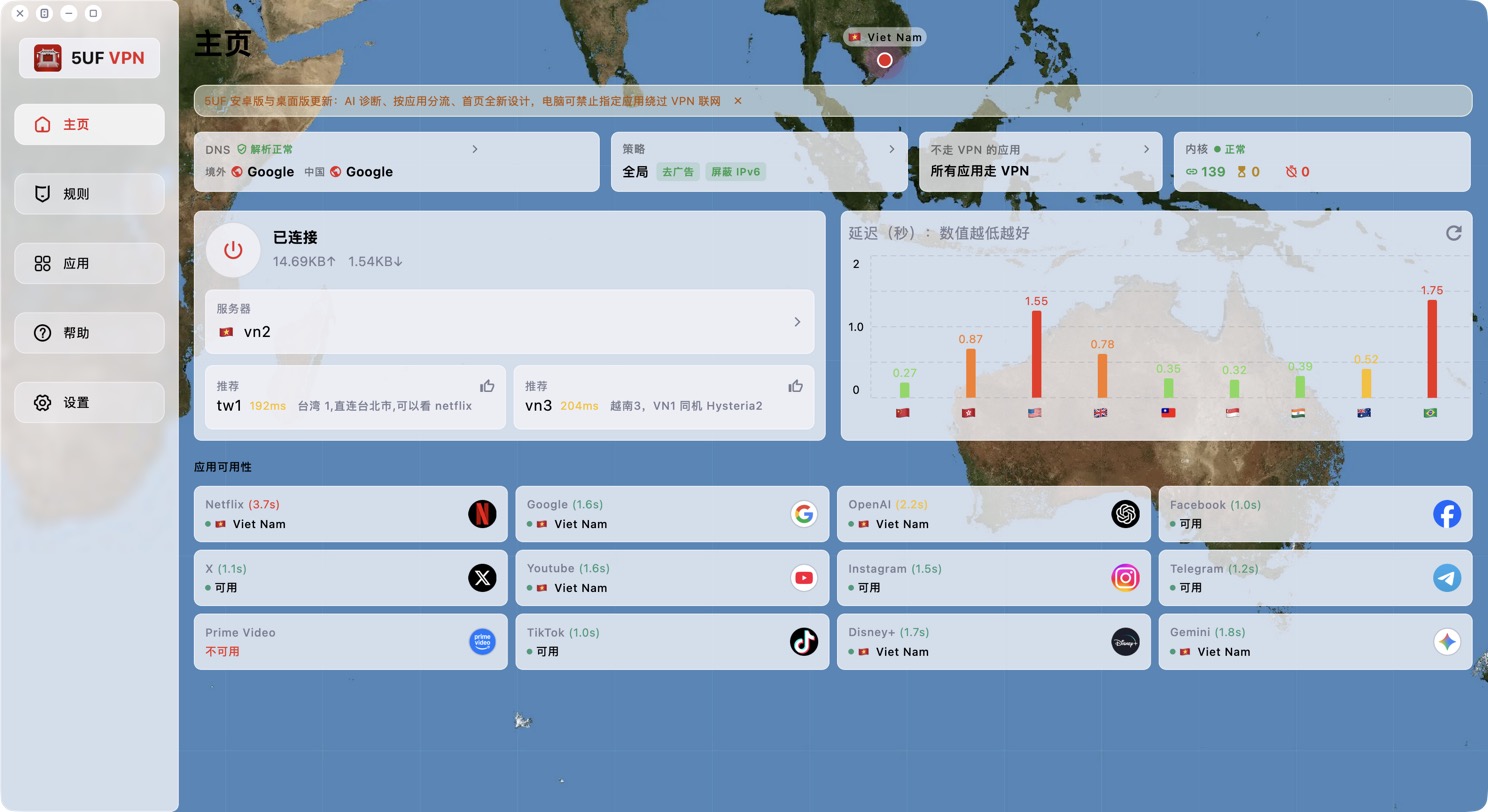
The desktop window can now also be maximized, with the map filling the screen; double-click an empty part of the map to switch between maximized and a comfortable size.
How do I use Exit IP Check to see an app's exit IP?
The Windows and macOS apps include a small tool, 5UF Exit IP Check, to verify that the VPN and your Apps page settings really work.
How to open it: click Open checker at the bottom of the Apps page.
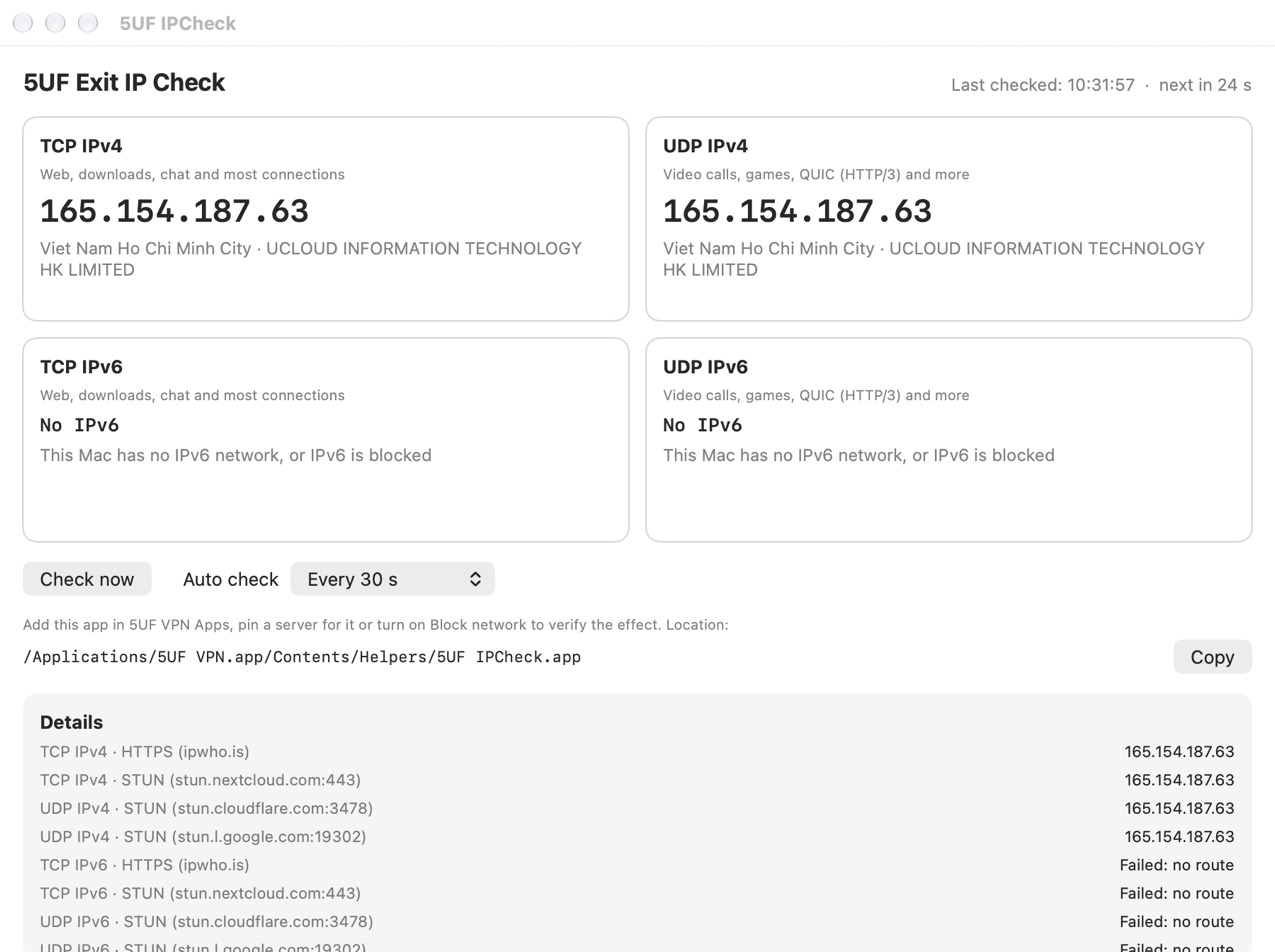
What it shows:
• TCP IPv4 / TCP IPv6: the exit IP for web, downloads, chat and most connections, with country, city and ISP.
• UDP IPv4 / UDP IPv6: the exit IP for video calls, games, QUIC (HTTP/3) and more.
• "No IPv6": this computer has no IPv6 network, or IPv6 is blocked (for example by Block IPv6 traffic). This is normal.
• "No network access": blocked, or the check server is unreachable.
• If TCP and UDP exit through different IPs, it warns that some traffic may not be going through the VPN.
It checks automatically at the chosen interval (every 30 seconds by default) and right away when the network changes (VPN connected or disconnected, Wi-Fi changed). When the exit IP changes it shows an alert, sends a system notification and records it in the change history.
Testing Block network: add the checker itself on the Apps page (click "Add to list"), turn on Block network, then disconnect the VPN: it should show "No network access". After connecting, it should show the VPN server's IP.
Testing a pinned route: pin an exit server for it; the IP shown should change to that server's IP.
On desktop, how do I pin an exit server for an app, or chain two servers?
After adding an app on the Apps page, each app has a Route option. The default is "Follow current server", the same server you chose on the home screen.
Pin an exit server: click "Follow current server" and choose a server from the list (you can search). The app then always exits through that server, and changing the server on the home screen doesn't affect it. Useful for sites, accounts or trading apps that need a fixed IP.
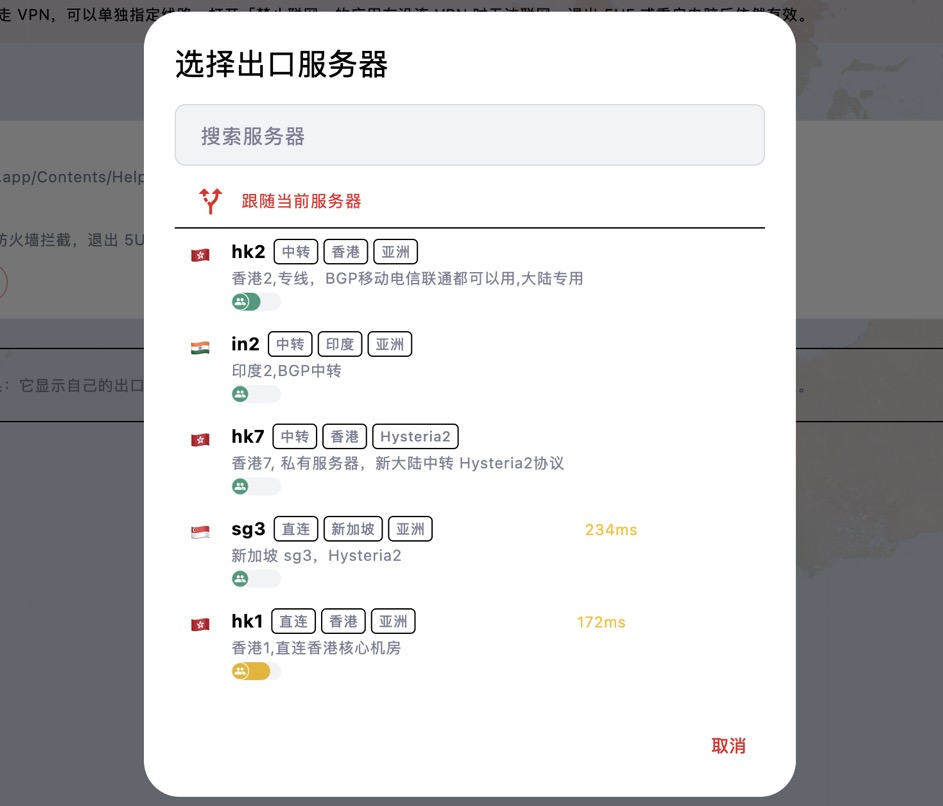
Two-hop chain: after choosing an exit server you can also choose a first-hop server. Traffic connects to the first hop, then through it to the exit server. Websites see the exit server's IP; the first hop only sees encrypted traffic. Both servers must be available for the app to go online.
To undo, choose "Follow current server". If the pinned server is no longer in the server list, the page says so and the app can't go online until you choose another one.
On desktop, how do I stop an app from going online without the VPN? (Block network on the Apps page)
Some apps (browsers, chat or trading apps) should only ever be used with the VPN, so they don't expose your real IP if you forget to connect. The Apps page in the Windows and macOS apps handles this.
How to set it up:
1. Open Apps in the navigation, or press Ctrl+3 (⌘3 on macOS).
2. Click Add app and choose the program.
3. Once added, all of this app's traffic goes through the VPN while connected, instead of following the rules.
4. If needed, turn on Block network under it. When it shows "Active", the app has no network access at all while the VPN is off.
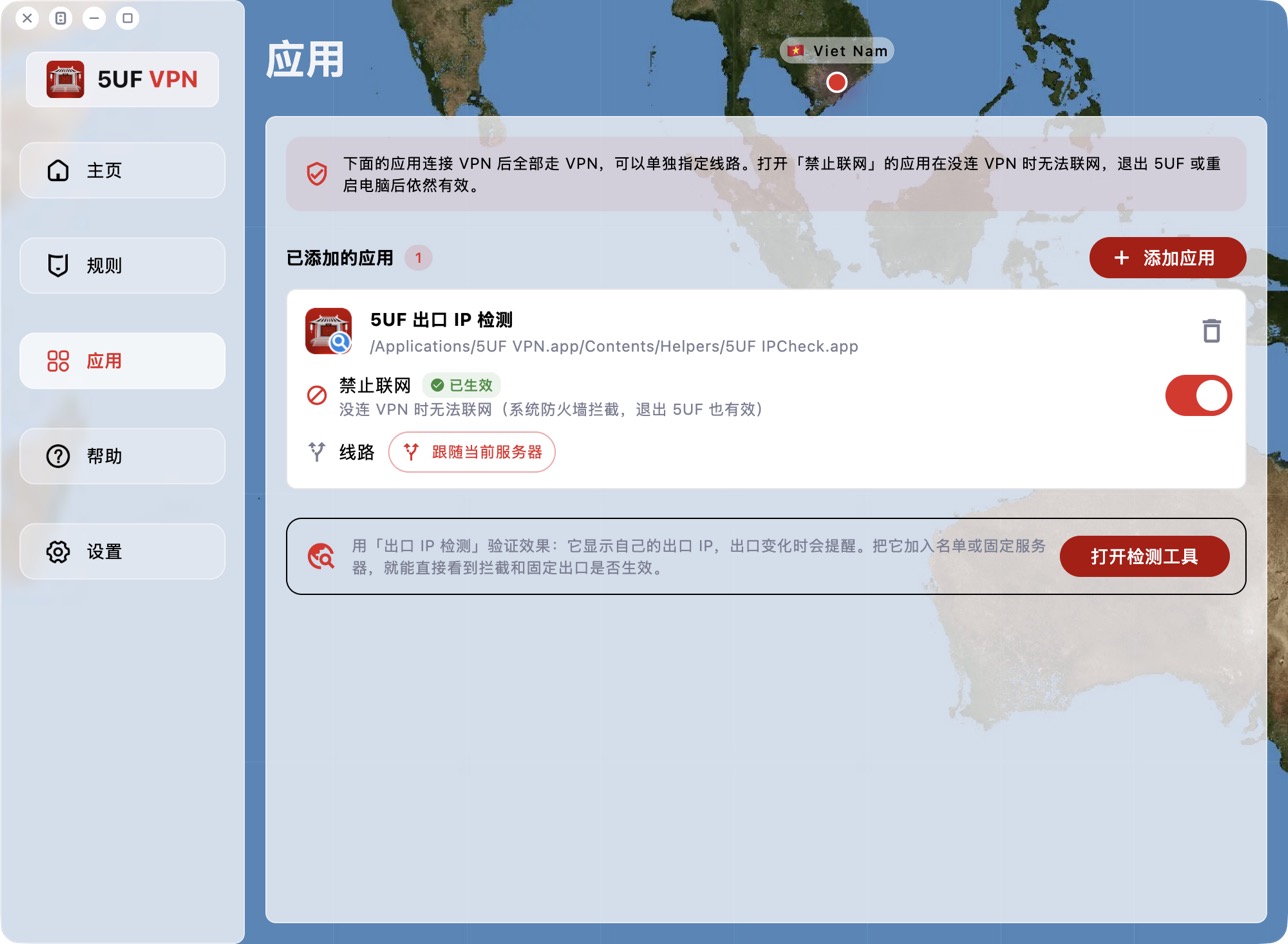
Block network is enforced by the system firewall, so it stays in effect after you quit 5UF or restart the computer. Turn the switch off or remove the app to restore normal access.
First time on macOS: Block network uses a macOS network filter extension. It's installed only the first time you turn the switch on; if you never use the feature, nothing is installed.
1. When macOS says the system extension was blocked, click Open System Settings in the app and turn on 5UF VPN under Network Extensions.
2. When macOS asks whether 5UF VPN may filter network content, click Allow.
The extension only blocks apps with Block network turned on; other apps are not affected.
Common messages:
• "One more step…": the network extension switch isn't on yet. Click Open System Settings and turn it on.
• "Blocking is not active… you chose Don't Allow": click Retry and choose Allow this time.
• "Please move 5UF VPN to the Applications folder first": macOS only lets apps in the Applications folder install extensions. Move it, then reopen 5UF.
To verify, use the Exit IP Check tool at the bottom of the page (see "How do I use Exit IP Check to see an app's exit IP?").
On desktop, how do I make specific apps bypass the VPN, or only send specific apps through it?
The Windows and macOS apps support per-app routing, set on the Rules page. What you choose depends on the current Global / Rule mode:
• Global mode: all apps use the VPN by default. The item is shown as "Apps that bypass the VPN"; apps you add use your local network directly, for example local banking, games or work software.
• Rule mode: traffic is split by domain and IP rules. The item is shown as "Apps that use the VPN"; all traffic from apps you add goes through the VPN regardless of the rules.
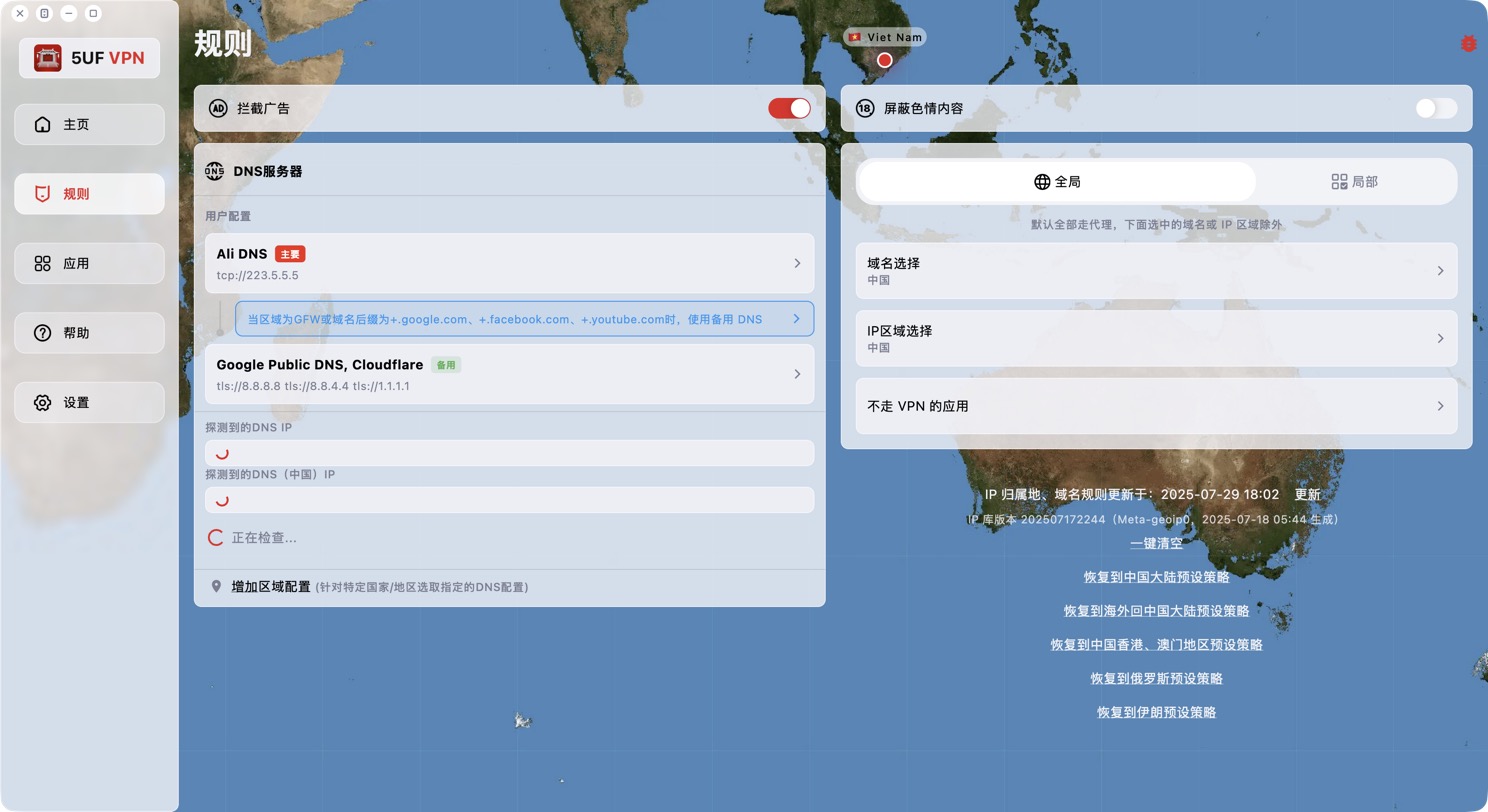
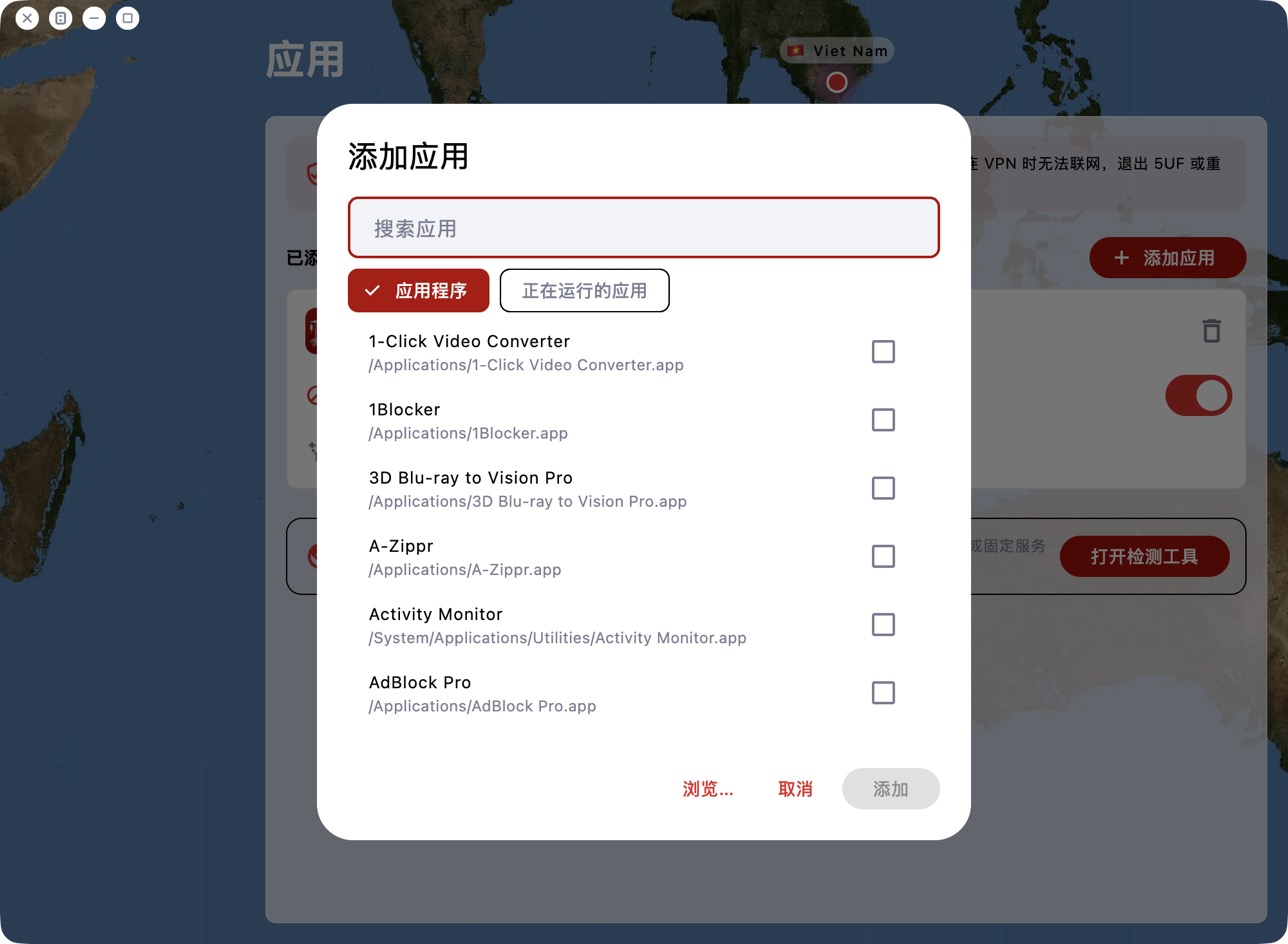
Adding apps: open the item and click Add app. Pick from Applications (Start menu on Windows) or Running apps, or click Browse… to choose a program, then click Add.
Changes take effect immediately, without reconnecting. The card at the top of the home screen shows the icons of routed apps. On macOS, choosing Safari also covers Safari's web content processes.
To clear the list, remove apps one by one; "Restore defaults" in Settings also clears it.
How do I use AI Diagnosis to find out why I can't connect or a site won't open?
The new app includes AI Diagnosis. If you can't connect, a site or app won't open, the connection is slow or keeps dropping, let it check things for you first.
Where to find it: go to Help → Tickets / Feedback, tap + in the top-right corner and choose AI Diagnosis. On macOS you can also open it from Help → Network Diagnosis in the menu bar.
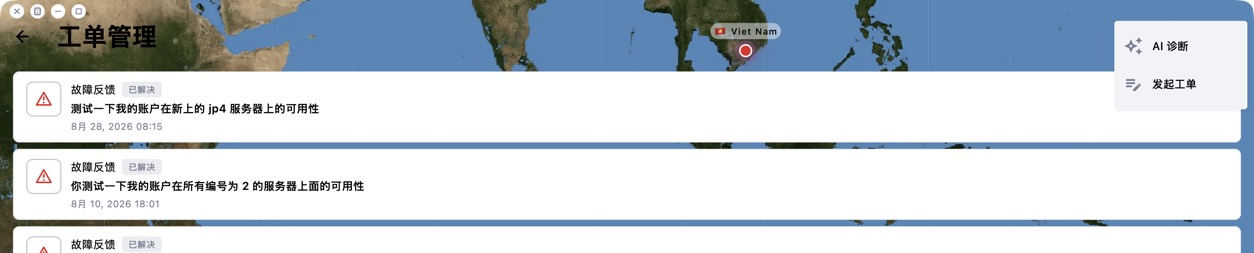
Steps:
1. Choose the problem, for example "Connected but sites won't open".
2. Optionally describe the problem, enter the sites that won't open (for example youtube.com), or choose the server that has problems. If you don't choose one, the currently selected server is tested.
3. Tap Start diagnosis.
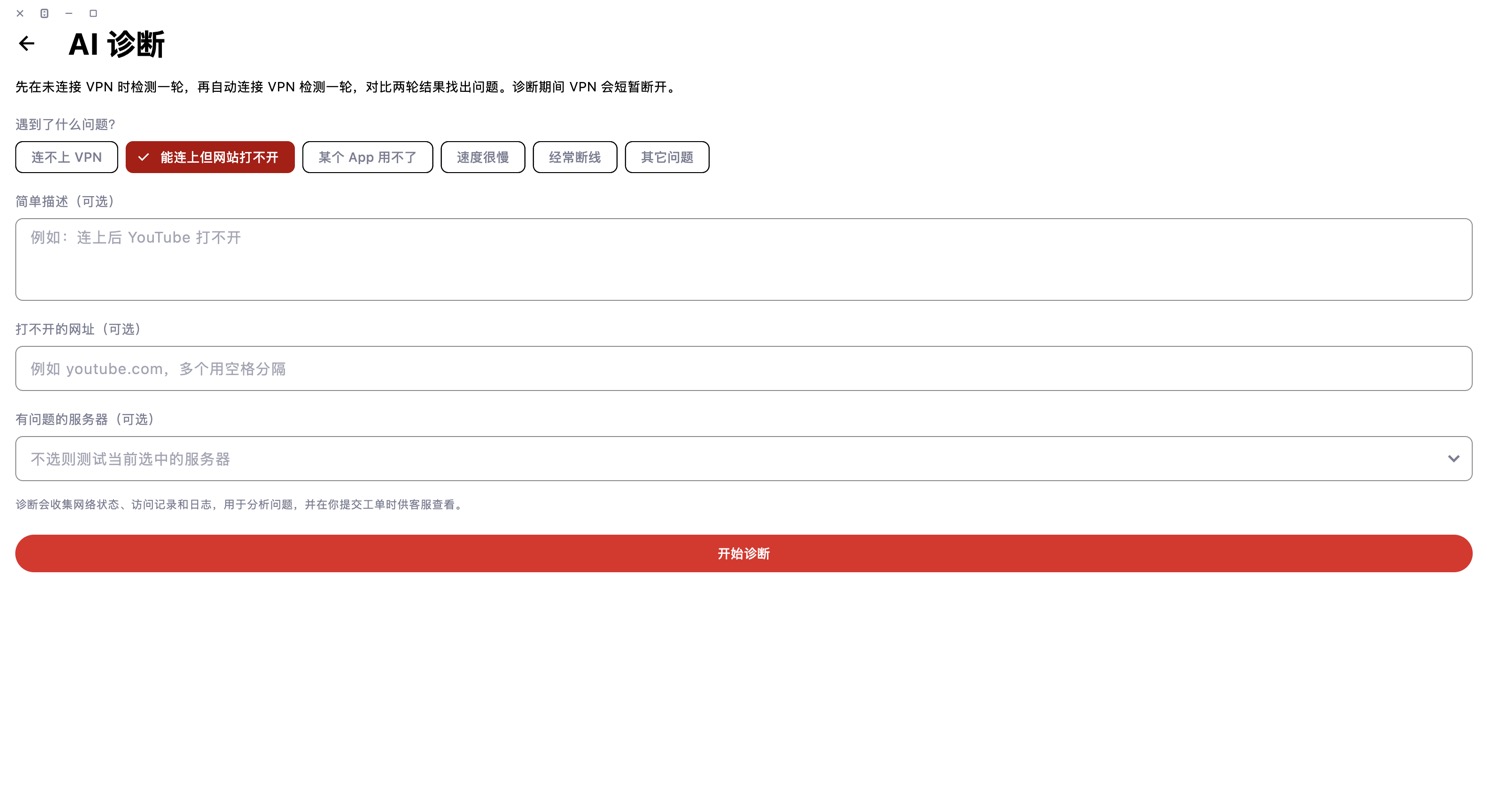
What happens: the app runs one round of checks without the VPN, then connects the VPN automatically and runs another round, compares the two and can test all servers. The VPN disconnects briefly during diagnosis, so please stay on this page.
Results: the AI explains the cause and what to do, for example DNS poisoning or an unavailable server. It may suggest switching to a working server or changing a setting (such as restoring the default DNS). It always asks before changing anything, then checks again.
Still not fixed? Tap "Not solved, submit a ticket". The diagnosis data and conversation are attached to the ticket, so support can see everything without you explaining it again.
Note: AI Diagnosis has a daily limit. After that, you'll see a preliminary conclusion based on the checks. Diagnosis collects network status, access records and logs, used only to analyse the problem.
Exclusive Cross-Border Dedicated Line Service: Enterprises Can Manage Accounts Themselves and View Exclusive Lines in the APP
We have launched a new service for users or enterprises with particularly high network requirements, providing exclusive cross-border dedicated line service. For details, please visit the following website. If you have any needs, please contact our customer service.
https://feb.sg/zh/china-hk-line/
APP Special Line Service
In addition to providing traditional dedicated line services, we also provide a special line service in the APP. In other words, once your enterprise purchases our dedicated line service, you can get a certain number of free worry-free service accounts from us.
Enterprise Self-Management
All your enterprise user accounts are managed by you yourself. At the same time, your enterprise users can see the exclusive servers you purchased; these servers can only be seen by your enterprise, and other users cannot see them.
Deep Aggregation Service
Therefore, this is a deep aggregation service. You do not need technical capabilities on your side; as long as you purchase the relevant dedicated line service, you can see your exclusive lines in our desktop and mobile APP.
5UF HLS Download — Free Chrome Extension for Large HLS Saves
Meet 5UF HLS Download — a free bonus utility for saving HLS (m3u8) streams to disk inside Google Chrome.
Heads-up: this extension is not tied to 5UF VPN plans or tunneling. Anyone may install and use it at no charge, with or without a VPN subscription.
Many HLS grabbers struggle with large or long-running assets — huge segment counts, merge timeouts, RAM spikes, or fragile resumes. 5UF HLS Download targets those real-world pain points so big HLS jobs are far less likely to stall halfway through.
Get it on the Chrome Web Store:
Chrome Web Store — 5UF HLS Download
Please use responsibly: download only content you are allowed to keep, and respect site terms plus local law. If the listing looks stale, check for updates atchrome://extensionsor restart Chrome.
We will keep polishing reliability; feedback is welcome via our support tickets — include the extension name and your Chrome version.
How can I change DNS to reduce DNS pollution issues?
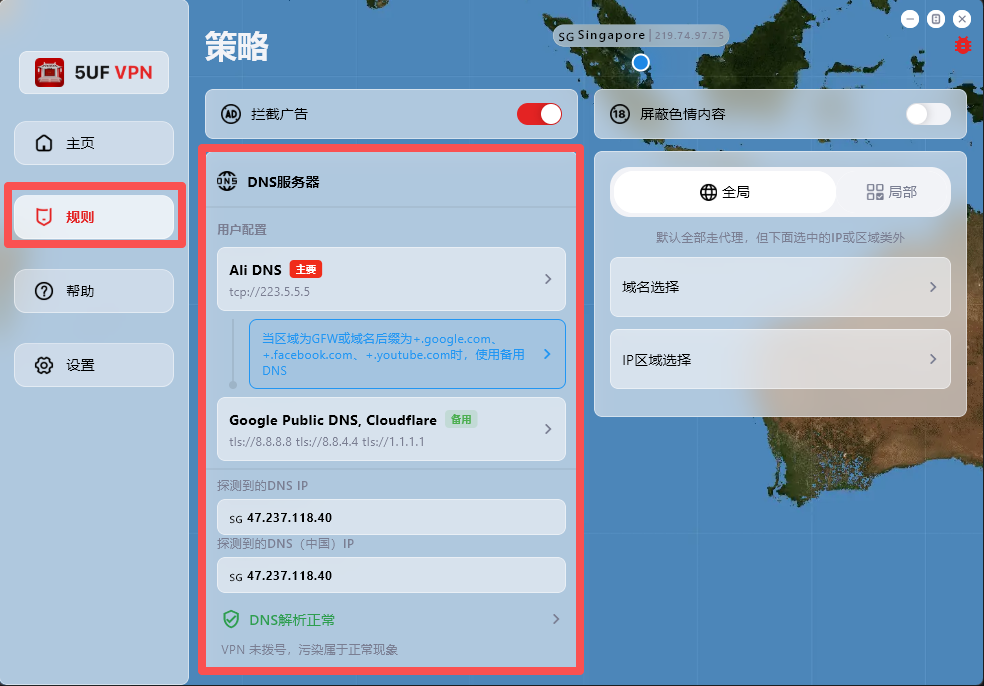
If your network access behaves abnormally, first check and adjust DNS settings in the Rules page.
The app has built-in support for:
1. Changing DNS settings after dial-up/connection.
2. DNS connectivity checks.
3. DNS pollution detection.
Where to configure: open the app main screen, go to Rules, then modify the default DNS request settings.
One-tap preset recovery: at the bottom of the Rules page, we provide built-in presets for common regions, including Mainland China, Hong Kong/Macau, and default profiles for countries/regions such as Iran and Russia.
Dynamic IP database update: the Rules page also includes dynamic IP database update, which you can run when needed.
Why detected DNS may differ from configured DNS:
DNS probing uses temporary domain resolution to identify the actual egress resolver IP within a DNS cluster, so the detected result may not be exactly the DNS address you entered.
For example, even if you configure Google Public DNS (8.8.8.8), the detected resolver may be another cluster node responding to your request.
How do I delete my account?
To delete your account:
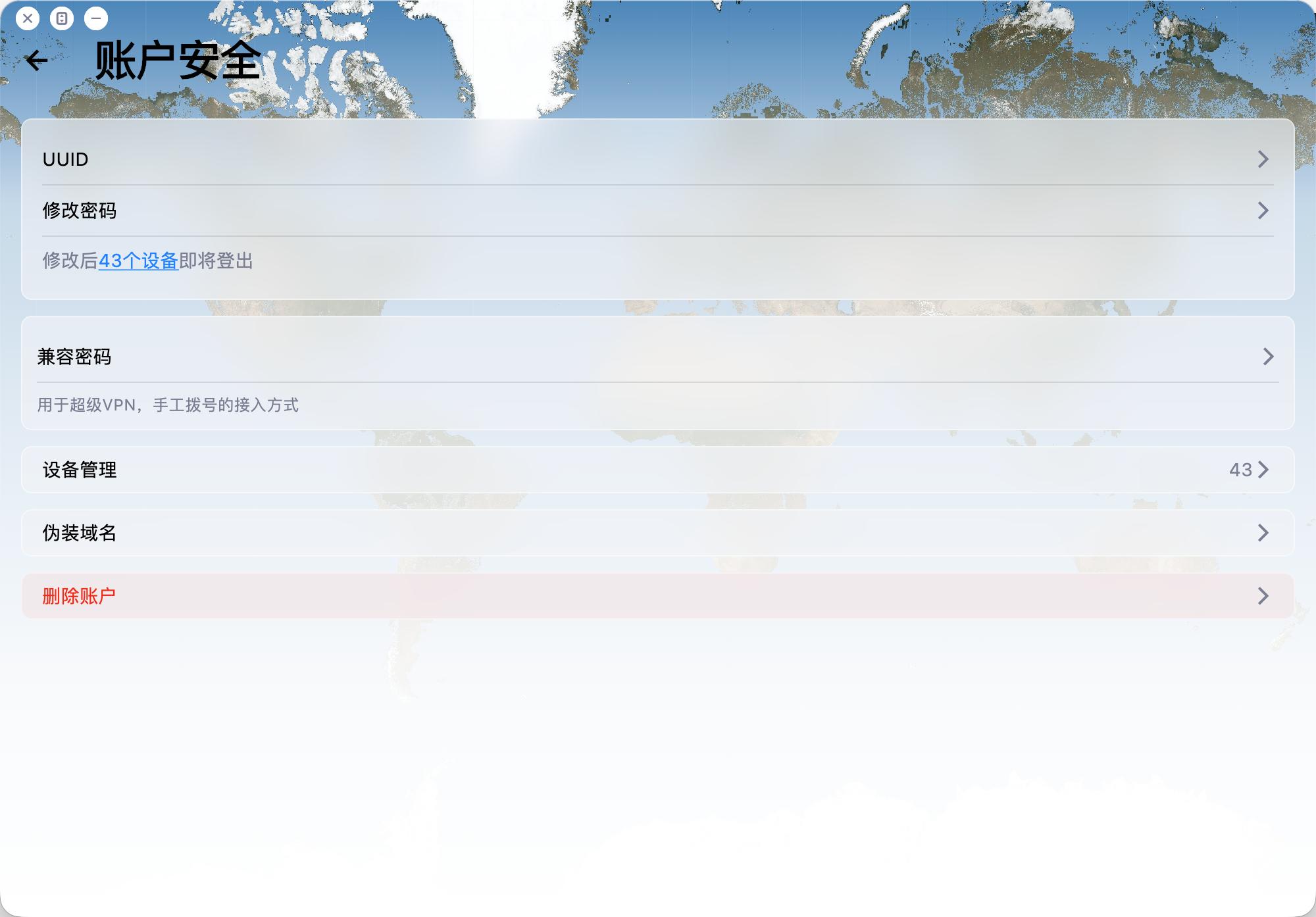
Open the app and go to Account -> Security -> Delete Account.
Please note:
1. Account deletion is permanent and cannot be undone.
2. Email verification is required before deletion.
3. After deletion, related payment records, usage records, and other associated data will be removed.
4. The account will be deleted regardless of whether you are a VIP member.
How do I collect logs and report issues to you quickly?
When you hit connection issues, unstable speed, or anything hard to reproduce, rich diagnostics help us troubleshoot much faster.
Recommended (best): use the in-app ticket / feedback flow. In recent builds you can attach profiles, network diagnostics, speed-test results, and detailed logs right inside the ticket so support can triage quickly.
Can't find the ticket entry? Open Help → About (or the equivalent section in your client) — you'll usually find shortcuts to logs and network diagnostics there; export or capture what you can, then reach out through whichever channel you prefer.
Tips: try to reproduce once before sending, note time, network type (cellular vs Wi‑Fi, rough region), and your app version; it speeds things up.
Why does my membership show only 7 days after subscribing monthly/yearly through Apple?
If you subscribed through Apple In‑App Purchase, Apple often attaches an introductory period (sometimes shown as a free trial — exact wording and length appear on Apple's checkout screen; seven days is typical).
During that period payment usually hasn't cleared yet, so the remaining time you see in the app (for example about seven days left) usually reflects the trial window, not your full monthly or yearly entitlement already granted.
After the trial: if you have not cancelled before it ends, Apple begins the paid subscription, and your membership duration then advances according to the plan you chose. You may cancel anytime during the trial from Settings → Apple ID → Subscriptions (or the subscription section in the App Store) if you don't want it to renew automatically.
Note: Exact billing timing follows Apple's receipt and subscription terms; wording may vary by region.
How do I check which country or region my Apple ID is set to?
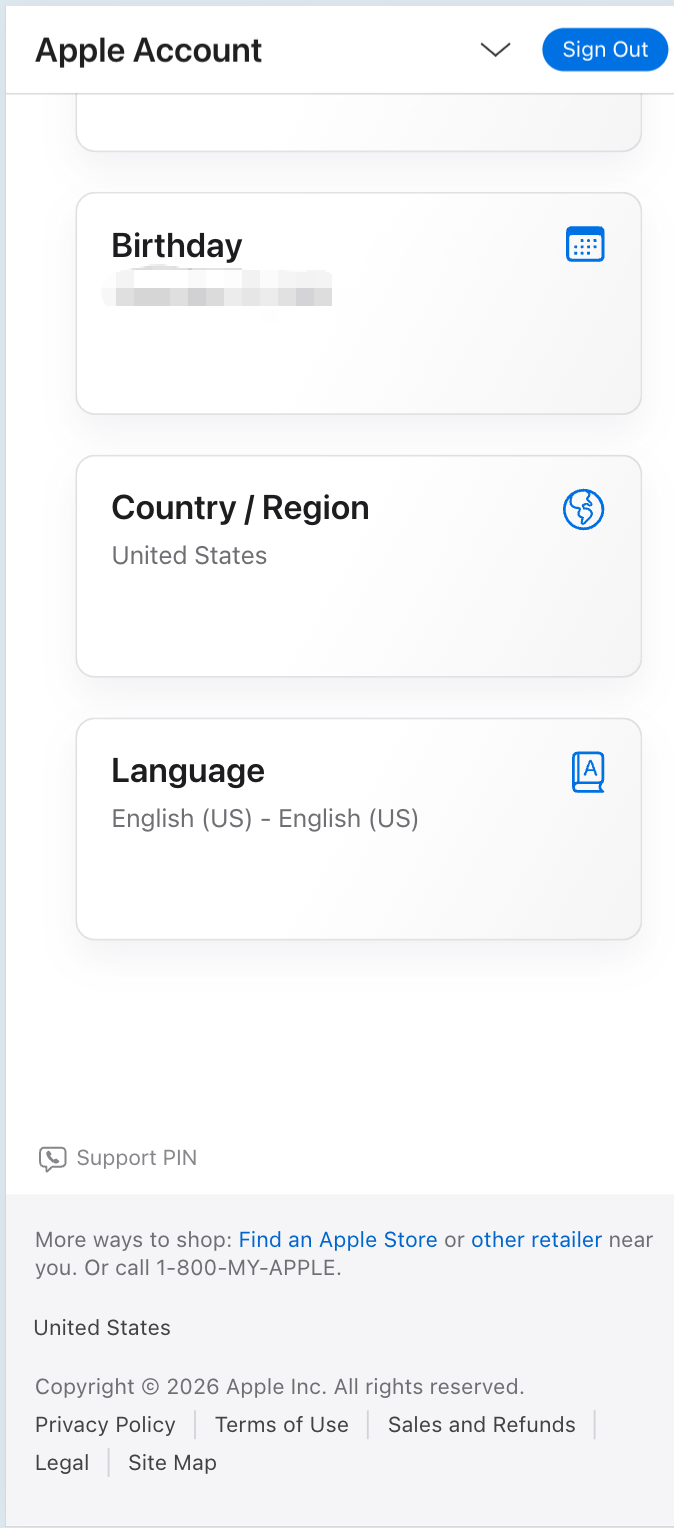
To see which country or region your Apple ID is registered in (for example US, Hong Kong, etc.), use Apple’s official account site.
Recommended: sign in with your browser and open the account information section—look for Country or Region.
Direct link (sign in required): Apple ID — Account information
Note: menus may vary slightly by language or iOS version. On iPhone you can also check under Settings → Apple ID → Media & Purchases / Payment & Shipping, or the region shown for the App Store account.
Your region affects which apps appear in the App Store and which payment methods are available. Use an Apple ID that matches the storefront you need, and follow Apple’s terms.
How does the referral program and commission work?
Invite friends to 5UF VPN with your referral link or referral code. When they complete eligible purchases, you earn referral balance (commission). This FAQ summarizes the rules; exact percentages, exceptions, and system decisions follow in-site rules, announcements, and backend records.
1. Dedicated domains for high-volume referrers
If you have large referral volume or long-term promotion needs, you may ask human support for a dedicated referral domain (subject to review and technical setup).
2. Commission rate and crediting
For each successful paid order from a user you directly invited, the system credits roughly 10% of the order amount to your referral balance. Actual rate, taxes, currency handling, and whether refunded or disputed orders count are defined in site rules or announcements.
3. Long-term while the L1 relationship applies
As long as the user remains your level-1 invite in our system, their later eligible payments can continue to generate commission (per system records) until the relationship or policy changes.
4. Level 1 only
Only spending from users who registered through your link or code counts toward your commission.
Spending from sub-referrals (level 2 and below) does not count toward your balance, to avoid multi-level payout structures.
5. Attribution window (~7 days)
After someone clicks your referral link, we store attribution for about 7 days (e.g. via cookies). Purchases on the same site domain within that period are matched when possible. If cookies are cleared, or cross-domain/cross-device issues occur, attribution follows actual system logs.
6. Using balance and withdrawals
- Referral balance can be used to buy services on our site (see checkout for scope).
- When withdrawable amount reaches CNY 1,000 or more, you may request a payout via options such as crypto or bank transfer.
- Fees, KYC, and processing details are shown on the application page and support instructions.
For questions about referral linkage, balance, or payouts, open a ticket with your account and order references.
Free tier, daily traffic allowance, and how to keep it active
This FAQ summarizes our public announcement. For the full legal and operational wording, see:
5UF VPN – 15th Anniversary Special Announcement
1. Who may receive the daily free traffic benefit?
Eligible long-time accounts described in that post (for example users registered before the cut-off date stated there, such as 11 Dec 2025—confirm in the article and in your account) can receive a permanent daily free traffic allowance (stated as 128 MB per day in the announcement, subject to system display).
Paid users follow their plan while active; after expiry, if you fall under the free-tier rules in the announcement, you may receive the same daily allowance (verify in the panel).
New sign-ups outside the promotion scope keep the standard free/trial policy then in effect, to protect overall capacity.
2. How to activate or renew it?
- Log in on the official website or the latest official app; eligibility is applied automatically after a short delay—no form is usually required.
- To keep the benefit active, log in on the web or open the app at least once per week, as described in the announcement.
3. Why isn’t the same promotion open to every new user?
The announcement explains that unlimited free access can increase blocking and congestion; the benefit targets loyal users while balancing free and paid capacity.
4. Other notes
- Reset passwords via your registered email.
- Metering, reset times, and account type are shown in the control panel / app and in current announcements.
- Contact support through official tickets if anything looks wrong.
How can I verify that using 5UF VPN is safe?
A VPN adds an encrypted tunnel between you and the internet, which lowers the chance of casual eavesdropping on plain HTTP in untrusted networks. Below is a practical checklist plus notes on privacy, technology, and how we operate.
1. Install only from official sources
- Use official app stores on mobile and the official 5UF website (or links we publish) on desktop; verify the domain before installing.
- Avoid “cracked” builds and random APK shares. Many free or unknown VPNs have a poor track record for ads, data resale, or malware.
2. Account work only on real HTTPS sites
For login, billing, or subscription pages, confirm a trusted domain and HTTPS in the address bar.
3. After connecting, test your IP and DNS (recommended)
With the VPN on and other proxies off, open BrowserLeaks — My IP Address to see the exit IP and rough region. The same site offers DNS leak and WebRTC tests. Results depend on split tunneling, extensions, and dual-stack networks—use them as signals, not a single proof.
4. Can ISPs or police “know I use a VPN”?
Technically, providers often see that your device talks to a remote endpoint with encrypted traffic, volume, and timing. They generally cannot read your HTTPS page contents the way they could with old plain HTTP. Sites and modern apps add another layer of end-to-end TLS that the VPN operator normally cannot decrypt either. What authorities may obtain still depends on law and due process—a VPN is not invisibility.
5. Xray-based stack
Our service commonly builds on open projects such as Xray (for example XTLS/Xray-core) with transports like Trojan wrapped in TLS. Open source enables community review; it is not the same as a formal proof against every adversary, but it is far more inspectable than a closed black box. Keep clients updated and download only from trusted sources.
6. What can the operator see?
In typical HTTPS browsing, we cannot decrypt the payload between you and the website. Exact data categories are spelled out in our privacy policy.
7. Singapore company and compliance
We are incorporated in Singapore and operate under its legal framework. The privacy policy explains retention, security practices, and how we may respond to lawful requests. We do not treat selling user privacy as a business model. Read the policy on our site; open a ticket for questions.
8. Bottom line
No VPN replaces good hygiene—official clients first, skepticism toward “free” unknown VPNs, and regular updates. Report suspicious clones through official channels.