


FAQ
How can I verify that using 5UF VPN is safe? 
A VPN adds an encrypted tunnel between you and the internet, which lowers the chance of casual eavesdropping on plain HTTP in untrusted networks. Below is a practical checklist plus notes on privacy, technology, and how we operate.
1. Install only from official sources
- Use official app stores on mobile and the official 5UF website (or links we publish) on desktop; verify the domain before installing.
- Avoid “cracked” builds and random APK shares. Many free or unknown VPNs have a poor track record for ads, data resale, or malware.
2. Account work only on real HTTPS sites
For login, billing, or subscription pages, confirm a trusted domain and HTTPS in the address bar.
3. After connecting, test your IP and DNS (recommended)
With the VPN on and other proxies off, open BrowserLeaks — My IP Address to see the exit IP and rough region. The same site offers DNS leak and WebRTC tests. Results depend on split tunneling, extensions, and dual-stack networks—use them as signals, not a single proof.
4. Can ISPs or police “know I use a VPN”?
Technically, providers often see that your device talks to a remote endpoint with encrypted traffic, volume, and timing. They generally cannot read your HTTPS page contents the way they could with old plain HTTP. Sites and modern apps add another layer of end-to-end TLS that the VPN operator normally cannot decrypt either. What authorities may obtain still depends on law and due process—a VPN is not invisibility.
5. Xray-based stack
Our service commonly builds on open projects such as Xray (for example XTLS/Xray-core) with transports like Trojan wrapped in TLS. Open source enables community review; it is not the same as a formal proof against every adversary, but it is far more inspectable than a closed black box. Keep clients updated and download only from trusted sources.
6. What can the operator see?
In typical HTTPS browsing, we cannot decrypt the payload between you and the website. Exact data categories are spelled out in our privacy policy.
7. Singapore company and compliance
We are incorporated in Singapore and operate under its legal framework. The privacy policy explains retention, security practices, and how we may respond to lawful requests. We do not treat selling user privacy as a business model. Read the policy on our site; open a ticket for questions.
8. Bottom line
No VPN replaces good hygiene—official clients first, skepticism toward “free” unknown VPNs, and regular updates. Report suspicious clones through official channels.
What is the difference between relay nodes and direct nodes?
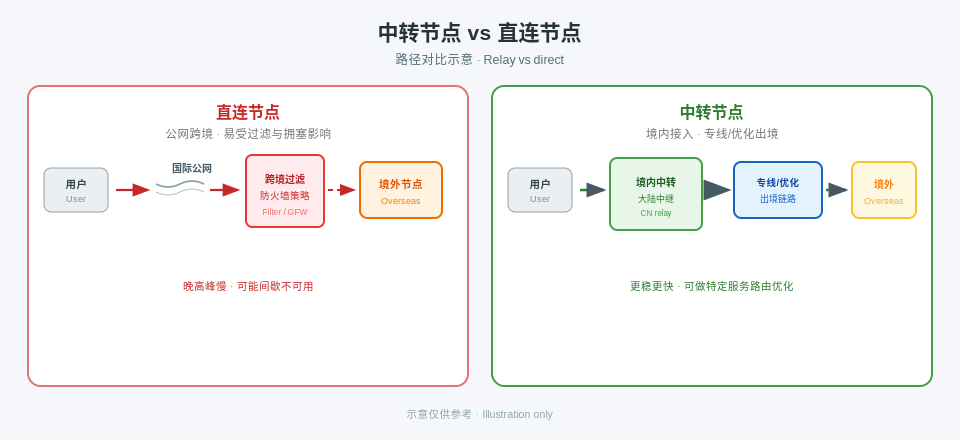
Relay (transit) nodes send traffic to a relay inside mainland China first, then forward it toward overseas destinations over dedicated or optimized backhaul. That path is often more predictable than raw public-internet crossings, which can mean better stability and higher peak performance for cross-border use. Building and operating relays costs more, so relay plans may differ from plain direct routes in pricing or lineup.
Direct nodes rely more on the public internet, connecting straight to overseas servers. Cross-border public paths may see packet loss, throttling, or intermittent blocking in some regions or hours. Even when a route works, speeds can plunge at busy times. If you are in mainland China and need reliability, relay lines are usually the safer choice.
5UF is among the few providers that can offer lawful mainland relay capacity alongside standard options. We also tune routing for selected sites and services. Example: some Hong Kong nodes may not work well with OpenAI ChatGPT over a plain path, but with relay and routing optimization, Hong Kong and similar regions can reach those AI services more reliably. If a specific AI site or service fails for you, contact support so we can prioritize routing fixes.
Available nodes depend on the app and the list on our site; plans differ in node types and counts. See your subscription details for what applies to you.
How to quickly select a server and run speed tests in the 5UF VPN app
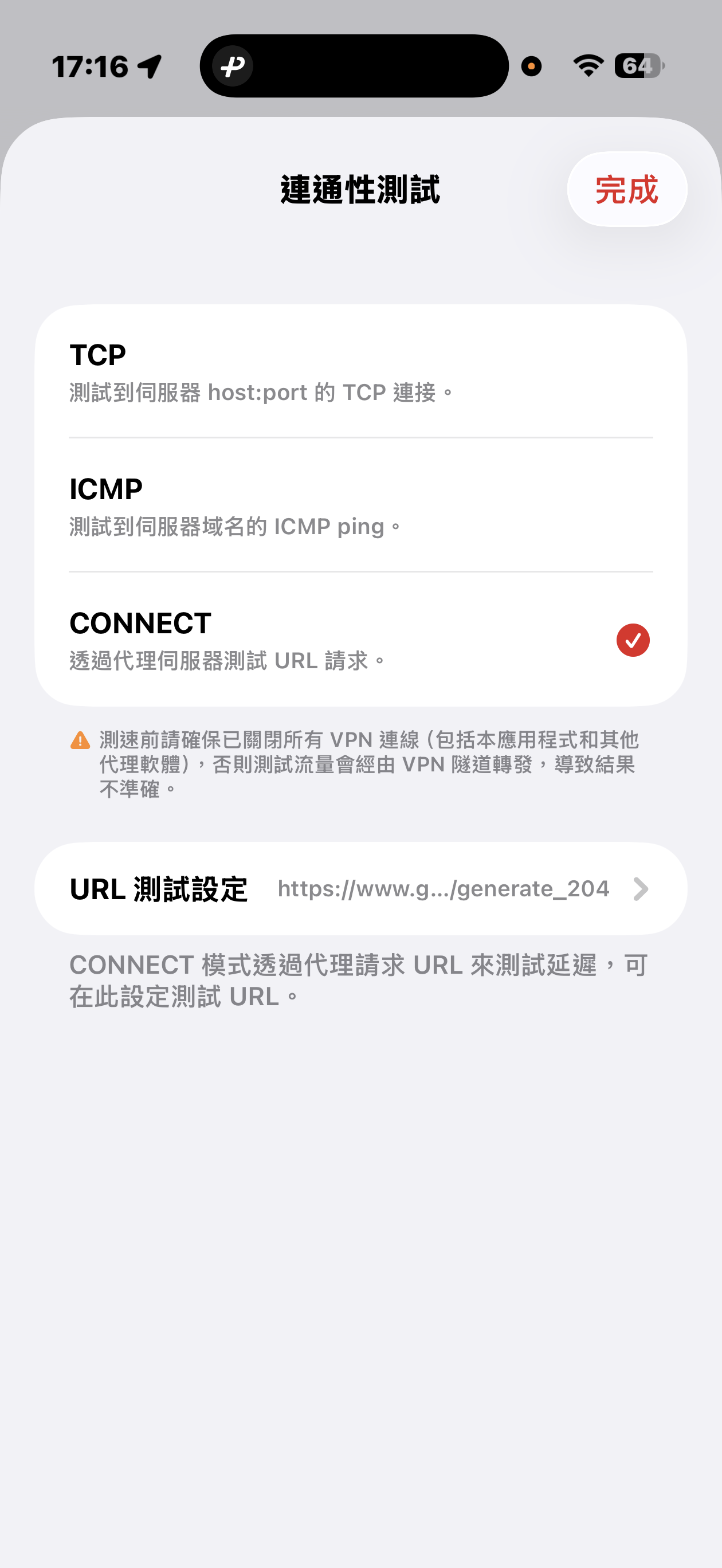
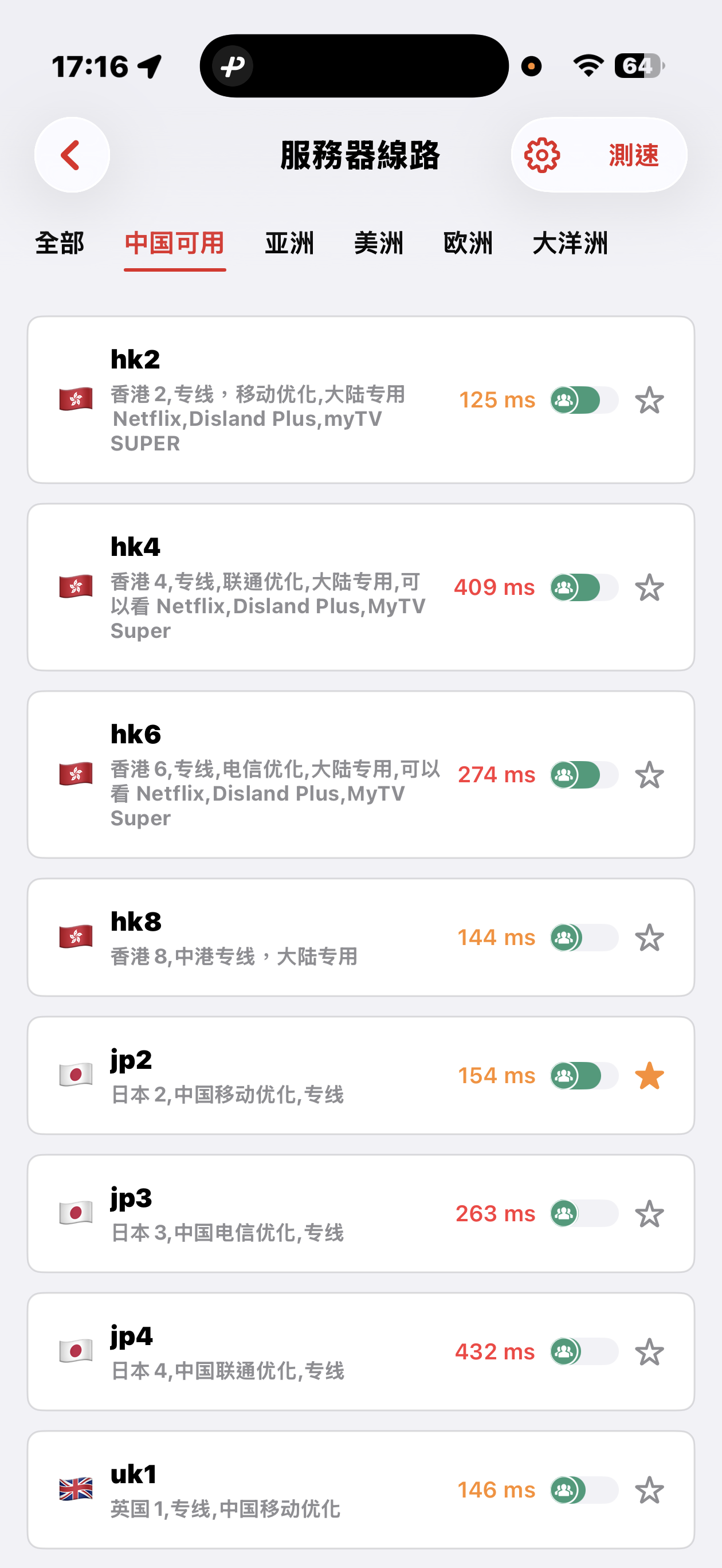
The 5UF VPN app offers quick connectivity tests from the server list screen: tap Speed test at the top right (sometimes next to a settings icon), open Connectivity test, then pick a method.
Three test modes
- TCP: Measures how long it takes to complete a TCP handshake to each server host and port. The app runs multiple probes and shows an average so you can compare routes quickly.
- ICMP: Sends ICMP echo (ping) to the server hostname, similar to the ping tools built into desktop and mobile systems, to see round-trip latency.
- CONNECT: Issues an HTTP(S) request to a test URL through the proxy path, which best mimics real VPN usage. It is usually the slowest mode, but in heavily restricted networks it helps find nodes that still work. You can change the test URL under URL test settings.
Before testing, disconnect all VPN and proxy software, including this app. Otherwise traffic may still go through a tunnel and the numbers will not reflect your raw local path.
Mainland China: Strict blocking may make some overseas nodes unreachable; that can be normal. Use the Available in China category for optimized dedicated lines that aim to stay usable under heavy filtering, with carrier hints for China Mobile, China Unicom, and China Telecom. Pick a line that matches your ISP or SIM.
Choosing a server: Auto-select uses TCP results, then picks one server at random from among the fastest, balancing speed and load. You can also browse by geography (for example Asia, Americas, Europe) and choose manually.
Why are servers fast at peak hours? How does the Mainland China–Hong Kong dedicated line keep service stable?
Many people ask whether a VPN gets slow or flaky during evening peak hours. For users in Mainland China, our design relies on contracted dedicated circuits between Mainland China and Hong Kong: you get committed, non–best-effort bandwidth on a path that does not compete with the busiest public international internet exits at night. The cross-border access leg therefore usually stays low-latency and predictable at peak times, on carrier-grade private connectivity with the SLAs that come with it.
Important distinction: once traffic leaves our Hong Kong edge toward faraway destinations (for example services that only have a US front door), it crosses Hong Kong’s international interconnects and submarine segments. During Hong Kong peak hours, that international segment can congest. You may then notice a few sites or apps feel slower—that is usually the HK→destination path, not our Mainland–HK dedicated access “throttling.”
Major apps are generally optimized for Hong Kong and APAC with local or nearby points of presence, so day-to-day browsing rarely shows those effects. A smaller set of services that mostly live in the US and hit a busy path are more likely to feel slower at peak.
We have served the China market for sixteen years. Planned work, major events, and routing updates are announced through our official news feed; you can browse the archive at news and past notices.
Using Sing-box VT on Mac with 5UF VPN
To use a third-party client on macOS, install Sing-box VT from the Mac App Store (third-party software, not published by 5UF). 5UF serves a Trojan (Xray) compatible profile as a sing-box subscription that includes server lists and routing rules.
1. Install the app
You need a non-Mainland-China Apple ID. Install from the App Store: Sing-box VT
2. Copy your sing-box URL
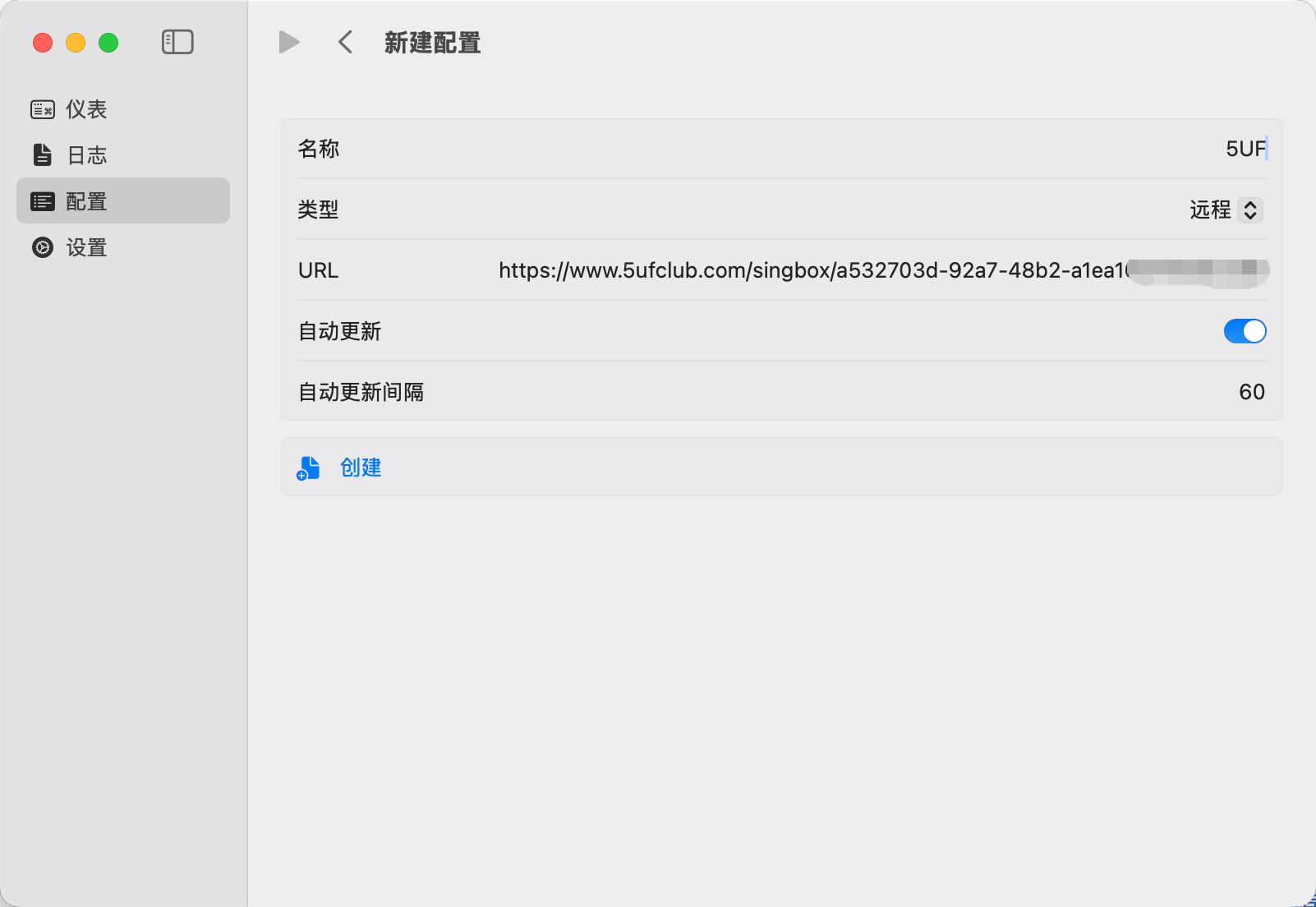
Sign in to the 5UF user panel in a browser and open the Xray (Trojan) configuration page (typically /xray_config). Copy the full sing-box configuration subscription URL with the one-click copy button.
That URL embeds your private UUID—do not share it. If it may have leaked, use Change UUID on the same page so the old URLs stop working immediately, then copy the new sing-box link and import again.
3. Import into Sing-box VT
In the app, add or update a profile by importing from URL / subscription (wording depends on the app version), paste the copied link, save, and let the app refresh nodes and rule sets.
4. Connect and test
Enable the profile and visit any site that shows your public IP to confirm traffic exits through the VPN. If import or connection fails, check that the URL was copied completely, your account is active, and the network is not blocking the endpoints; generating a new UUID and re-importing often resolves stale links.
Screenshots (UI may change between releases):
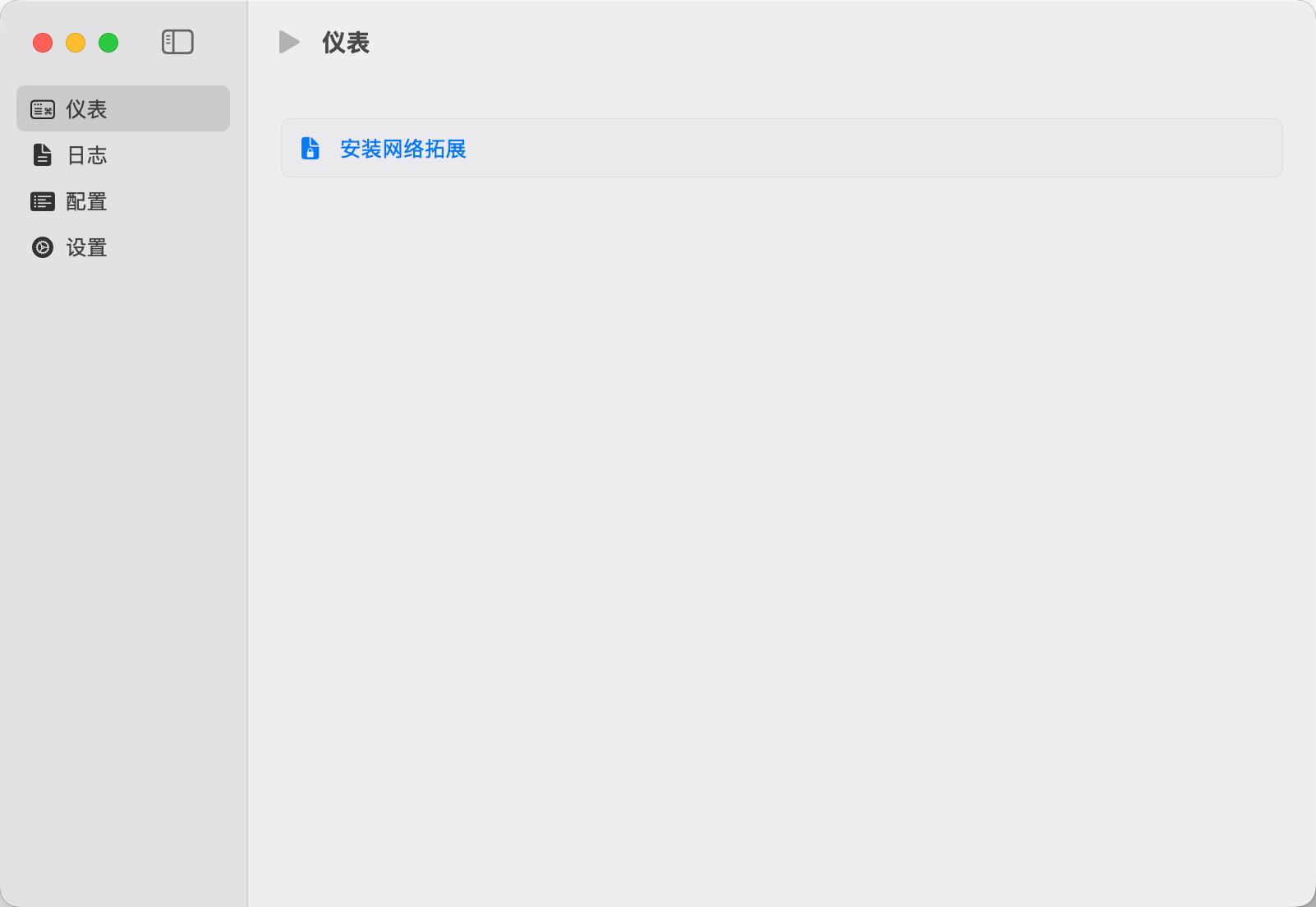
For the official all-in-one experience, use the 5UF VPN Mac app from our site. This article targets users who prefer the sing-box ecosystem.
What is the app “availability test” on the home screen, and how does it work?
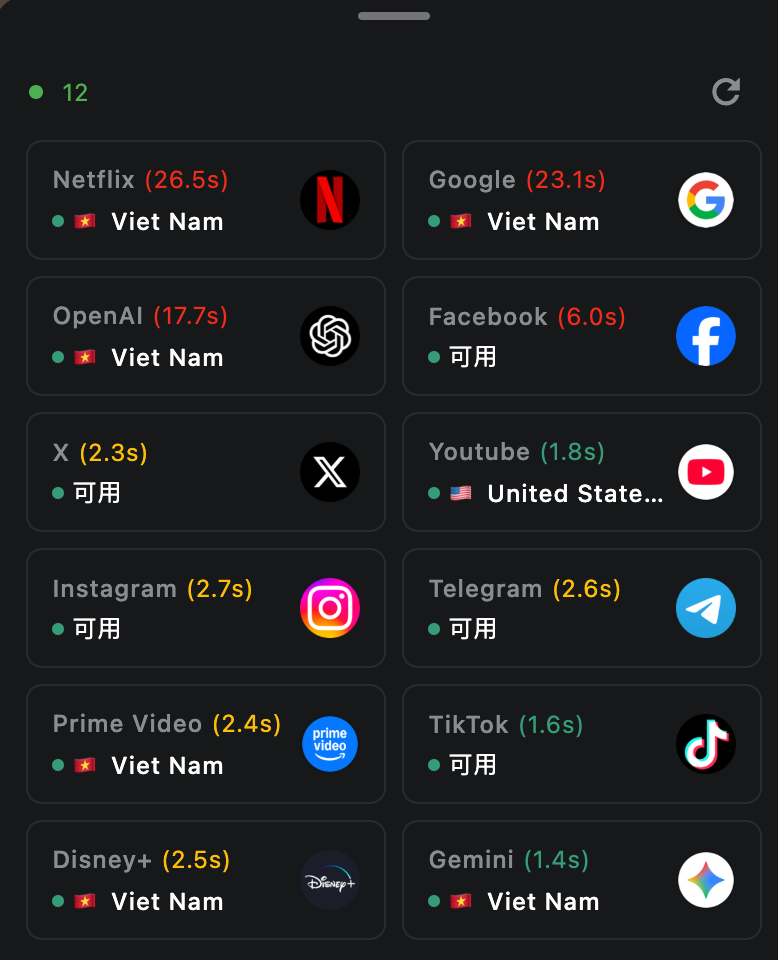
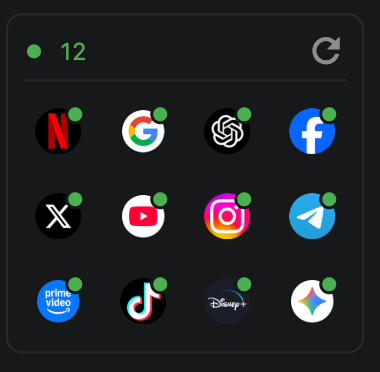
The availability test simulates requests to dedicated check URLs for selected apps. Based on what comes back, it can help you gauge whether your current network can reach those apps and whether you appear to fall into a given country or region’s service area.
Please note: results are not guaranteed to be accurate, and not every service can clearly report a country or region. The feature is meant for a quick, practical snapshot of app reachability in your current environment—not a definitive geo or compliance check.
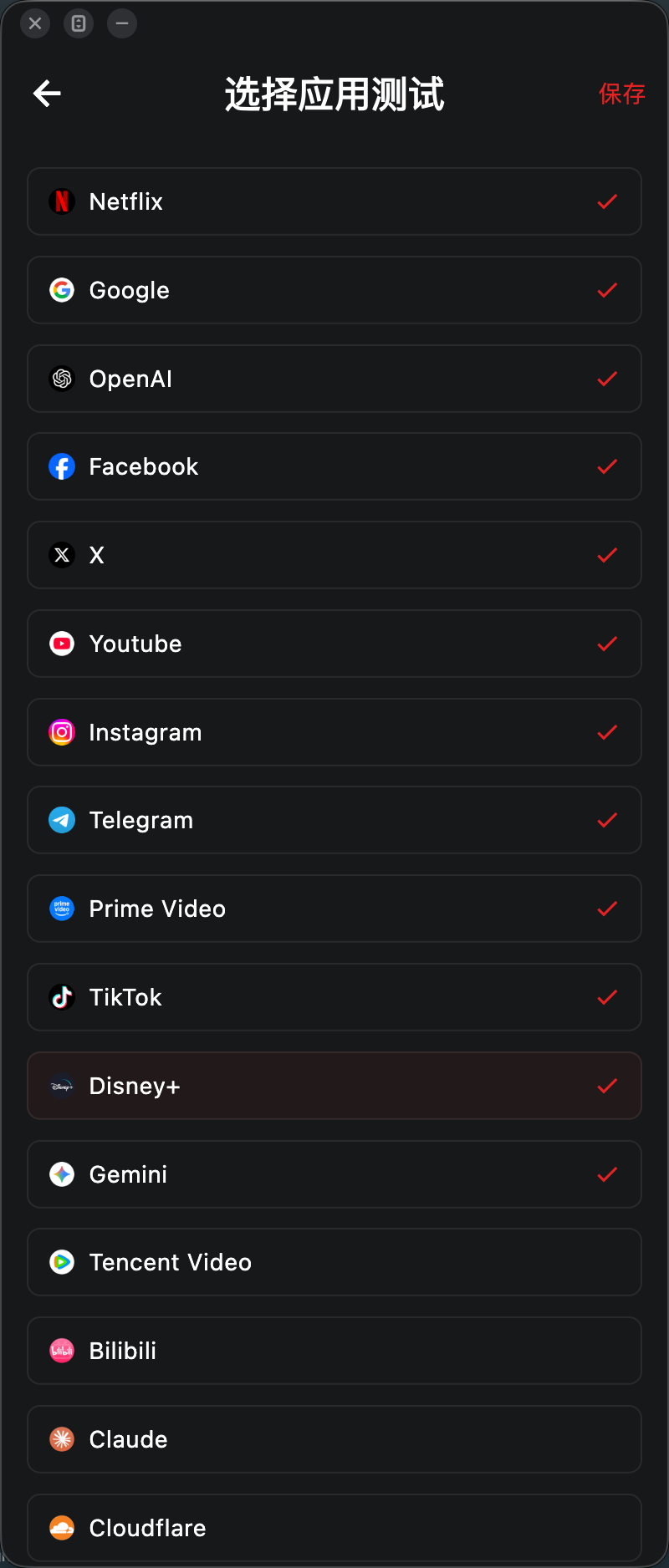
Many availability checks are built in. You can add or remove the apps you care about in Settings.
Each run is very fast, uses very little data, and has a minimal resource footprint on your device.
What if Super VPN is unstable?
Try changing network or switching to another server. If you need a more stable long-term setup, use the latest 5UF VPN app instead of relying on the old browser-based solution.
Multiple Connections Issue
If the app reports that the connection limit has been reached but you confirm you are not actually using more devices than your plan allows, wait a short while first: the system will usually remove stale sessions automatically.
If it still does not clear after about five minutes and you confirm no one else is sharing the account, you can:
- Open the online sessions page in a browser (sign in required): /transferlog/vpn/online/1/
- Or in the app: go to Settings, open your profile card, tap Online connections, then swipe left on a session to force disconnect it.
Important: If a device is actively using the VPN, a forced disconnect may reconnect immediately. Stop or disconnect the VPN on that device first, then force the session offline if needed.
What to do if the VPN cannot connect or is too slow
If you are using the latest 5UF VPN app, long-term connection failure is usually uncommon.
If you are on an older iOS release (for example iOS 15 or earlier) or you cannot use the official app on your device, you may hit compatibility or installation limits. Use a third-party VPN client with 5UF and follow this guide: How to use a third-party app with 5UF VPN (tutorial). The reinstall, speed-test, and ticket steps below mainly apply when you can run the official app.
On iOS 16 or later, update the official app to 5.3 or newer from the App Store before the steps below.
If the VPN cannot connect, the Connect button does nothing, throughput feels sluggish, or you are connected yet nothing resolves over the tunnel, work through this checklist:
1. What if tapping Connect does nothing?
This is usually not caused by the server itself. In most cases, the app was denied VPN permission the first time it asked the system to create the VPN connection.
The fastest solution is to reinstall the app.
- Uninstall the current app
- Install the latest 5UF VPN app again
- When you tap Connect again, allow the system to create the VPN connection
If the first permission request was denied, the system often will not properly trigger the VPN authorization flow again, so reinstalling is usually the fastest and simplest solution.
2. What if the VPN connects but the speed is slow?
The latest app already includes built-in speed testing and app availability checks on the home page, so you can evaluate the current network condition before switching servers blindly.
- You can test latency for servers in different countries from the home page
- In general, a result of under 1 second is considered relatively normal
- After switching to another server, the app can test again so you can compare quickly
- The app also checks availability for major services such as TikTok
- It can also help you identify which service region the current server is closer to, such as Japan or Hong Kong
These tools help you quickly understand whether the problem is caused by the current server, your current network environment, or the service you are trying to use.
3. The tunnel shows connected, but absolutely nothing loads — then what?
If the VPN connects successfully yet browsers and apps remain completely unreachable, don't assume it's only the remote node — check whether your local uplink network is blocking or rewriting traffic.
- Switch networks (Wi‑Fi vs cellular vs another ISP hotspot). If browsing works normally on another network, the issue is likely specific to your previous network exit.
- Clarify whether this ever worked before on the same network, or started only recently — that timeline narrows investigations a lot.
When you're already in the connected-but-no-Internet situation and reinstalling, plus resetting rules to defaults/clearing custom policies, still doesn't help — try a full quit of the desktop/mobile client:
- iOS/iPad/macOS: make sure there's no lingering VPN/control icon in the menu/status area after you quit (exact UI varies). If unsure, swipe the app away from the app switcher, then reboot when needed.
- Windows: ensure the tray icon is gone — if unsure, inspect Task Manager for orphaned processes or restart Windows before launching only the 5UF client.
After a clean reopen (or reboot), open a ticket and attach network diagnostics, speed test output, app availability results, and uploaded logs wherever the form offers them — those artefacts help us troubleshoot stubborn edge cases faster.
4. What if none of this fixes it?
If you followed the checklist but the VPN stays slow, never connects, or still cannot reach anything while connected, use the integrated ticket wizard and ping support.
- Open the support ticket section in the latest app
- At the bottom of each ticket page, you will see related action buttons
- Send the test results to support
- Our support team can use your speed test, app availability test, and network diagnostic results to identify the issue faster
The ticket system now supports better email and push notifications, making it easier for us to contact you and solve the issue more quickly.
Recommendation: when you run into a problem, start with the built-in speed test, app availability check, and ticket feedback tools in the latest 5UF VPN app. This is usually faster and more accurate than describing the problem manually.
TikTok not working? Quick 5UF VPN setup guide
If TikTok still shows a black screen, fails to load, or redirects to Douyin even after you connect to a VPN, the problem is usually not just the IP address. TikTok also checks your current phone and network environment.
We recommend using the latest 5UF VPN app.
Quick setup:
- Fully close TikTok first.
- Turn on Airplane Mode and wait a few seconds.
- While Airplane Mode is on, manually turn Wi-Fi back on.
- Open the 5UF VPN app and connect to an available server.
- After the VPN is connected, open TikTok.
- Once TikTok loads normally, you can usually turn off Airplane Mode and return to normal mode.
Recommendations:
- Try to avoid Hong Kong servers, as they may affect TikTok region detection.
- For the same TikTok account, try to keep using the same server to avoid cross-region recommendations.
- If one server does not work well, switch to another server in the same region instead of changing countries too often.
If it still does not work:
- Switch between Wi-Fi and mobile data, then try again.
- Change to another non-Hong Kong server.
- Fully close TikTok and reopen it.
For long-term stable TikTok use, keep using the latest 5UF VPN app and try to maintain a stable server and network environment.
5UF VPN Push Notification Test – FAQ (English Version)
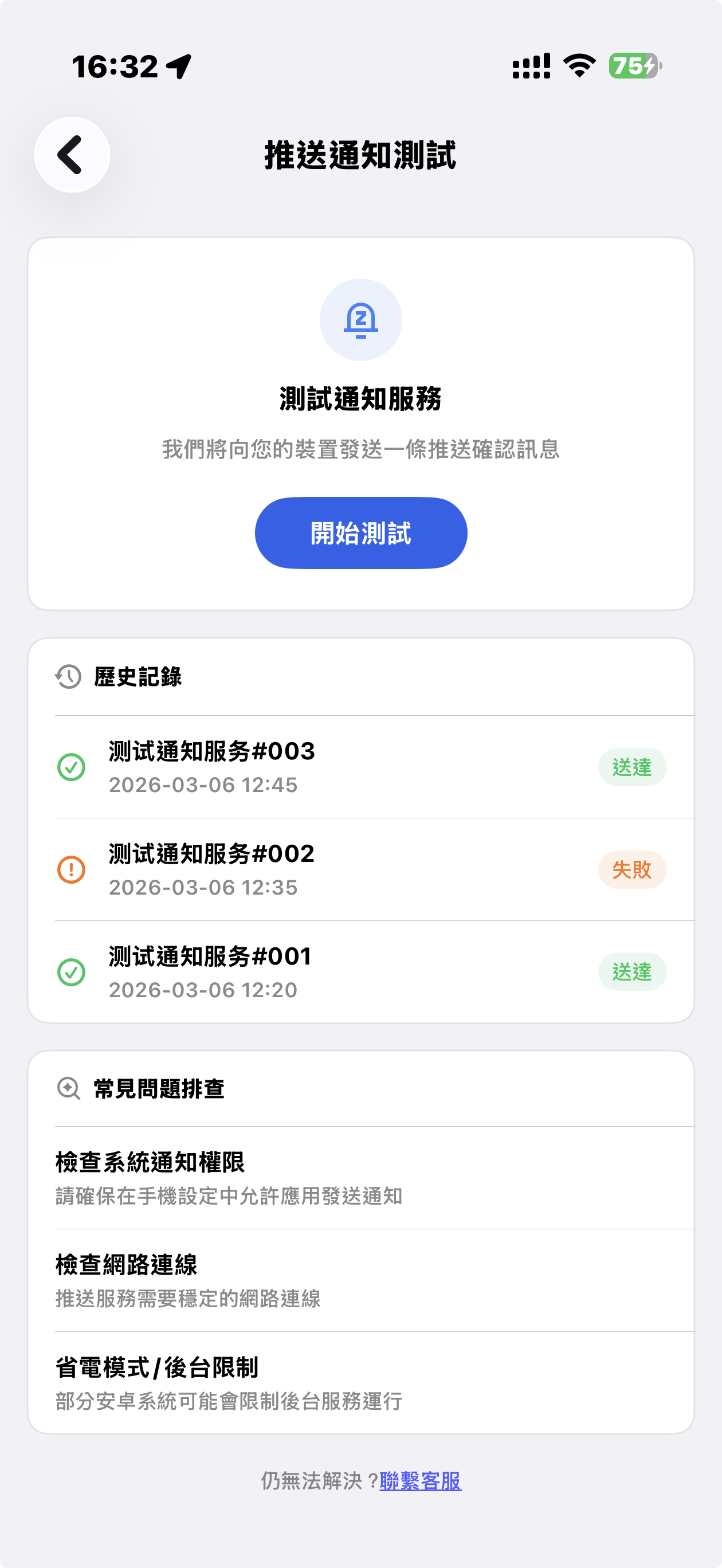
1. What is the Push Notification Test?
To ensure you receive customer support replies, account alerts, and important service updates, 5UF VPN now includes a Push Notification Test feature.
Tap “Start Test,” and a test notification will be sent to your device. The result will show:
-
✅ Delivered
-
❌ Failed
This helps you verify whether push notifications are working properly.
2. Why do VPN apps face more push issues?
VPN apps are more likely to encounter push delivery issues due to:
-
Android devices in China not supporting Google FCM
-
Manufacturer ROM restrictions (MIUI, EMUI, ColorOS, etc.)
-
Aggressive battery optimization
-
Network policy conflicts
Regular testing is recommended.
3. Special Notice for Android Devices in Mainland China (Important)
Android devices sold in Mainland China:
-
❌ Often do not support Google FCM
-
❌ May restrict overseas push channels
-
❌ Frequently disable background connections
You may need to:
1️⃣ Enable Auto Start
Settings → App Management → 5UF VPN → Allow Auto Start
2️⃣ Disable Battery Optimization
Settings → Battery → App Power Management → No Restrictions
3️⃣ Allow Background Activity
Make sure the app is not restricted or “deep sleeping.”
Brand-specific paths:
-
Huawei: Battery → App Launch Management
-
Xiaomi: App Management → Battery Saver
-
OPPO / vivo: Background Freeze Management
4. What if the test shows “Failed”?
Please check:
-
Notification permissions are enabled
-
Network connection is stable
-
Restart the device
Some Android systems temporarily suspend push channels.
5. Delivered but no popup?
Possible reasons:
-
You were using the app
-
Notification was delivered silently
-
Marked as low priority
Check your notification history.
6. Does VPN status affect push delivery?
Generally no.
However, delays may occur when:
-
Switching VPN nodes
-
Experiencing unstable network
-
Device enters deep power-saving mode
7. When should I test?
Recommended after:
-
Changing devices
-
Updating system
-
Updating 5UF VPN
-
Suspecting missed notifications
8. Why are push notifications important?
Push notifications ensure you receive:
-
🔔 Customer support replies
-
🔔 Account alerts
-
🔔 Service maintenance notices
-
🔔 Security updates
This is especially important for VPN users.
9. Still not working?
Please contact support in the app and provide:
-
Device brand & model
-
OS version
-
Screenshot of test result
We’ll assist you further.
Difference between Virtual Network Card Mode and System Proxy Mode
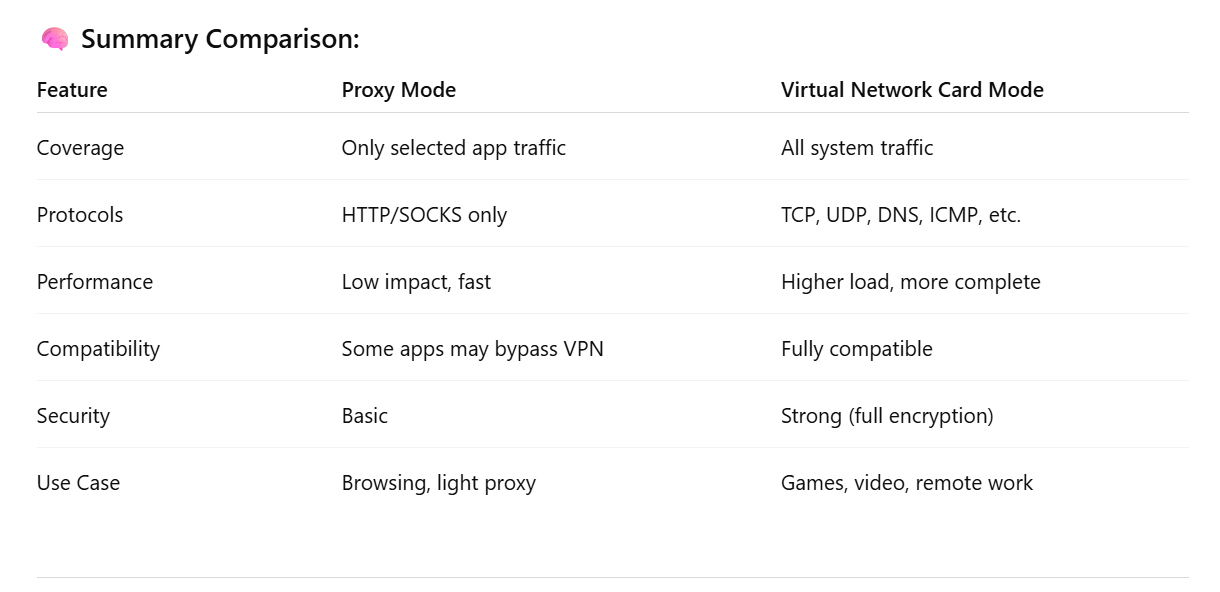
? Simplified Explanation: Two VPN Modes
? 1. Proxy Mode
✅ What is it?
Only sends specific apps’ traffic through the VPN — like browsers or apps that support proxy settings.
? Key Features:
-
Works only with apps that support proxy protocols (like HTTP, SOCKS5).
-
Other apps on your system don’t go through the VPN.
-
Faster and lighter on system resources.
-
Some apps (like games or built-in network tools) might bypass the VPN.
-
More flexible — you can choose which apps use VPN and which don’t.
? Best For:
-
Browsing websites
-
Light or casual VPN use
-
When you only want to route some traffic through the VPN
? 2. Virtual Network Card Mode (TUN/TAP Mode)
✅ What is it?
Creates a virtual network card and takes over all traffic on your device, routing it through the VPN tunnel.
? Key Features:
-
Sends all traffic (web, apps, games, system services) through the VPN.
-
Supports all protocols: TCP, UDP, DNS, ICMP, etc.
-
More secure and complete coverage.
-
Uses more system resources than proxy mode but is more stable.
-
Common in VPNs like OpenVPN, WireGuard, L2TP, IKEv2, etc.
? Best For:
-
Streaming video
-
Online gaming
-
Remote work / accessing company networks
-
Full security and encryption
How to Create an Overseas Apple ID (Hong Kong) from Mainland China
Need access to apps that aren't available in the Mainland China App Store? Here's a simple step-by-step guide to help you create a Hong Kong Apple ID right from your iPhone — no VPN needed.
Step 1: Go to Apple ID Website
-
Open Safari (or any browser) and go to https://account.apple.com/account#
-
Click “Create Your Apple ID” in the top-right corner.
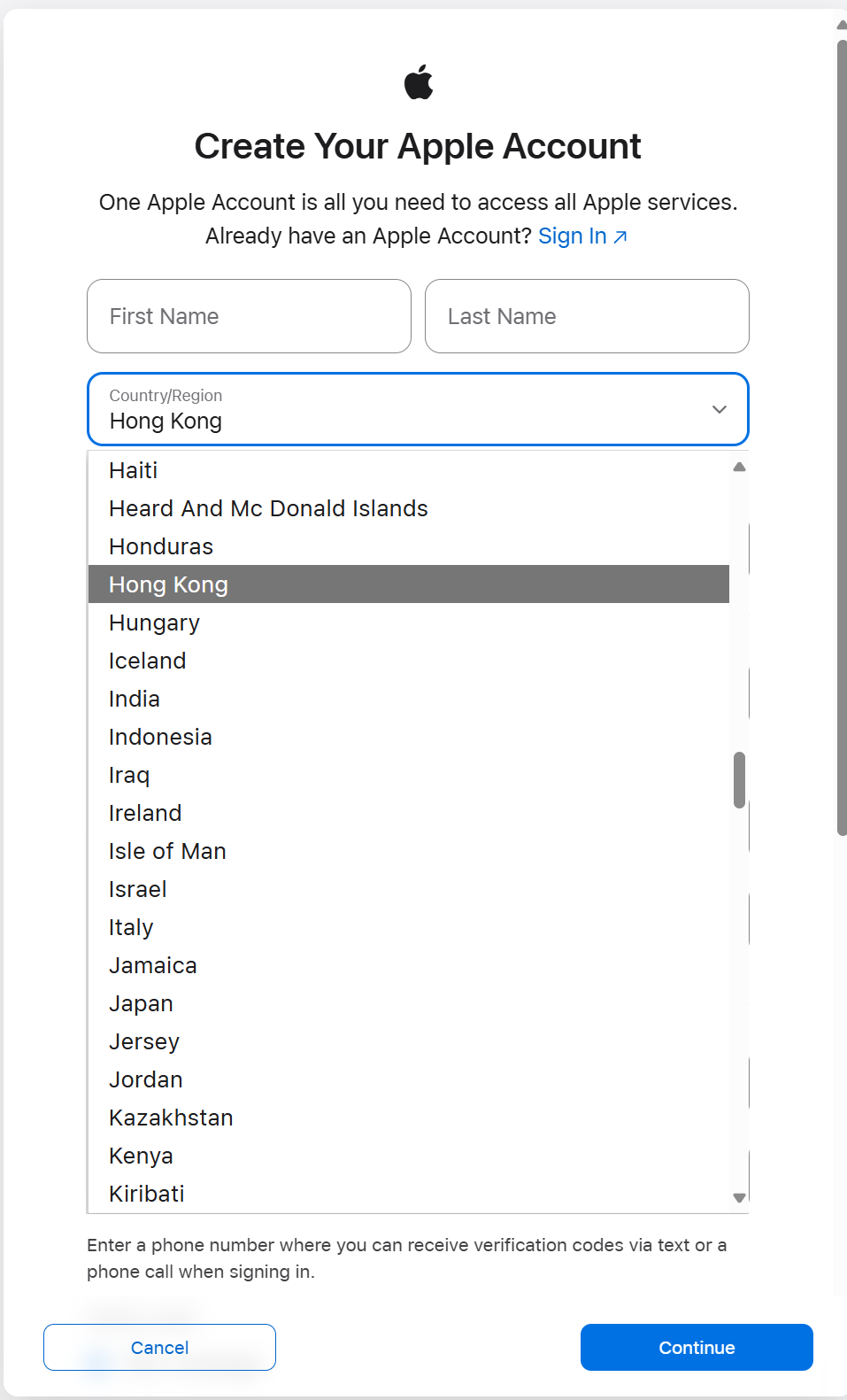
Step 2: Enter Your Details
-
Fill in your first name, last name, and date of birth.
-
Enter a new email address (one that hasn’t been used with Apple before).
-
Choose a strong password.
-
Set your country or region to Hong Kong.
Step 3: Add Your Phone Number
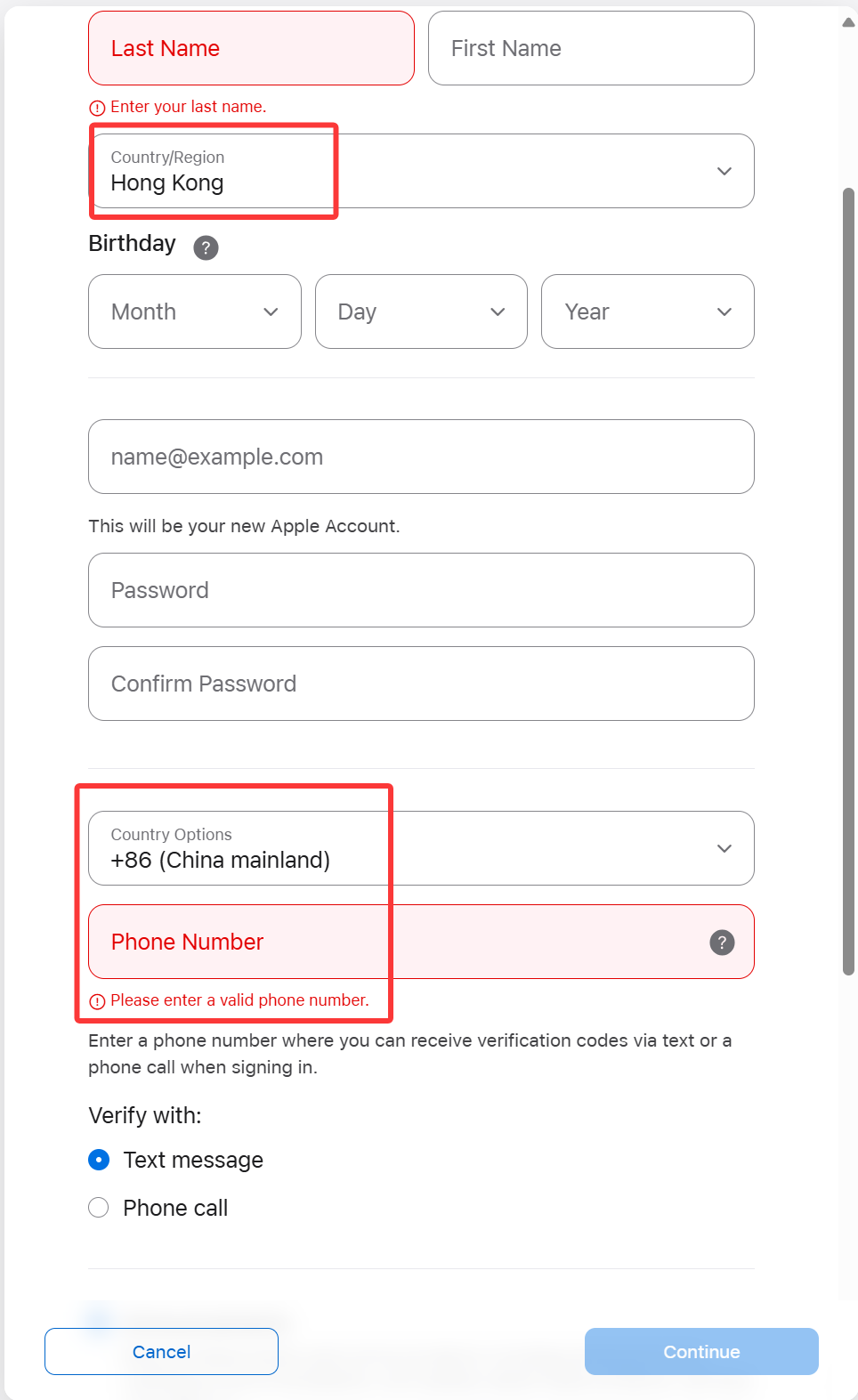
-
Use your Mainland China mobile number — it’s fine!
-
This number will receive a verification code, so keep it nearby.
✅ Apple allows you to verify an overseas Apple ID using a Chinese phone number.
Step 4: Set the Billing Address
-
For the billing address, you can use any valid Hong Kong format.
-
Feel free to randomly fill in the address fields — just make sure it's realistic:
-
Example:
-
Street: 88 Queensway
-
District: Central
-
City: Hong Kong
-
Postal Code: 000000
-
Phone: +852 6123 4567
-
-
-
For payment method, choose None if it’s available.
User feedback
Some users report that None only shows when their traffic exits via a Hong Kong IP (for example, after connecting through a Hong Kong VPN node). If you still can’t set None on a phone, try a desktop browser on a network with a suitable exit (e.g. Hong Kong) and complete your Hong Kong Apple ID at account.apple.com, then sign in on the iPhone.
Tip: You can also use a Hong Kong hotel or store address for convenience.
✅ Step 5: Verify and Complete
-
Enter the verification code sent to your phone number.
-
Apple will also send a confirmation email — open it and click the link to verify.
-
Once verified, you can sign in with your new Hong Kong Apple ID.
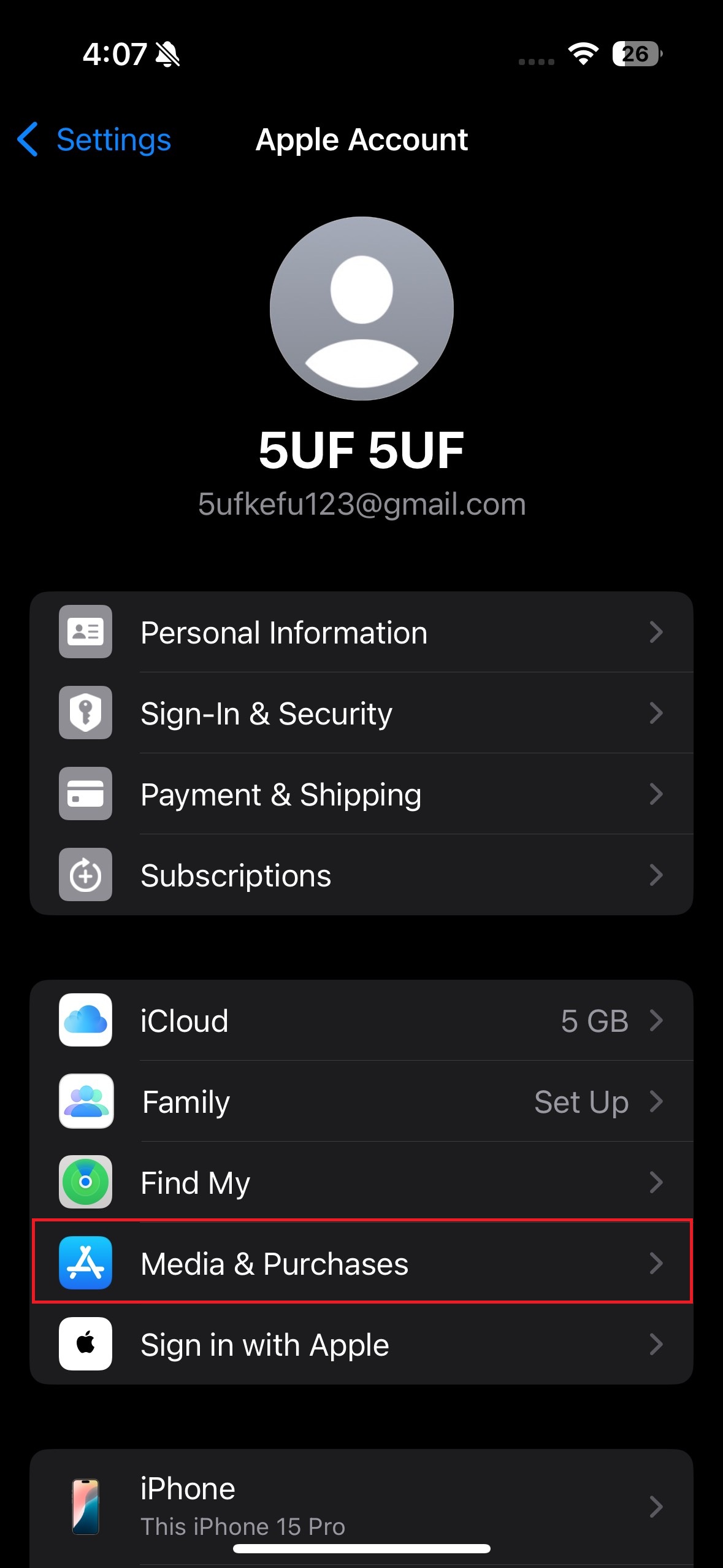
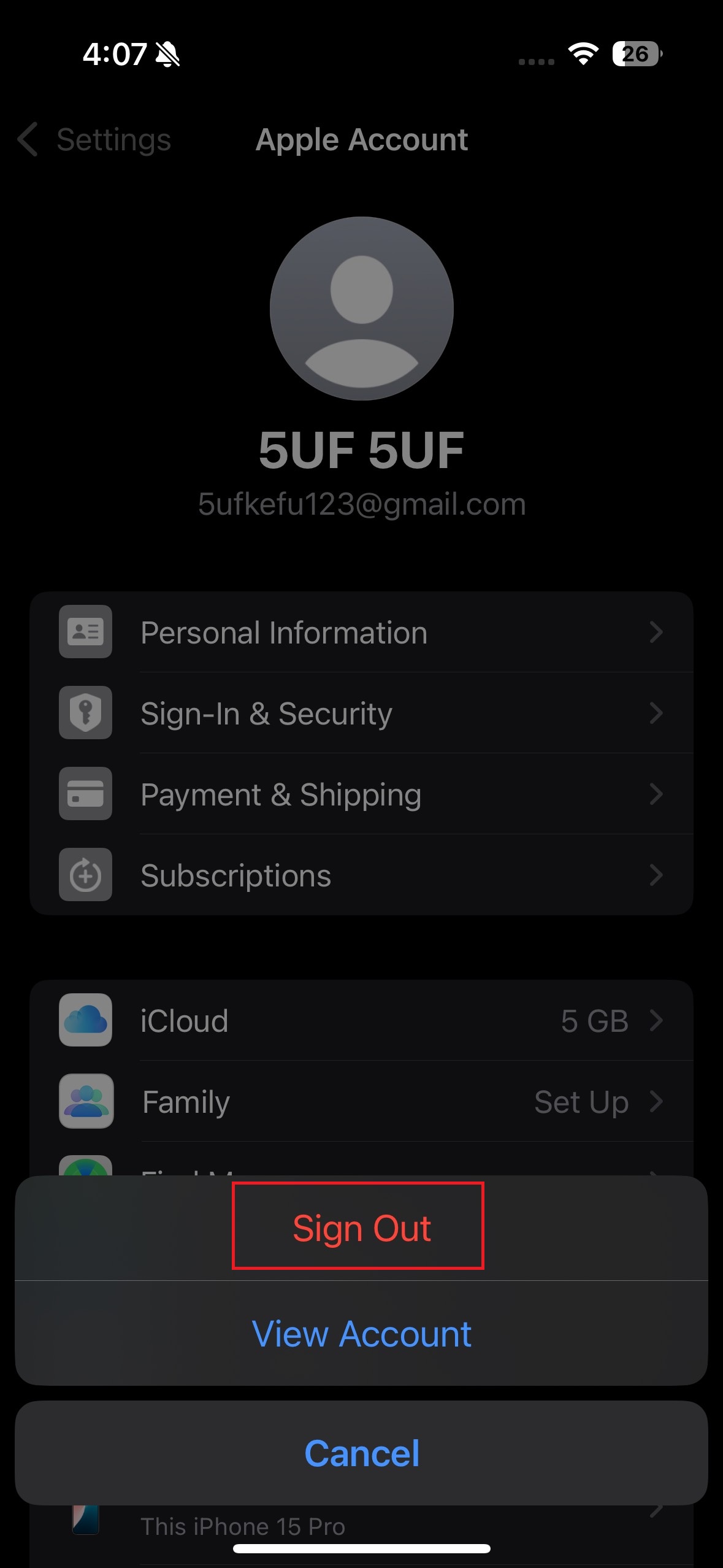
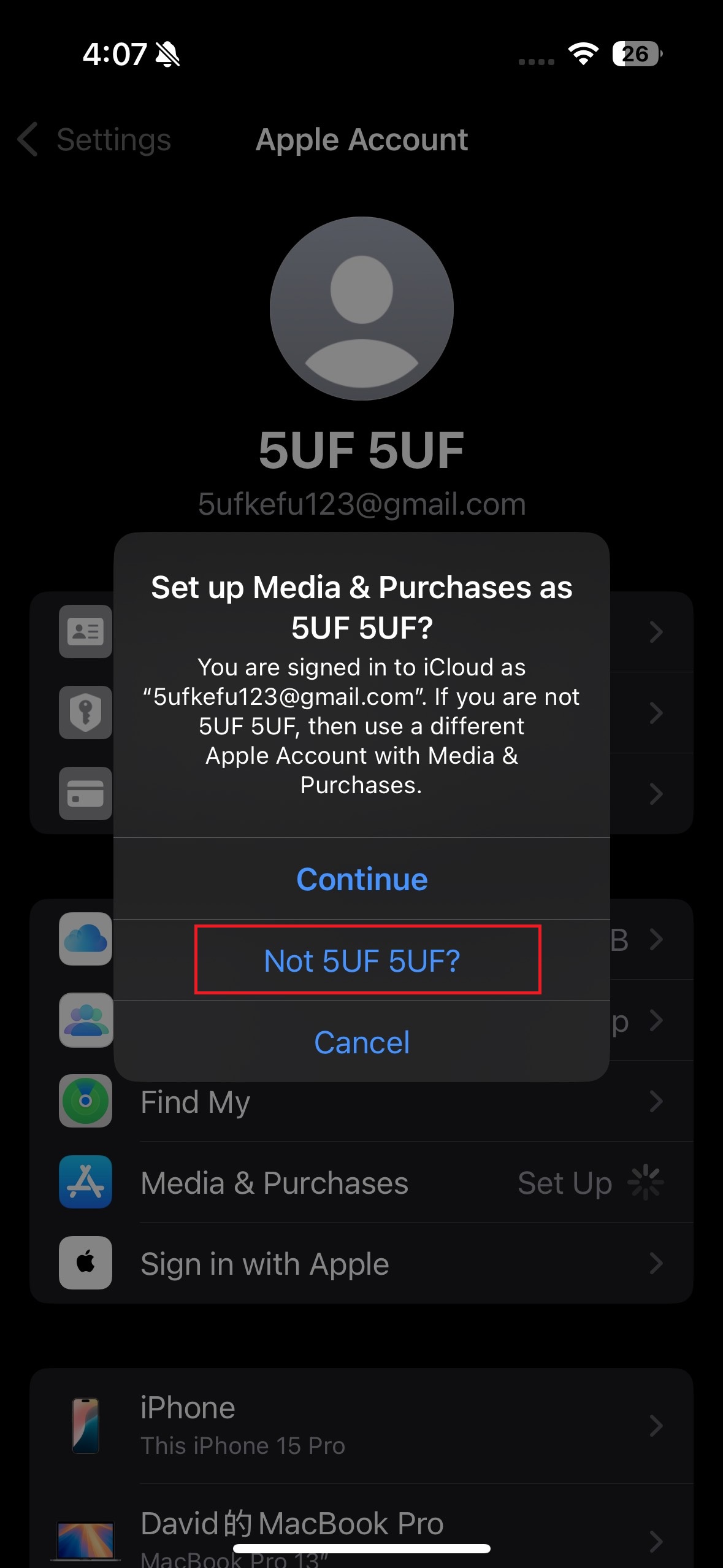
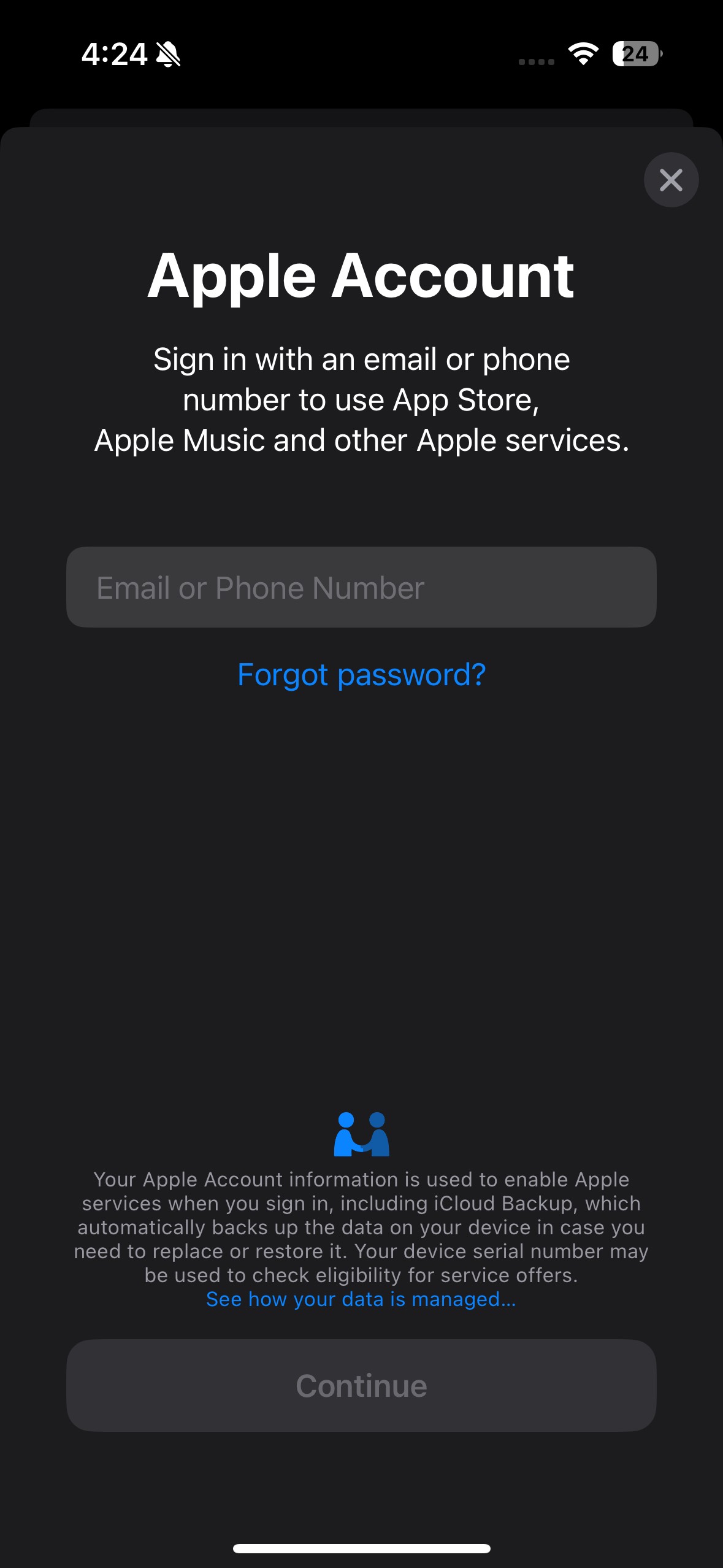
After signing out, return to the “Media & Purchases” section and sign in using the Apple ID you just created.
This will link your new account to the App Store and allow you to download apps from the selected region.
⚠️ A Few Notes:
-
Avoid switching Apple ID regions too often — it may affect app updates and subscriptions.
-
Don't use iCloud syncing with multiple Apple IDs on the same device.
-
If “None” isn’t showing, check that you’re on a Hong Kong (or similar) exit IP first (e.g. connect via a Hong Kong VPN). Prefer a desktop browser to create the account on account.apple.com, then sign in on your iPhone.
Frequently Asked Questions
No, logging out only affects store-related services. Your personal data and iCloud services remain safe as long as you're still signed in to iCloud.
Photos
Contacts
Messages (iMessage)
FaceTime
iCloud Drive
Find My iPhone
App Store & iTunes Store access
Apple Music, if subscribed under that Apple ID
Apple TV+, Apple Arcade, and other subscriptions tied to that ID
Note: When updating installed apps, iOS uses the Apple ID that originally downloaded (or acquired) each app, including free titles, which still count as a purchase record. This is separate from which Apple ID is currently signed in under Media & Purchases for new App Store activity, so updates are generally unaffected.
✅ Apple TV+ and full TV app content
✅ Restricted apps (YouTube, Telegram, WhatsApp, etc.)
✅ Apple Arcade, Apple News, full Apple Music catalog
✅ More payment options (PayPal, HK gift cards)
✅ App Store in English & Traditional Chinese
1. Will logging out of my Apple ID under Media & Purchases affect my device?
✅ Not Affected (if still signed into iCloud):
❌ Affected:
Switching from a Mainland China to Hong Kong Apple ID (Media & Purchases only) unlocks:
2. If my phone number has already been linked to another Apple account, can I still use the same phone number to create another account?
Answer: Yes, you can still use the same phone number to create or verify another Apple ID. However, the number can only be associated with iMessage and FaceTime for one Apple ID at a time. You may receive a prompt to verify which Apple ID you want the number to be used with for messaging and FaceTime.
When creating a new Apple ID, keep in mind that you must use an email address that has not been previously linked to any Apple ID. Each Apple ID requires a unique email, and the same email cannot be used to create multiple accounts.
3. What to do when you want to download apps that are only available in mainland China?
Answer: You can simply choose to sign out from the Media & Purchases account and log back into it using your mainland China Apple ID. Since both accounts are yours to manage, you can switch between them as needed to access region-specific apps.
How to fix the missing VCRUNTIME140_1.dll error (for 5UF VPN)
If 5UF VPN reports VCRUNTIME140_1.dll is missing, install the official Microsoft Visual C++ Redistributable below. Do not download DLL files from unofficial sites.
❗️Encountering This Error? Follow These Steps to Fix It
If you see the error message below, don’t worry. Simply follow the steps provided to resolve the issue quickly and easily.
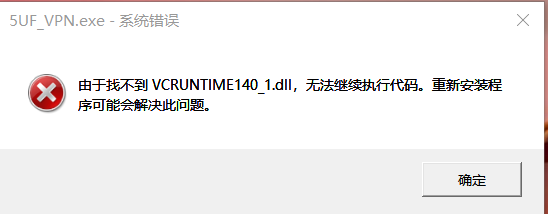
✅ Step 1: Go to the Official Microsoft Download Page
? Visit this official link:
? https://learn.microsoft.com/zh-cn/cpp/windows/latest-supported-vc-redist?view=msvc-170
This page contains the latest supported Visual C++ Redistributable installers.
✅ Step 2: Download the Correct File for Your Device
Scroll down to the section:
“Visual C++ Redistributable v14"
Then download the version(s) based on your system:
| Your Device Type | File to Download | Description |
|---|---|---|
| ?️ 64-bit Windows | vc_redist.x64.exe | For most modern systems; includes x64 and ARM64 binaries |
| ? 32-bit Windows | vc_redist.x86.exe | Needed for older systems or some 32-bit apps |
✅ Tip: If you're not sure, install both files to ensure full compatibility.
✅ Step 3: Install the Redistributables
-
Run each.exefile you downloaded
-
Follow the installation prompts
-
Restart your computer once finished
✅ Step 4: Launch 5UF VPN Again
After restarting:
-
Double-click to launch the 5UF VPN client
-
The app should now start normally without any DLL errors
❌ Important Warning
Do not download DLL files from third-party websites — they may contain malware or be outdated.
Always use the official Microsoft source linked above.
Discover one of our latest client features — instantly test your internet speed and seamlessly explore IP addresses from around the world.
Check Your Wi-Fi Speed with Ease
With our app, you can instantly monitor your personal Wi-Fi speed. On the right side of the screen, you’ll see real-time performance indicators showing how your connection performs across various locations worldwide.
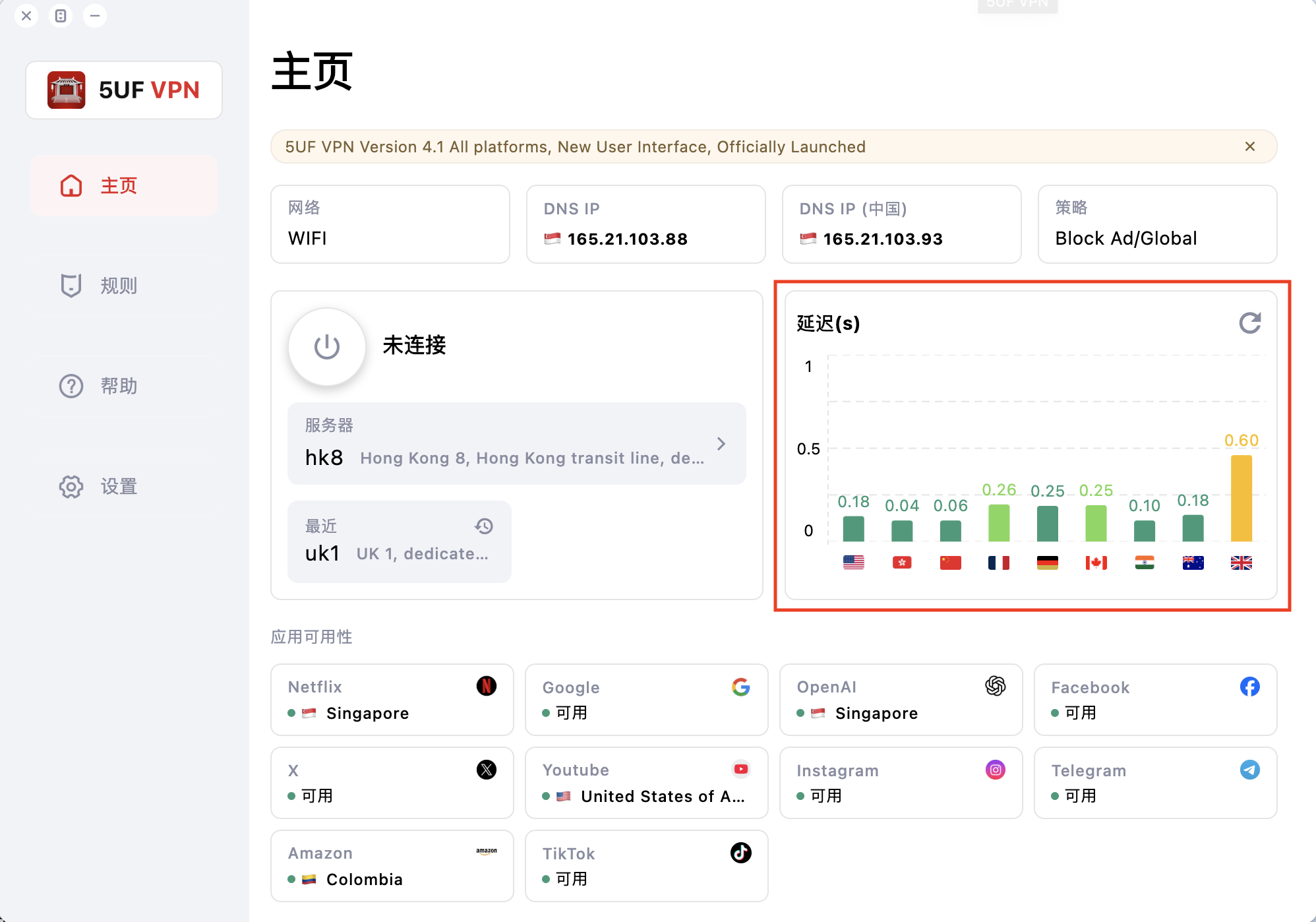
-
Before VPN Connection:
If the indicators appear mostly in red or yellow, this means your base internet connection is slow. In such cases, connecting to the VPN will not increase your speed—it will reflect the limitations of your current network.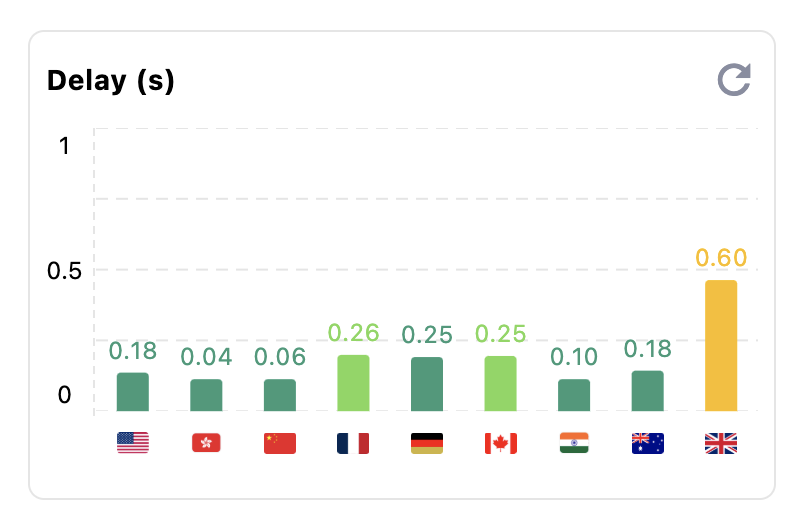
-
After VPN Connection:
Click on the bar graph to view your IP address and track how it changes as you connect to different VPN locations. This allows you to quickly identify whether any issues are related to your ISP or the VPN connection itself.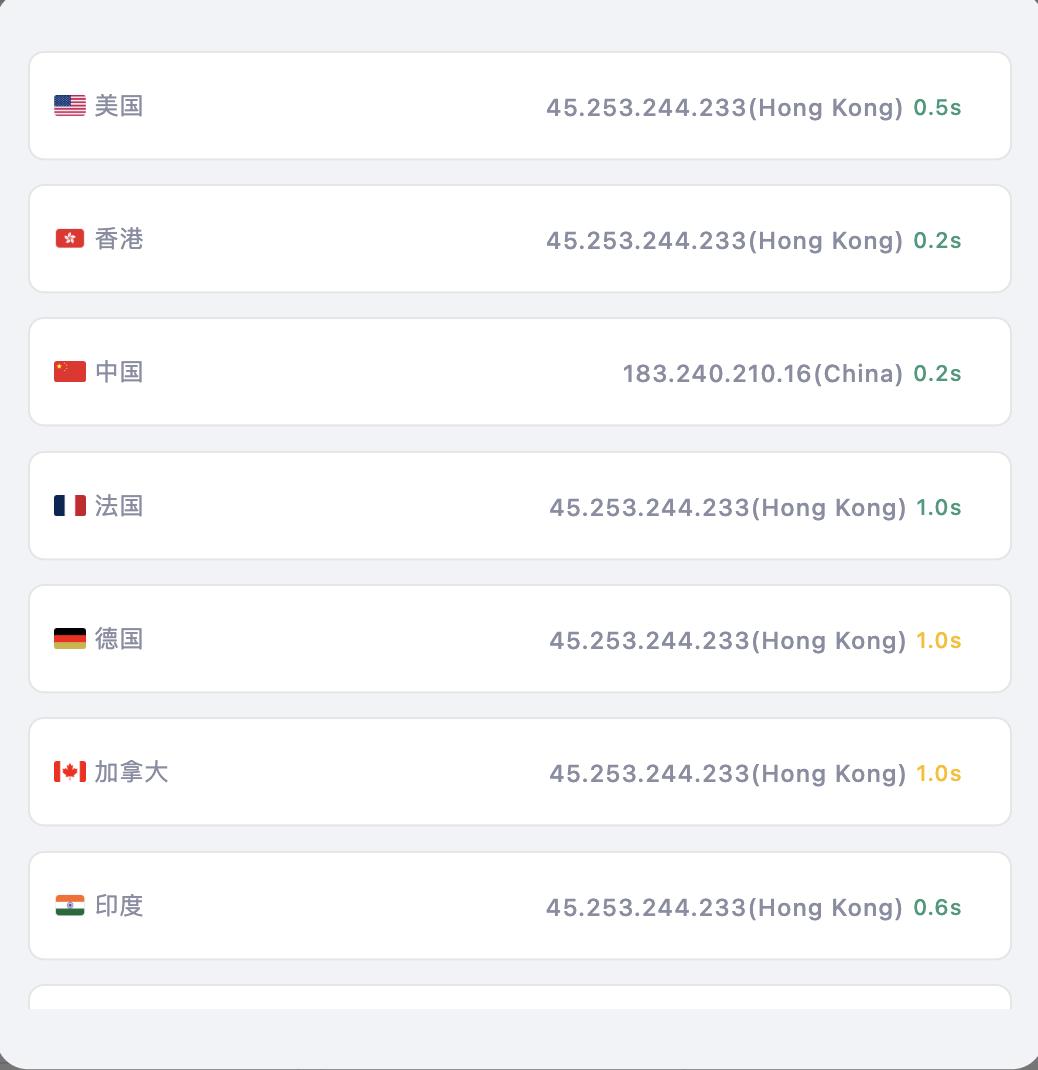
-
Refresh Any Location:
Simply tap on a location to refresh its status and get updated performance data.
How to add 5UF to Control Center (iOS – Edit)
Adding 5UF to Control Center (iOS – Edit)
The following procedure outlines how to add the 5UF application to your Control Center, enabling immediate VPN activation directly from the system interface.
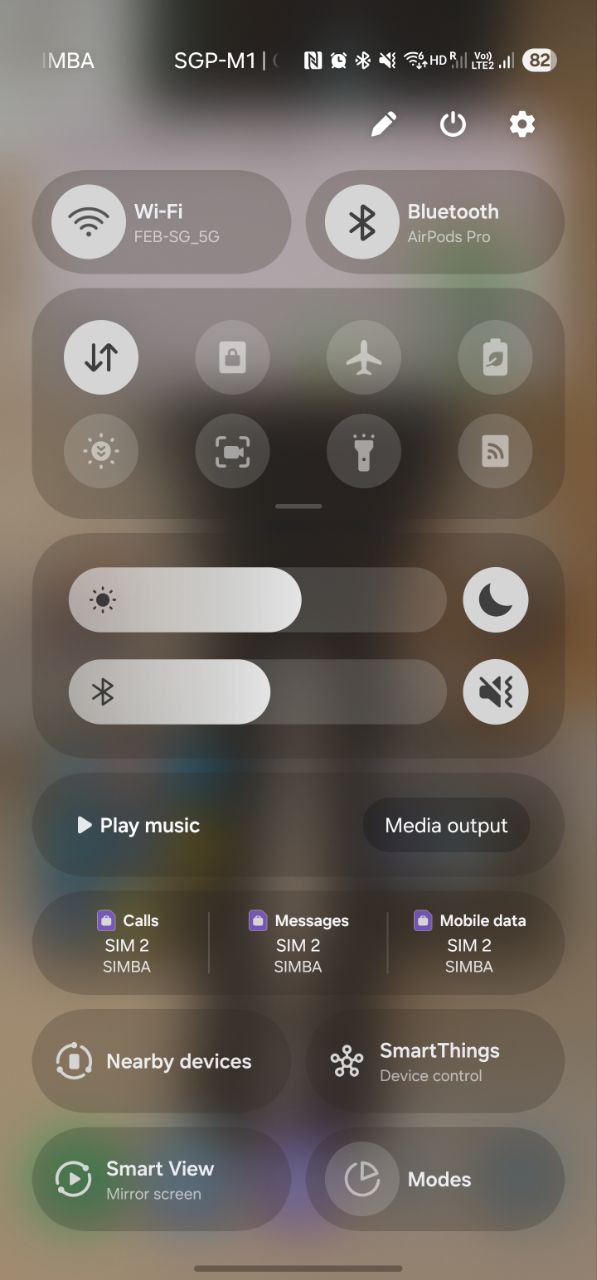
Step 1 — Access the Control Panel
Swipe downward from the top-right corner of the display to reveal the Control Center.
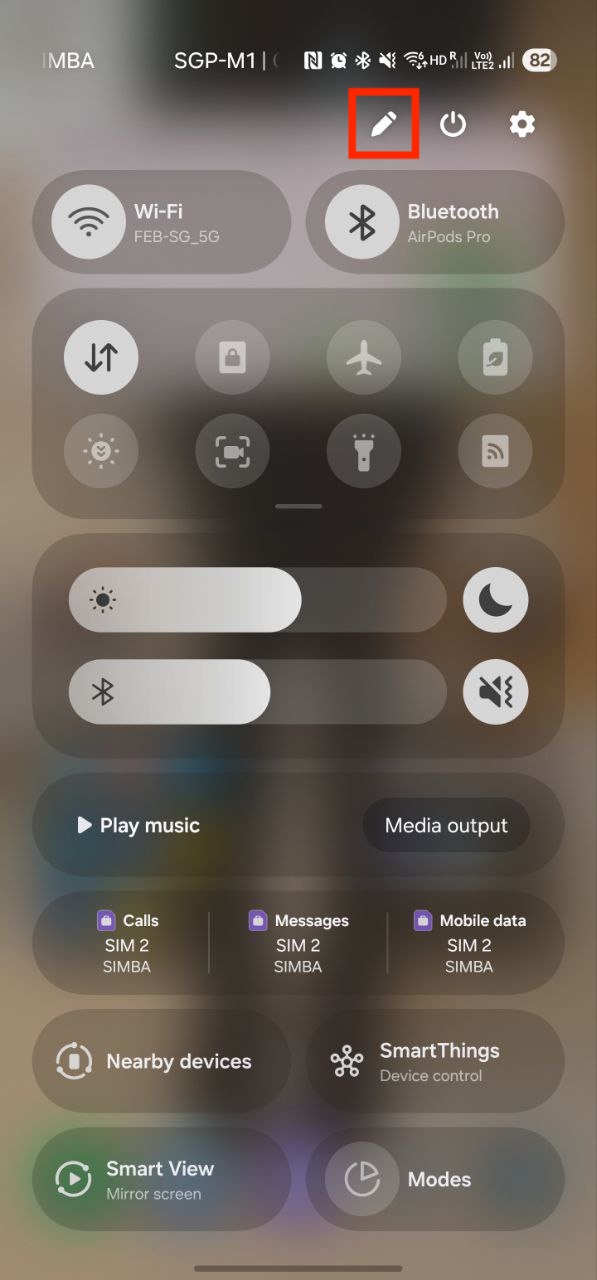
Step 2 — Enter Edit Mode
Click the edit button on the top right corner of the screen to enter edit mode.
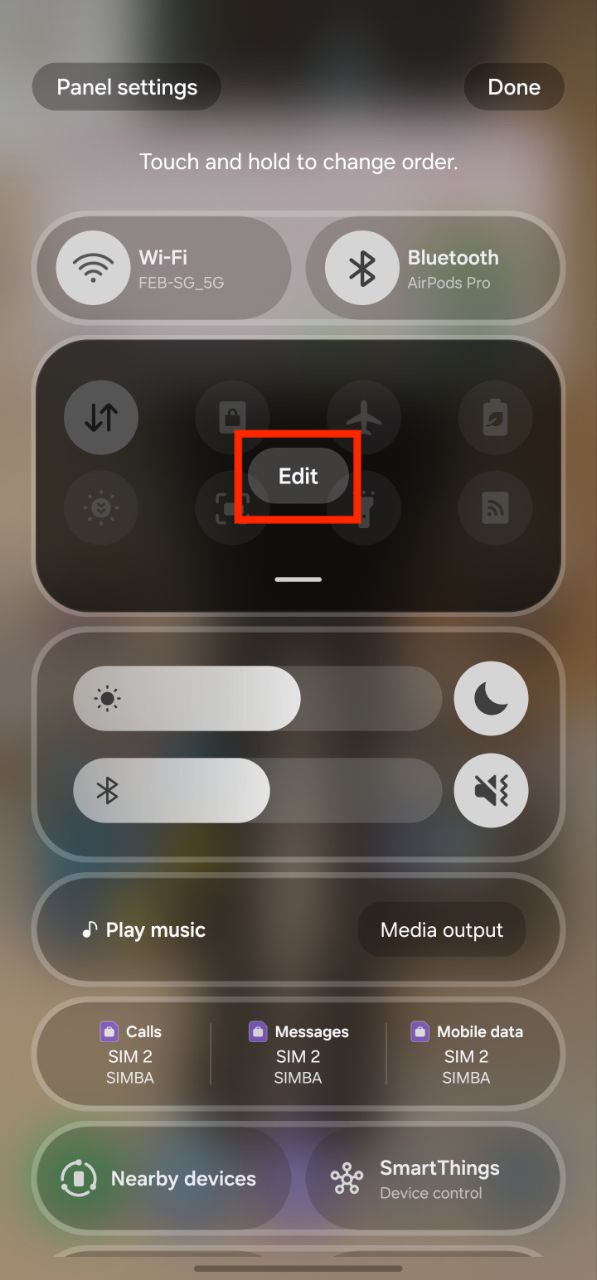
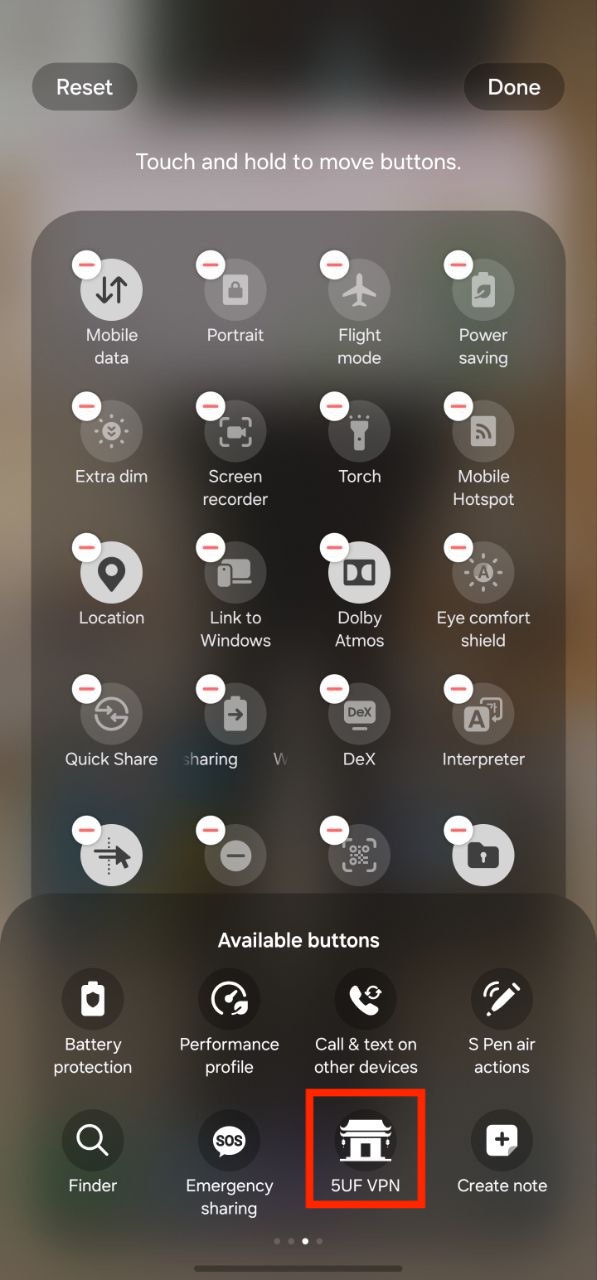
Step 3 — Add the 5UF Control
Select the 5UF application from the available buttons at the bottom of the screen to add it to the control panel.
Completion
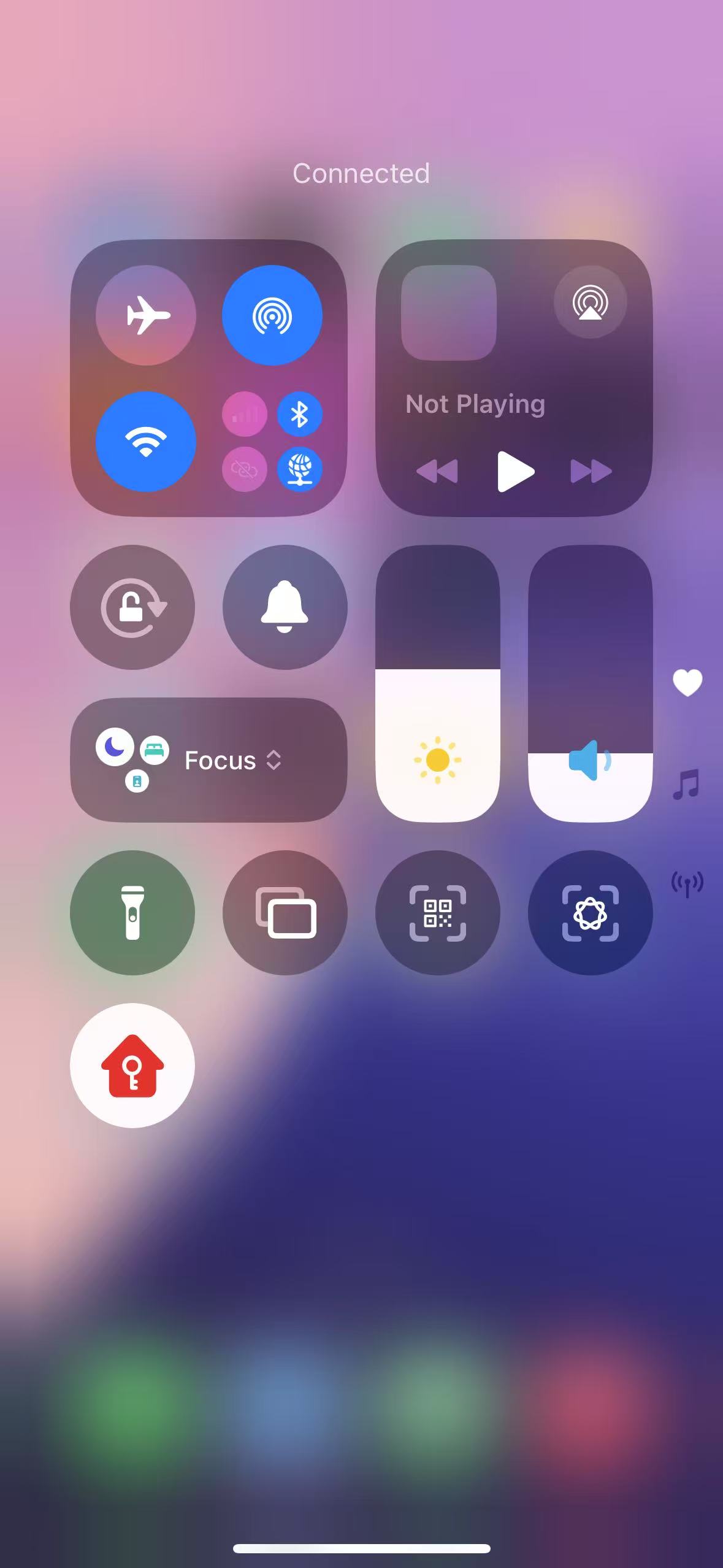
Once the control has been added, the 5UF VPN can be activated instantly by tapping the 5UF icon within the control panel.
How to add 5UF to Control Center (iOS – Add Control)
Adding 5UF to Control Center (iOS – Add Control)
The following procedure outlines how to add the 5UF application to your Control Center, enabling immediate VPN activation directly from the system interface.
Step 1 — Access the Control Panel
Swipe downward from the top-right corner of the display to reveal the Control Center.
Step 2 — Enter Edit Mode
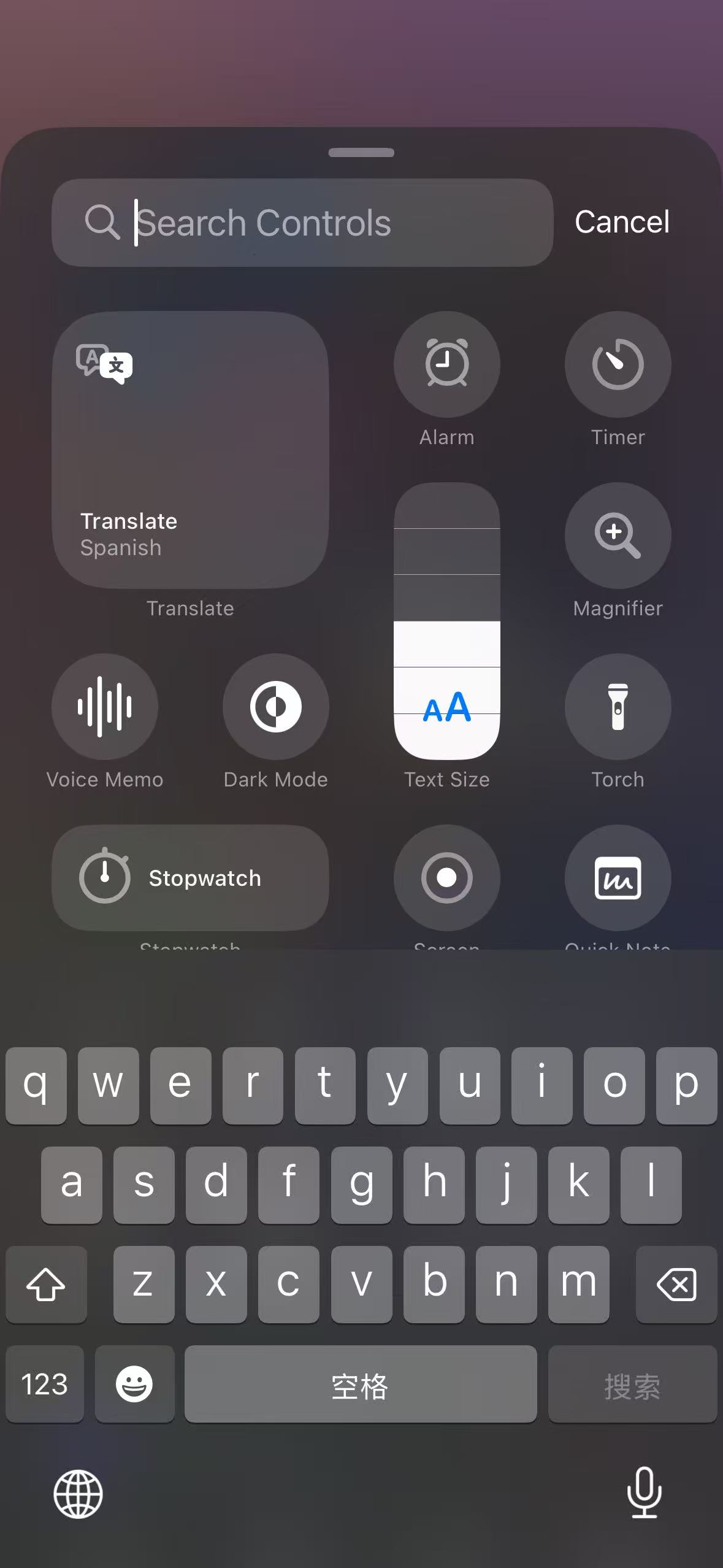
Press and hold any unoccupied area within the control panel, then select “Add a Control” from the options displayed at the bottom of the screen.

Step 3 — Add the 5UF Control
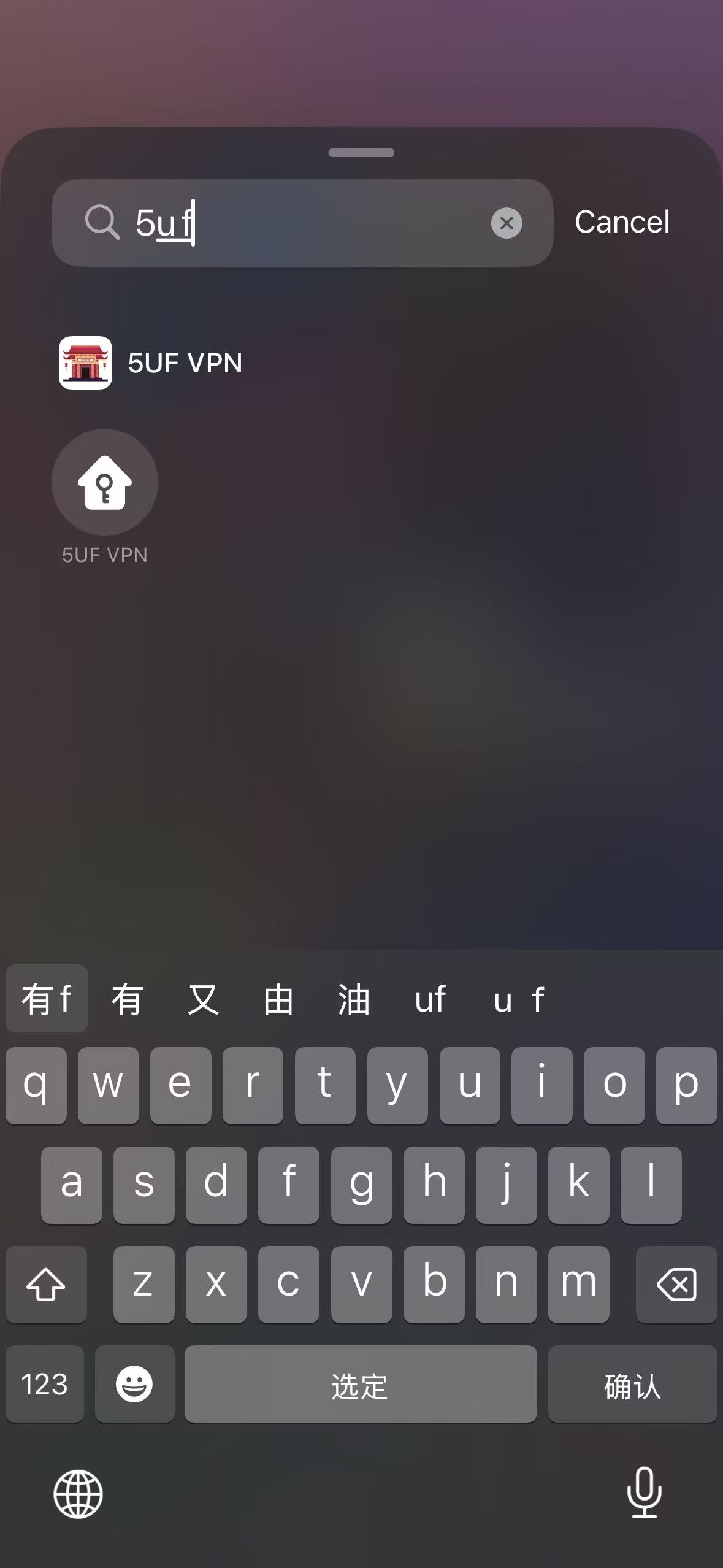
In the search field located at the top of the interface, type “5UF”.
Select the 5UF application from the search results to add it to the control panel.
Completion
Once the control has been added, the 5UF VPN can be activated instantly by tapping the 5UF icon within the control panel.
How to start VPN automatically after login
If you want VPN to open automatically after you sign in to your computer, use the system's built-in startup settings.
Recommendation: use the latest 5UF VPN app together with the operating system's auto-start feature. This is more stable than older client-based solutions.
Windows:
- Add the 5UF app to your startup items.
- For more reliable startup behavior, run it with administrator permission if needed.
macOS:
- Add the 5UF app to Login Items in System Settings.
- This allows the app to start automatically after you sign in.
If you also want it to connect automatically after launch, make sure the related in-app option is enabled.
How to open 5UF VPN automatically at login (Windows)
Windows Setup Instructions for 5UF VPN Auto-Launch
Follow the steps below to configure 5UF VPN to start automatically when you log into your Windows account:
Step 1: Open the Run Dialog
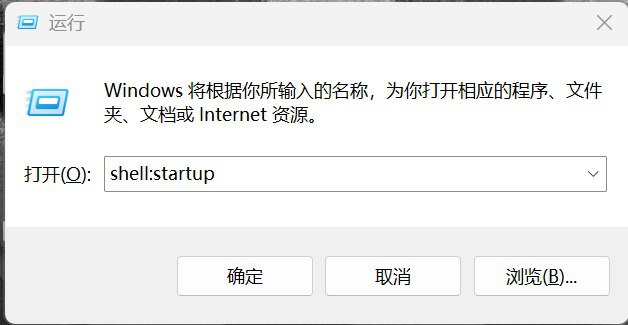
Press the Windows + R keys simultaneously to open the Run dialog box.
Step 2: Access the Startup Folder
Type the following command into the Run box and press Enter:
shell:startup
This will open the Startup folder where programs that launch at login are stored.
Step 3: Add 5UF VPN to Startup
Locate the 5UF VPN application executable or its shortcut on your computer.
Drag and drop the 5UF VPN shortcut into the Startup folder window. This action ensures the app will automatically launch every time you sign in.
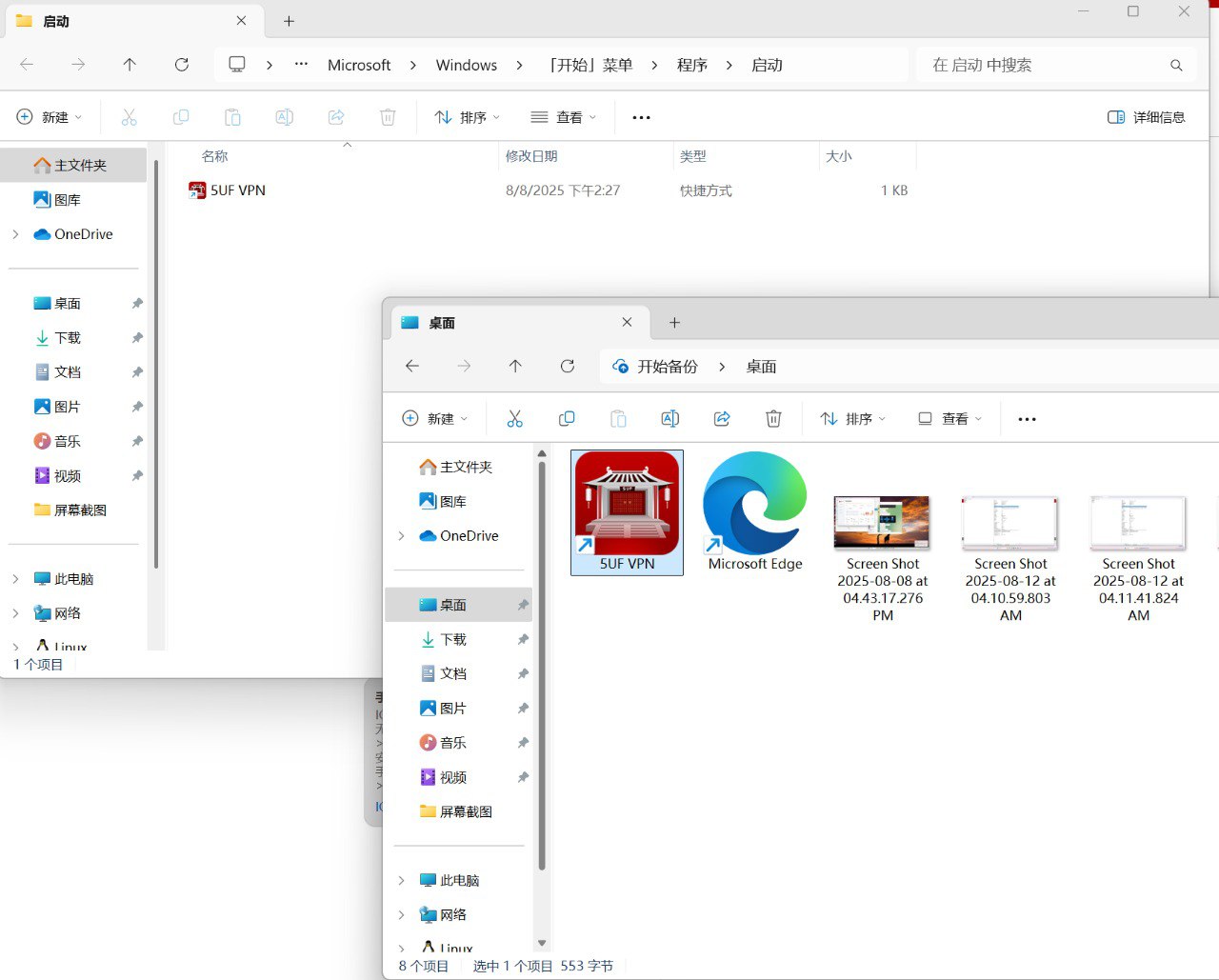
Additional Tips:
-
If you do not have a shortcut, right-click the 5UF VPN.exe file and select Create shortcut before moving it to the Startup folder.
-
To remove the app from startup, simply delete the shortcut from this folder.
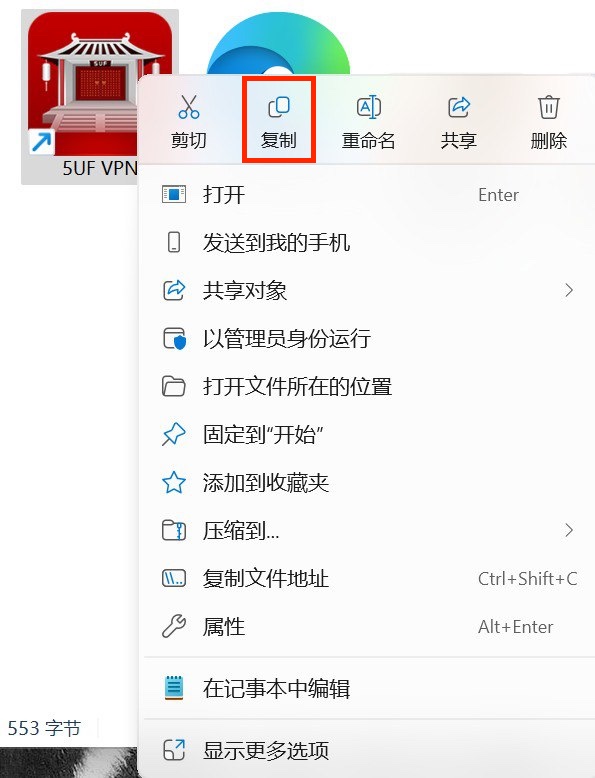
How to open 5UF VPN automatically at login (macOS)
Mac Setup Instructions
Method 1: Using the Dock
-
Launch 5UF VPN.
-
In the Dock, right-click (or Control-click) the 5UF VPN icon.
-
Hover over Options and select Open at Login.
Launch 5UF VPN.
In the Dock, right-click (or Control-click) the 5UF VPN icon.
Hover over Options and select Open at Login.
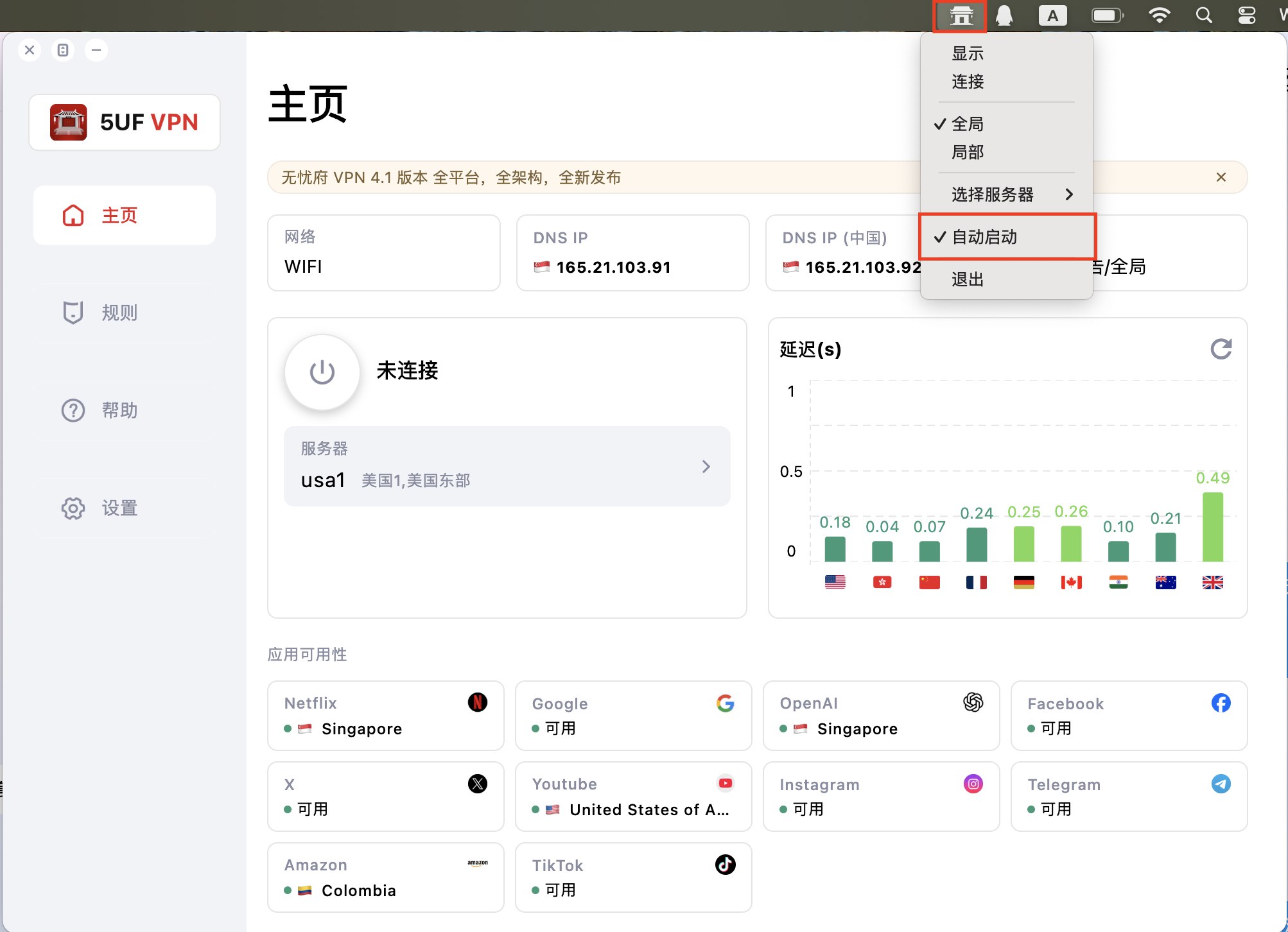
Method 2: Using System Settings
-
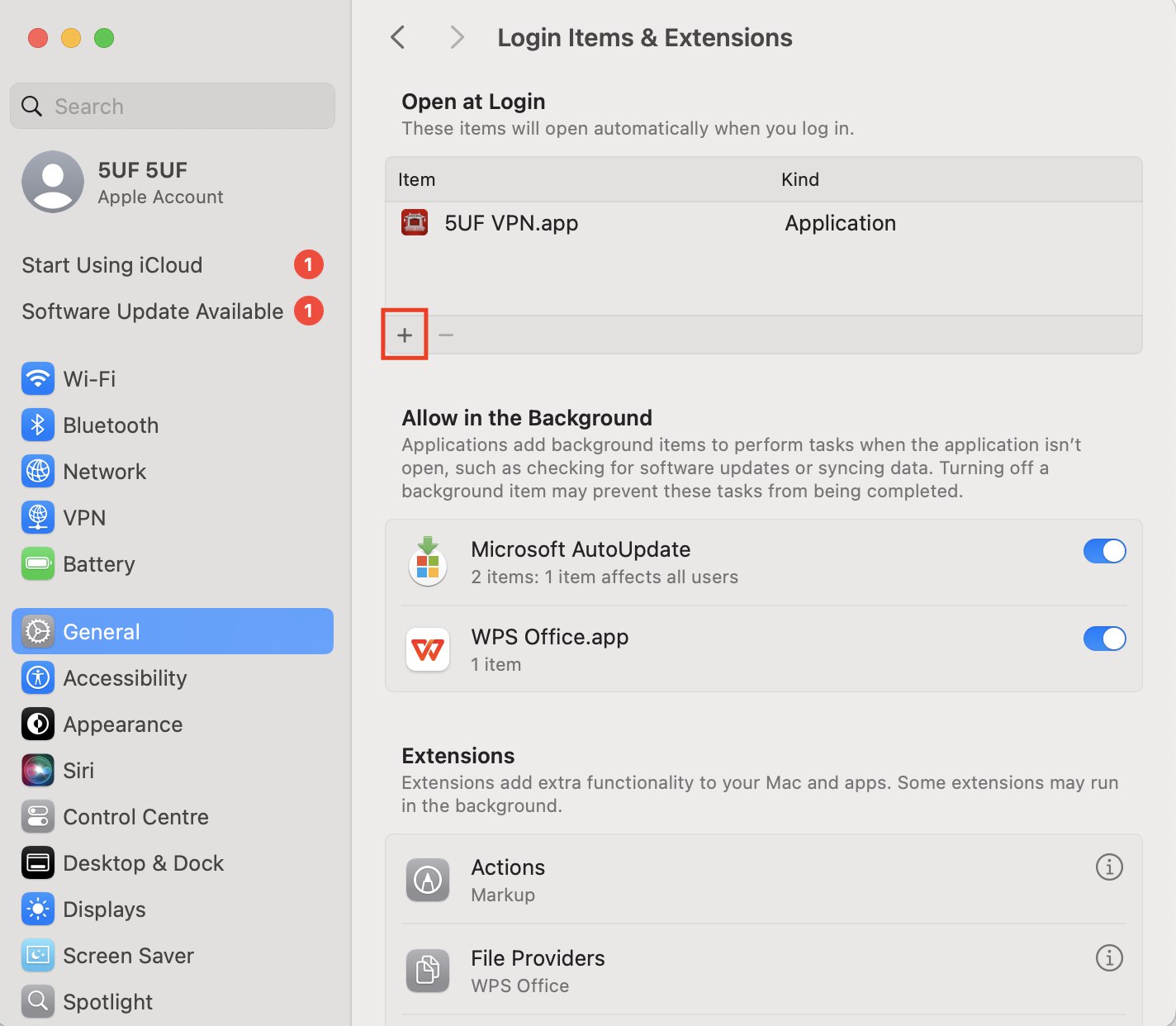
Open System Settings → General → Login Items & Extensions.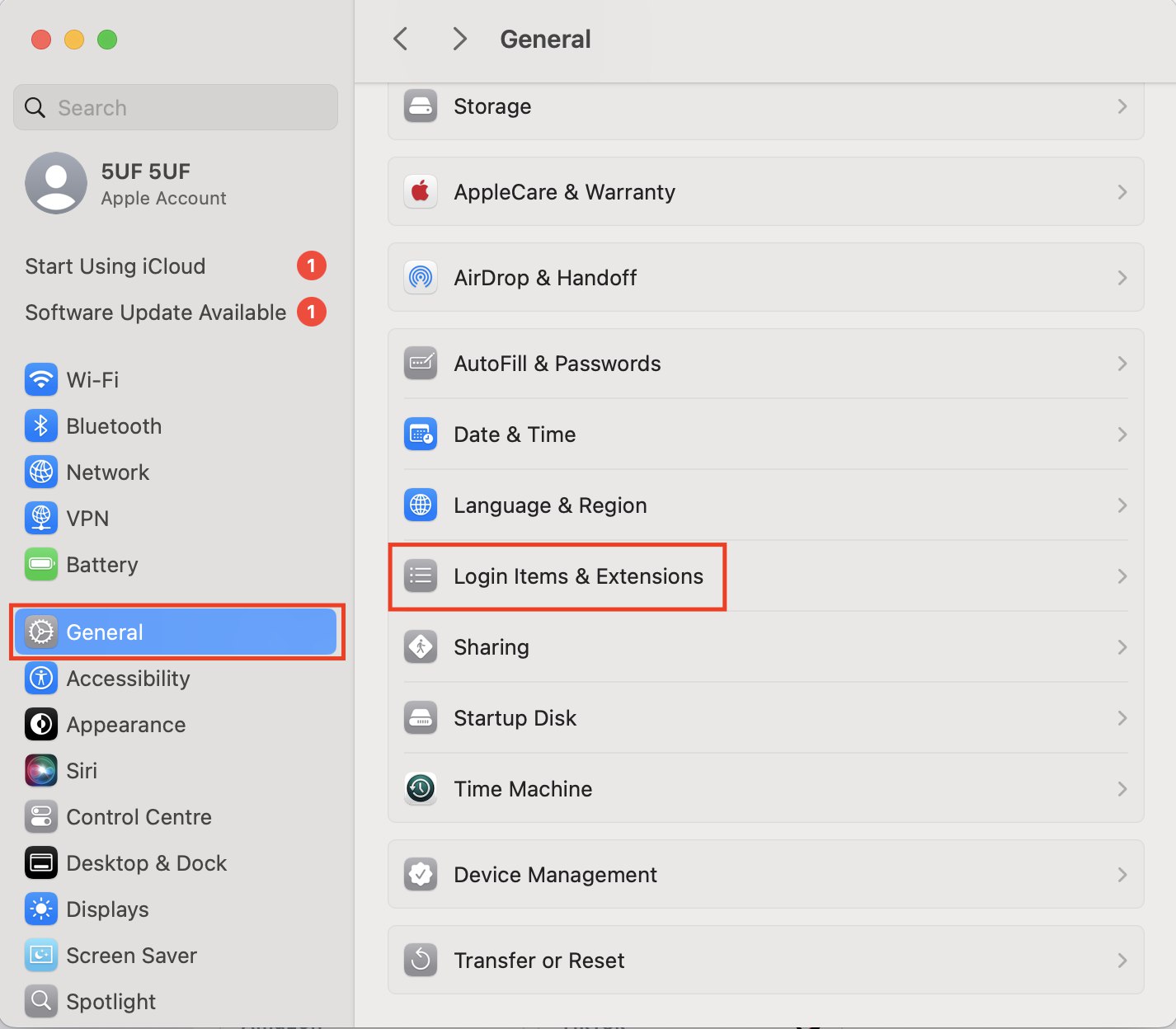
-
Click the + icon.
-
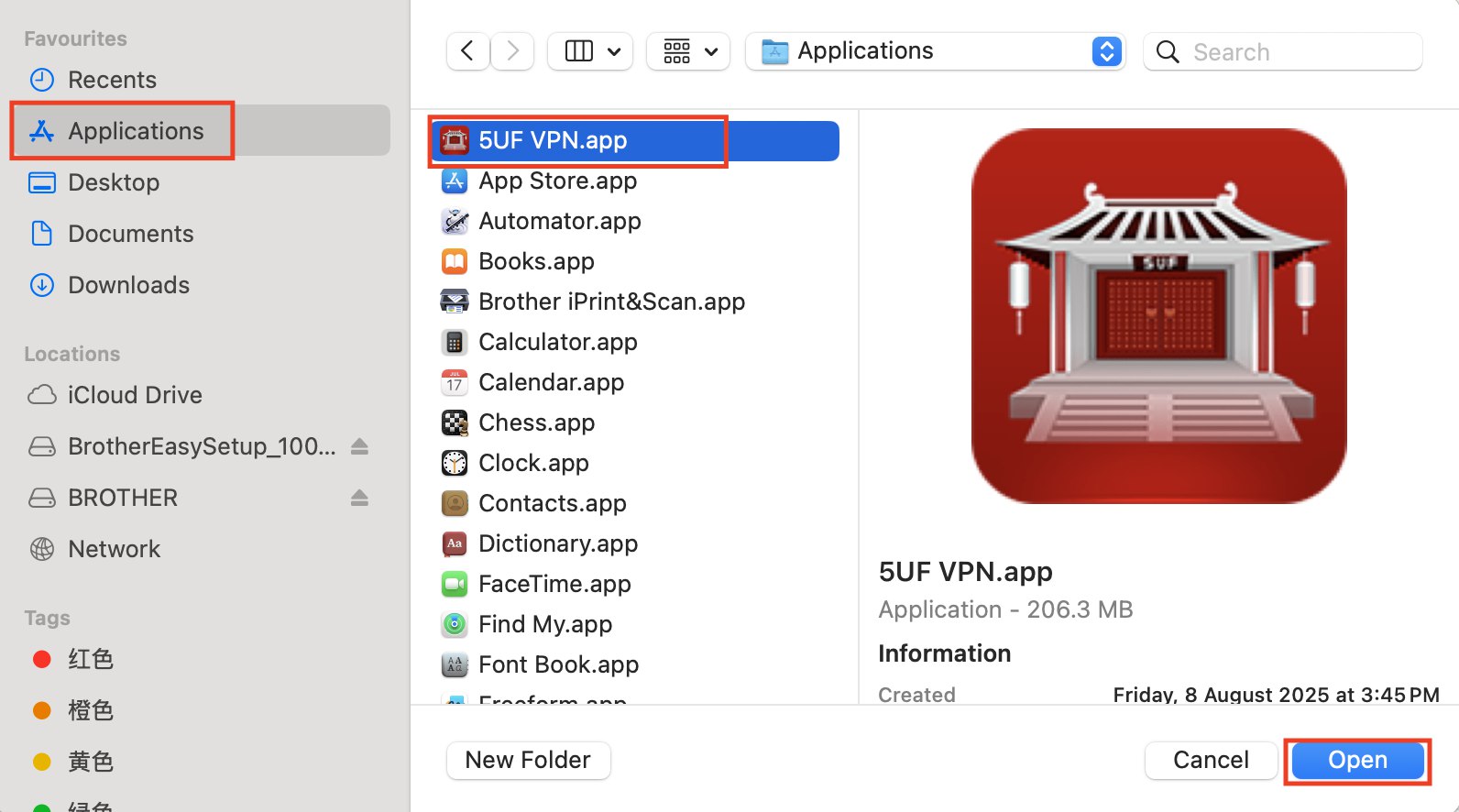
Select Applications.
-
Locate and select 5UF VPN.app.
-
Click Open to add it to your startup applications.
Open System Settings → General → Login Items & Extensions.
Click the + icon.
Select Applications.
Locate and select 5UF VPN.app.
Click Open to add it to your startup applications.